Quick Answer
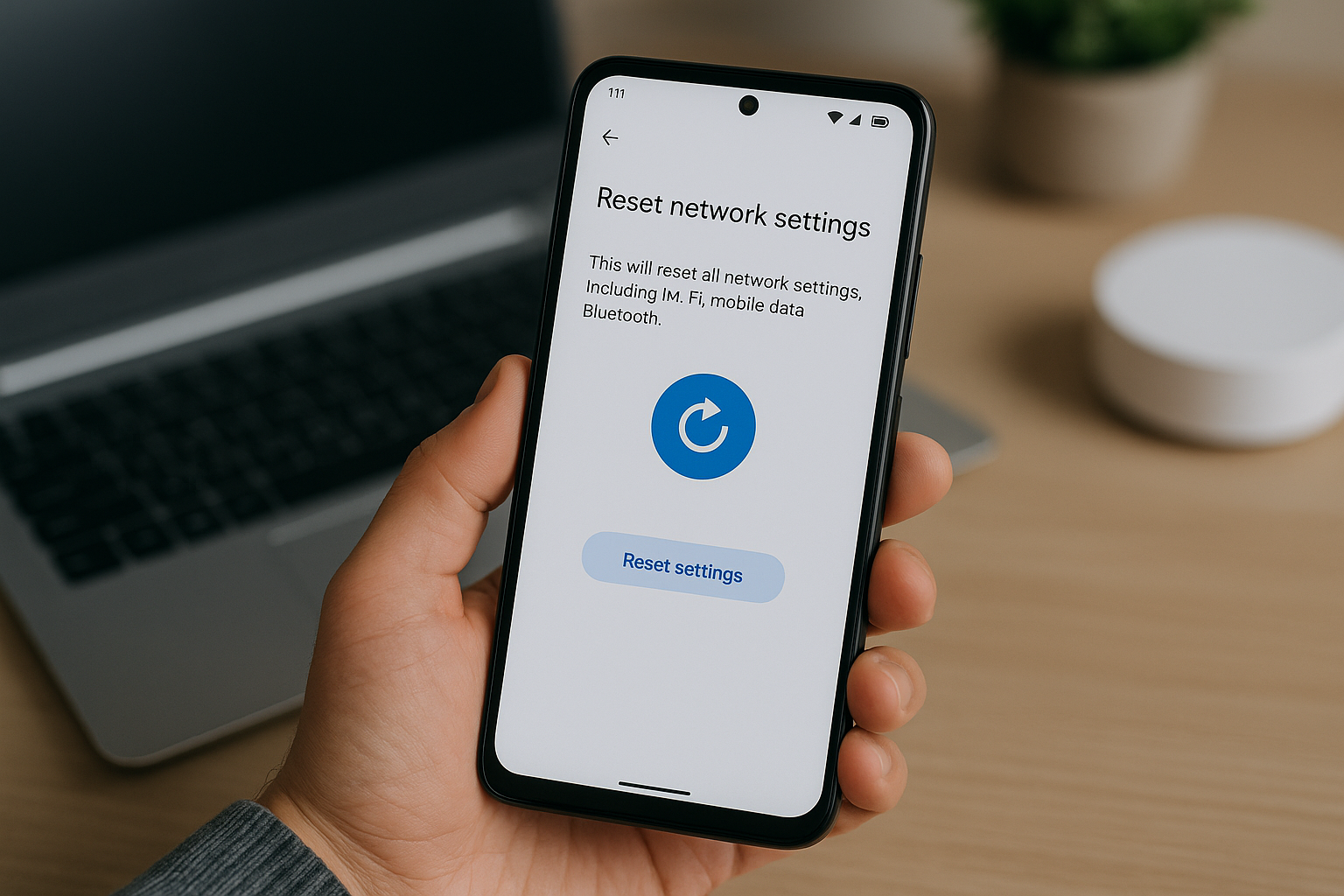
On most Android phones, go to Settings > System > Reset options (or General management on Samsung) and choose Reset Wi‑Fi, mobile & Bluetooth or Reset network settings. This removes saved Wi‑Fi networks and passwords, paired Bluetooth devices, and cellular settings (including APNs), so you’ll need to reconnect and re‑pair afterward. Your photos, apps, and files are not deleted.
Why You Might Reset Network Settings
A network reset clears corrupt or conflicting configurations that cause connectivity errors. It’s worth trying if you notice:
- Wi‑Fi won’t connect, keeps dropping, or shows “Connected, no internet.”
- Bluetooth pairing fails, audio stutters, or devices won’t reconnect.
- Mobile data, MMS, or calls/SMS failing on a known‑good carrier.
- Hotspot or tethering stops working after a system update.
- Private DNS, VPN, or app network permissions blocking internet access.
What a Network Reset Actually Does
Resetting network settings returns radio and network profiles to factory defaults. Expect the following to be cleared or reset:
- All saved Wi‑Fi networks and passwords (including per‑network options like MAC randomization).
- All paired Bluetooth devices and related preferences (e.g., HD audio codecs such as AAC/LDAC).
- Mobile network settings, including APN configurations and preferred network types.
- Tethering/Hotspot settings and Private DNS preferences.
- On many devices: saved VPN profiles and user‑installed network certificates are removed.
What it does not change:
- Your photos, videos, apps, documents, and most app data.
- Your Google account(s) and non‑network device settings.
- Your SIM or eSIM plan—the subscription and number remain provisioned.
Note: Exact behavior varies by brand and Android version. If you use a corporate VPN or Wi‑Fi certificate, confirm whether your device will remove it and make sure you can re‑enroll.
Before You Reset: Quick Fixes to Try
You might not need a full reset. Try these first:
- Toggle Airplane mode on for 10 seconds, then off.
- Restart your phone and, for Wi‑Fi issues, power‑cycle your router or mesh.
- Forget and rejoin the affected Wi‑Fi network (Settings > Wi‑Fi > network > Forget).
- Unpair and re‑pair the Bluetooth accessory; ensure it’s in pairing mode and nearby.
- Reset APN to default (Settings > Network & Internet > Mobile network > Access Point Names > Reset to default).
- Temporarily disable Private DNS (Settings > Network & Internet > Private DNS > Off) to rule out DNS problems.
- Turn off any VPN or firewall app to see if it’s blocking traffic.
- Check your carrier for outages; verify your plan is active and reseat the SIM or eSIM if needed.
How to Reset Network Settings on Android
Menu names vary by brand, but the steps are similar. Have Wi‑Fi passwords handy and be ready to re‑pair Bluetooth devices afterward.
Google Pixel and most “stock” Android phones
- Open Settings.
- Tap System.
- Tap Reset options (sometimes Advanced > Reset options).
- Tap Reset Wi‑Fi, mobile & Bluetooth.
- Confirm with Reset settings and authenticate if prompted.
Samsung Galaxy (One UI)
- Open Settings.
- Tap General management.
- Tap Reset.
- Tap Reset network settings.
- Review the changes, then tap Reset settings and confirm.
Xiaomi, Redmi, POCO (MIUI)
Menu names depend on MIUI version. Try one of these paths:
- Settings > Connection & sharing > Reset Wi‑Fi, mobile networks, and Bluetooth.
- Or: Settings > Additional settings > Backup & reset > Network settings reset.
Choose the network reset option and confirm.
OnePlus (OxygenOS)
- Open Settings.
- Tap System.
- Tap Reset options.
- Tap Reset Wi‑Fi, mobile & Bluetooth, then confirm.
OPPO and realme (ColorOS/realme UI)
- ColorOS 12/realme UI 3.0 and newer: Settings > System settings > Back up and reset > Reset network settings.
- Older versions: Settings > Additional settings > Back up and reset > Reset network settings.
Motorola, Nokia, Sony, ASUS, and other near‑stock devices
- Open Settings.
- Tap System (or System & updates).
- Tap Reset options.
- Tap Reset Wi‑Fi, mobile & Bluetooth and confirm.
Huawei/Honor (EMUI/MagicUI)
- Open Settings.
- Tap System & updates.
- Tap Reset.
- Tap Reset network settings and confirm.
Common Menu Paths by Brand
| Brand/UI | Menu Path | Notes |
|---|---|---|
| Google Pixel / Android One | Settings > System > Reset options > Reset Wi‑Fi, mobile & Bluetooth | Also resets Private DNS and hotspot settings. |
| Samsung (One UI) | Settings > General management > Reset > Reset network settings | May remove VPN profiles; does not erase eSIM. |
| Xiaomi/Redmi/POCO (MIUI) | Settings > Connection & sharing > Reset Wi‑Fi, mobile networks, and Bluetooth | On older MIUI: Additional settings > Backup & reset > Network settings reset. |
| OnePlus (OxygenOS) | Settings > System > Reset options > Reset Wi‑Fi, mobile & Bluetooth | Steps closely match Pixel devices. |
| OPPO/realme (ColorOS/realme UI) | Settings > System settings > Back up and reset > Reset network settings | Older builds use Additional settings instead of System settings. |
| Huawei/Honor (EMUI/MagicUI) | Settings > System & updates > Reset > Reset network settings | Carrier APNs are restored to defaults after reboot. |
| Motorola/Nokia/Sony | Settings > System > Reset options > Reset Wi‑Fi, mobile & Bluetooth | Near‑stock Android; follows the Pixel path. |
After the Reset: Set Up Your Connections Again
When the reset finishes, radios return to defaults. Reconnect step by step:
- Wi‑Fi: Open Settings > Wi‑Fi, select your network, and enter the password. For hidden SSIDs, add them manually.
- Mobile data: Wait a minute for carrier provisioning. If data doesn’t return, open Access Point Names and tap Reset to default or add the APN from your carrier’s support page.
- Bluetooth: Re‑pair headphones, watches, car systems, and controllers. Put each accessory in pairing mode before connecting in Bluetooth settings.
- Private DNS: If you use a custom provider (e.g., dns.google or 1dot1dot1dot1.cloudflare-dns.com), re‑enter it under Settings > Network & Internet > Private DNS.
- VPN and certificates: Reinstall your VPN app or import the .ovpn profile and any required user certificates.
- Hotspot/tethering: Reconfigure your hotspot name (SSID), password, and band if you previously changed them.
- Wi‑Fi Calling and VoLTE: Re‑enable these in Phone or Network settings if your carrier supports them.
- Android Auto and cars: Delete the old phone profile in your car’s head unit, then set up Android Auto again to avoid stale mappings.
Troubleshooting If Problems Remain
If a network reset didn’t fix the issue, narrow it down:
- Only one Wi‑Fi network fails: Update router firmware, try a different channel, or switch between 2.4 GHz and 5/6 GHz. Toggle MAC randomization per network for compatibility.
- SIM/eSIM issues: Test your SIM in another phone, or test another SIM in your phone. If neither works, ask your carrier to reprovision the line or eSIM QR code.
- No networks found: Could indicate a Wi‑Fi/Bluetooth chip or antenna fault—consider a service center diagnosis.
- MMS fails but data works: Ensure the APN includes MMS entries and your messaging app has Background data enabled. Some carriers require a specific MMSC and proxy.
- Enterprise policies: Device Policy/MDM may enforce VPN or Private DNS. Check with your IT admin; you may not be able to change these settings.
- Battery Saver/Data Saver: These can restrict radios and background data. Temporarily turn them off and test.
- System updates: Install pending Android and carrier updates, then reboot. Modem firmware updates often resolve connectivity bugs.
Tips to Preserve or Restore Your Wi‑Fi Passwords
Saved networks are erased by a network reset, but you can keep or recover them:
- Google backup: Settings > Google > Backup (or System > Backup) > Back up to Google One. Wi‑Fi passwords tied to your account can restore on sign‑in to a new or reset device.
- QR share: On Android 10+, share many Wi‑Fi networks via QR from the network’s details screen to another device.
- Router admin: If you can’t find a password, log in to your router’s admin page to view or change it.
When a Network Reset Won’t Help
Some problems lie beyond device settings:
- Carrier outages, account suspensions, or unpaid bills.
- Hardware damage from drops or liquid that affects antennas or the modem.
- Regional or IMEI blocks, or phones missing required LTE/5G bands for your carrier.
- App‑specific server outages unrelated to your device.
In these cases, test another device on the same network or contact your carrier or manufacturer support.
Frequently Asked Questions
Will resetting network settings delete my photos or apps?
No. A network reset only affects connectivity items such as Wi‑Fi, Bluetooth, and cellular configurations. Your photos, messages, apps, and files remain intact.
Does a network reset remove my eSIM or SIM plan?
No. Your SIM or eSIM subscription stays on the device. The reset can clear APN and network preferences, but it does not delete the eSIM profile itself.
Will my VPN profiles and certificates be erased?
On many devices, yes—VPN profiles and related user‑installed certificates are removed. If you rely on a work or personal VPN, keep the credentials or configuration files handy to set it up again.
Mobile data still doesn’t work after the reset. What next?
Open Access Point Names and tap Reset to default. If data or MMS is still down, get the correct APN from your carrier and add it manually, then reboot. Also verify your account status and test the SIM in another phone.
How long does a network reset take, and will my phone restart?
The reset itself takes under a minute and usually doesn’t require a full reboot, though radios or the phone may restart automatically. Expect to spend a few minutes afterward rejoining Wi‑Fi and pairing Bluetooth accessories.
Can I back up or export my saved Wi‑Fi networks?
Yes. Enable Google backup so saved Wi‑Fi networks sync to your account. On Android 10 and later, you can also share many networks via a QR code from the Wi‑Fi details screen.
Is it safe to reset network settings regularly?
Yes. It’s a safe, non‑destructive troubleshooting step. Use it when you encounter persistent connectivity issues or after major system updates, but there’s no reason to do it routinely if everything works.