Quick Answer
If your Android phone says “Wi‑Fi connected” but there’s no internet, the problem is usually upstream of the phone: the router, DNS, or a captive (sign‑in) portal. Start by rebooting your phone and router, forgetting and rejoining the network, checking for a login page, and trying alternate DNS (1.1.1.1 or 8.8.8.8). If only your device is affected, look for VPN, proxy, Private DNS, MAC filtering, or corrupted network settings. If multiple devices fail, focus on the router or ISP.
What “Connected, No Internet” Actually Means
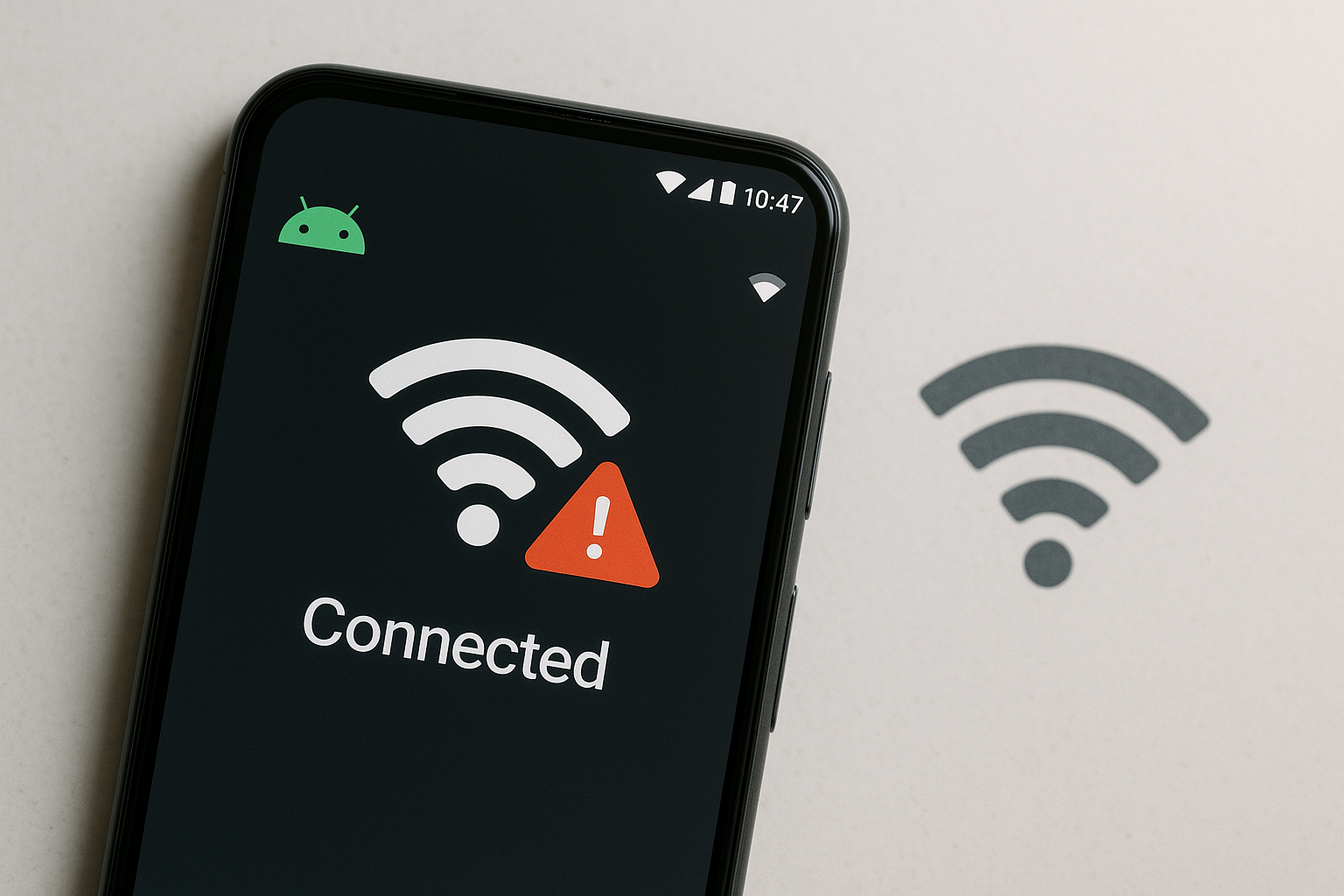
Android treats your Wi‑Fi link and internet access as separate checks. You can authenticate with the router (full bars, strong signal) while the phone can’t reach the wider web. That triggers an exclamation mark on the Wi‑Fi icon or messages like “No internet,” “Connected without internet,” or “No internet, secured.” Common causes include:
- DNS failures on the router or ISP
- Captive portals on public Wi‑Fi that require sign‑in
- Router DHCP or WAN outages
- Misconfigured VPN, proxy, or Private DNS
- Router access controls (MAC filtering, parental controls)
Start with Fast Checks
- Toggle airplane mode on, wait 10 seconds, then off. Also toggle Wi‑Fi off/on.
- Restart your phone and power‑cycle the router/modem: unplug for 30–60 seconds, plug back in, and wait 2–3 minutes.
- Test another device on the same Wi‑Fi. If that device also has no internet, the issue is the router or ISP.
- Forget and rejoin the Wi‑Fi:
- Settings > Network & internet > Internet > tap your Wi‑Fi > Forget. Reconnect with the password.
- Force the captive portal (public Wi‑Fi) to appear: open a browser and visit a non‑HTTPS site like neverssl.com to trigger the login page.
- Temporarily turn off mobile data to prevent automatic fallback and to force Wi‑Fi sign‑in if a portal is involved.
Confirm the Network Isn’t the Problem
Rule out a broader outage before changing phone settings:
- Check the router’s internet/WAN light and admin page (often at 192.168.0.1 or 192.168.1.1). If WAN shows disconnected or there’s no public IP, your ISP may be down.
- If your ISP’s DNS is flaky, devices will associate with Wi‑Fi but fail to load sites. Try alternate DNS on the router (Cloudflare 1.1.1.1 and 1.0.0.1, or Google 8.8.8.8 and 8.8.4.4).
- Review parental controls, access schedules, guest network isolation, or MAC filtering that could block your phone.
- Switch bands: try 2.4 GHz vs 5 GHz (or 6 GHz if available). Some phones struggle with certain channels, DFS, or wide channel widths.
- If IPv6 is enabled on the router, disable it temporarily to rule out broken IPv6 paths.
Android Fixes That Solve Most Cases
1) Check date/time, VPN, Private DNS, and proxy
- Automatic date and time: Settings > System > Date & time > Use network‑provided time. Wrong time can break secure connections.
- Disable VPN apps temporarily. Some VPNs block traffic when their service is down or stuck connecting.
- Private DNS: Settings > Network & internet > Private DNS. If set to a custom hostname and unreachable, switch to Automatic or Off and retest.
- Proxy: Settings > your Wi‑Fi > Edit > Advanced > Proxy. Set to None unless required by your network.
2) Force a fresh IP and DNS
- Forget and reconnect to the Wi‑Fi to request a new IP (DHCP refresh).
- If problems persist, set a temporary manual IP and DNS:
- Settings > Wi‑Fi > your network > Edit > Advanced > IP settings > Static.
- Choose an unused IP in the router’s range (e.g., 192.168.1.50), set Gateway to the router IP (e.g., 192.168.1.1), and DNS to 1.1.1.1 (and optionally 1.0.0.1).
- If this works, the router’s DHCP or DNS is likely at fault. Revert to DHCP after testing.
3) Disable “metered” or restrictive modes briefly
- Data Saver or aggressive Battery Saver can restrict app traffic. Disable temporarily: Settings > Network & internet > Data Saver; and Settings > Battery.
- Mark the Wi‑Fi as Unmetered: Settings > Wi‑Fi > your network > Network usage.
- On some phones (e.g., Samsung), disable features like “Switch to mobile data” or “Wi‑Fi Assist” while troubleshooting.
4) Check MAC randomization and router filters
If your router allows only listed devices or uses DHCP reservations, a randomized MAC can break internet access. In the Wi‑Fi network’s settings > Privacy, switch from Randomized MAC to Phone MAC, or add the randomized MAC (shown on your phone) to the router’s allowlist or reservation table.
5) Safe Mode test
Boot into Safe Mode to rule out app conflicts:
- Hold the power button, touch and hold “Power off,” then confirm Safe Mode.
- If the internet works in Safe Mode, uninstall or disable recent VPNs, firewalls, ad blockers, or “Wi‑Fi optimizer” apps.
Captive Portals and Public Wi‑Fi
Hotels, airports, and cafés often require web sign‑in. Android usually detects this and shows a sign‑in prompt, but detection can fail if Private DNS or a blocker interferes. To sign in:
- Open a browser and visit http://neverssl.com or http://1.1.1.1 to trigger the portal.
- Disable Private DNS temporarily, then try reloading the page.
- If the portal keeps redirecting or times out, clear the browser cache or use a different browser.
- Forget and rejoin the network to reset the captive portal state if it still won’t appear.
Advanced Diagnostics You Can Do
Use quick tests to isolate whether the failure is Wi‑Fi, DNS, or routing.
| Test | How to do it | What the result suggests |
|---|---|---|
| Ping a public IP | Use a network utility app (or terminal) to ping 8.8.8.8 | If this works but websites don’t load, DNS is failing. |
| Ping a domain | Ping google.com | If this fails but 8.8.8.8 works, switch DNS to 1.1.1.1 or 8.8.8.8. |
| Router admin check | Log in to the router; confirm WAN IP and DNS servers | No WAN IP or red WAN status points to an ISP or modem issue. |
| Other device test | Connect a laptop/phone to the same Wi‑Fi | If multiple devices fail, it’s the router/ISP—not your phone. |
| Try another network | Connect your phone to a different known‑good Wi‑Fi | If it works elsewhere, focus on your home/router settings. |
Router Fixes When It’s Not the Phone
- Restart both modem and router. If separate, power on the modem first, wait for it to sync, then power on the router.
- Update router firmware. Vendors routinely patch DNS, DHCP, and Wi‑Fi stability issues.
- Check DHCP pool size (e.g., 192.168.1.100–192.168.1.200). If the pool is too small, new devices may connect to Wi‑Fi without a usable IP.
- Disable WPA3‑only mode for compatibility. Use WPA2/WPA3 transition if older Android devices are present.
- Turn off AP/guest isolation on your main SSID if it’s mistakenly enabled.
- Change the Wi‑Fi channel or reduce channel width (20/40 MHz on 2.4 GHz, 80 MHz on 5 GHz) to improve reliability and avoid DFS issues.
- Set reliable DNS on the router: 1.1.1.1 and 1.0.0.1, or 8.8.8.8 and 8.8.4.4.
- Review Access Control, parental controls, QoS, or firewall rules that might block or throttle your phone.
- If you use MAC filtering or static leases, update entries to match your phone’s actual MAC (randomized vs phone MAC).
When Nothing Works: Reset Network Settings
A clean reset fixes stubborn configuration glitches, bad caches, and corrupted Wi‑Fi profiles.
- Settings > System > Reset options > Reset Wi‑Fi, mobile & Bluetooth.
- This forgets all Wi‑Fi networks, Bluetooth pairings, VPNs, and APNs. Reconnect to Wi‑Fi and retest.
If your router and ISP check out and a network reset doesn’t help, back up your data and consider a full factory reset as a last resort. Hardware faults in the phone’s Wi‑Fi radio are uncommon but possible—testing on multiple known‑good networks can confirm.
Prevent the Problem Going Forward
- Keep your router and phone updated. Firmware and security updates often resolve Wi‑Fi and DNS bugs.
- Use reliable DNS on both the router and phone if you frequently see DNS‑related failures.
- Avoid strict security modes (WPA3‑only) if you have diverse or older devices. Use compatible settings.
- Expect captive portals on public Wi‑Fi; leave Private DNS on Automatic and be ready to sign in via a browser.
- If your router uses MAC filtering or IP reservations, document your phone’s MAC and reservation to avoid conflicts—especially if you use MAC randomization.
Frequently Asked Questions
Why does my phone say Wi‑Fi is connected but no internet?
Your phone has a local link to the router, but Android’s connectivity check can’t reach the web. Typical causes include ISP or router DNS outages, captive portal sign‑ins that haven’t completed, misconfigured VPN/proxy/Private DNS, or router rules (MAC filtering, parental controls) blocking the device.
How do I fix DNS issues on Android quickly?
Edit the Wi‑Fi network, open Advanced settings, and set DNS to 1.1.1.1 and 1.0.0.1 (or 8.8.8.8 and 8.8.4.4). If that restores browsing, the previous DNS—often the router or ISP—was failing. You can also set DNS on the router so all devices benefit.
Why won’t the captive portal login page appear?
Private DNS, VPNs, or content blockers can prevent the portal from loading. Disable Private DNS or VPN temporarily, then open a browser and go to a plain HTTP site like neverssl.com to trigger the sign‑in page. If it still won’t load, clear the browser cache or forget and rejoin the network.
Can MAC randomization cause “no internet” on Wi‑Fi?
Yes. If the router allows only known MAC addresses or assigns static leases, a randomized MAC looks like a new device and can be blocked or misassigned. In the Wi‑Fi network’s Privacy settings, use Phone MAC or add the randomized MAC to the router’s allowlist.
What if only 5 GHz (or only 2.4 GHz) has no internet?
Some phones have quirks with specific channels or channel widths. Try the other band, reduce channel width, or change the channel in the router. Also review the security mode; WPA3‑only or unusual enterprise settings can fail on certain bands or devices.
Will resetting network settings delete my data?
It removes saved Wi‑Fi networks, Bluetooth pairings, VPN profiles, and cellular APN settings, but it doesn’t erase photos, apps, or messages. You’ll need to reconnect to Wi‑Fi and re‑pair Bluetooth devices after the reset.
How do I tell if it’s my ISP versus my phone?
If multiple devices on the same Wi‑Fi can’t reach the internet, or the router shows no WAN IP/connection, it’s likely an ISP or router issue. If other devices work while only your phone fails, focus on phone settings, VPN/proxy/Private DNS, MAC filtering, or a network reset.