Quick Answer
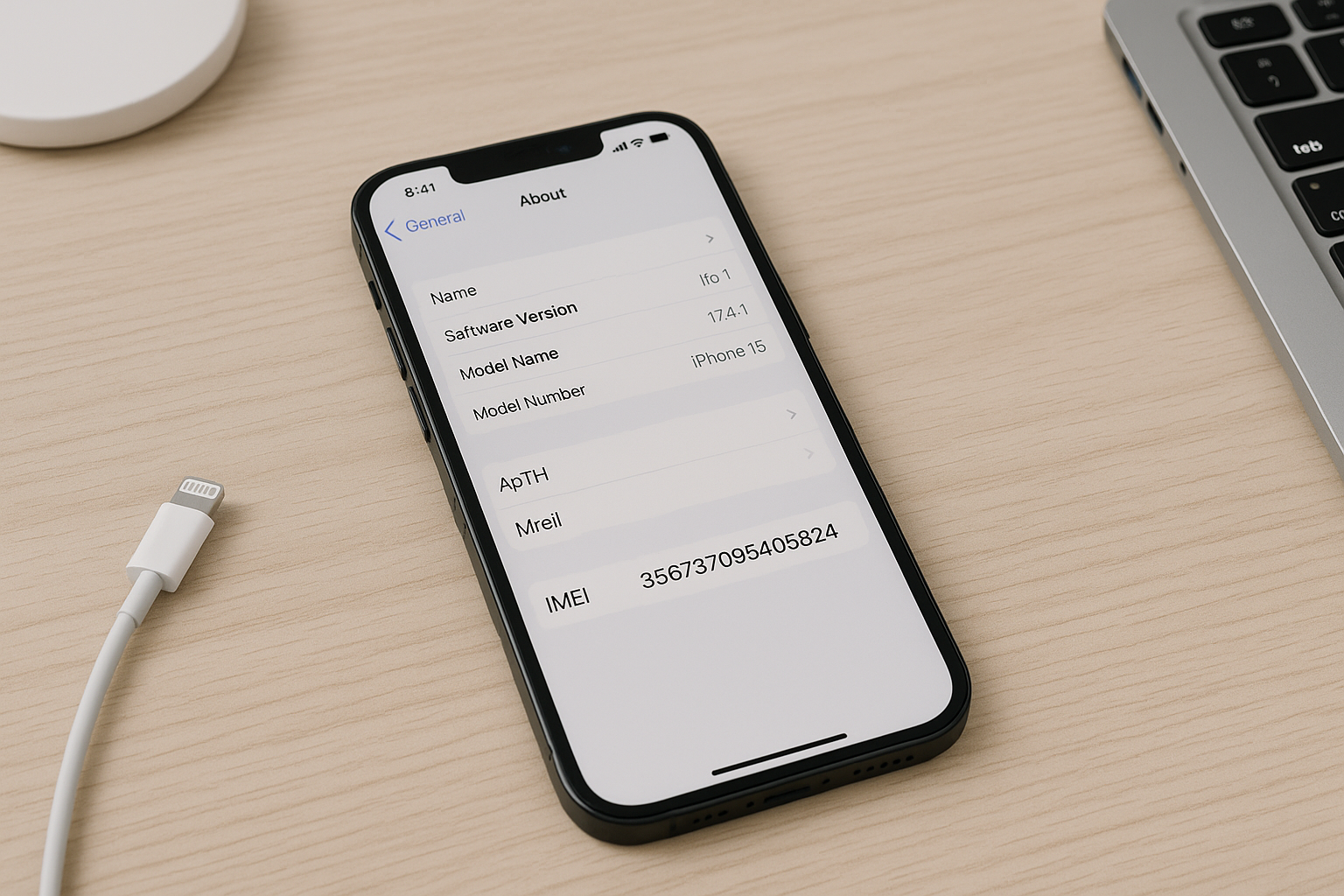
You can find your iPhone’s IMEI number fast in several ways: open Settings and go to General > About, dial *#06# in the Phone app, check the SIM tray or (on certain older models) the back of the device, or read the barcode label on the original box. You can also view it in Finder or iTunes when the iPhone is connected to a computer, and from your Apple ID’s device list on the web or another Apple device.
What the IMEI Is and Why It Matters
IMEI (International Mobile Equipment Identity) is a unique identifier for a phone’s cellular hardware. Carriers and manufacturers use it to activate service, verify compatibility, process unlocks, and block lost or stolen devices. You’ll often need the IMEI for carrier line setup, trade-in eligibility, warranty or repair intake, and blacklist checks. Most recent iPhones have two IMEIs (IMEI and IMEI2) because they support Dual SIM with a physical SIM plus eSIM, or Dual eSIM on newer models.
Find the IMEI Directly on Your iPhone
Method 1: Settings app (most reliable)
- Open Settings.
- Tap General > About.
- Scroll to find IMEI (and IMEI2 if you have Dual SIM). You may also see EID (for eSIM) and ICCID (for a SIM card).
Tip: Touch and hold the IMEI to copy it to your clipboard.
Method 2: Dial a code
- Open the Phone app and go to the Keypad.
- Dial *#06#. A device information screen will show your IMEI details (often IMEI, IMEI2, EID, and more).
On recent iOS versions, you can touch and hold to copy, or use the Copy button if shown.
Method 3: Before setup on the Hello screen
If the iPhone isn’t set up yet (it shows “Hello”), tap the small “i” button at the bottom-right. You’ll see the IMEI(s), EID, and other identifiers without unlocking or completing setup.
Find the IMEI If the iPhone Won’t Turn On
Check the SIM tray or the back of the device
Apple has placed the IMEI in different locations over the years:
- iPhone 6s through iPhone 13 (models with a SIM tray): The IMEI is laser‑etched on the SIM tray. Remove the tray and check under good light.
- iPhone 6 and iPhone 6 Plus: IMEI is on the SIM tray (not printed on the back).
- iPhone SE (1st generation, 2016): IMEI is on the SIM tray (not printed on the back).
- iPhone 5, 5c, and 5s: The IMEI is printed on the back cover near the bottom.
- iPhone 3G, 3GS, 4 (GSM), and 4s: The IMEI appears on the SIM tray.
- iPhone 14 and later (U.S.): These models are eSIM‑only and have no SIM tray, so use another method.
Note: If a SIM tray was replaced, the etched number may not match the phone. When possible, verify the IMEI in Settings or on the original packaging.
Look on the original box
The barcode label on the iPhone’s retail box lists IMEI/IMEI2, serial number, and model details. This is often the quickest option when the phone doesn’t power on.
Use your Apple ID device list
If the iPhone is signed in to your Apple ID, you can view its identifiers remotely:
- On the web: Go to appleid.apple.com, sign in, open Devices, select your iPhone, and view IMEI/IMEI2 and serial.
- On another Apple device: On an iPhone or iPad using the same Apple ID, go to Settings > [Your Name] > Devices. Tap your iPhone to see IMEI and related info.
- On a Mac: Open System Settings (or System Preferences) > Apple ID > Devices, then select your iPhone.
Find the IMEI Using a Mac or Windows PC
On macOS Catalina or later (Finder)
- Connect your iPhone to the Mac with a cable.
- Open Finder and select your iPhone in the sidebar.
- In the General tab, click the text showing your phone number. Each click cycles details; one of the fields displayed is the IMEI (and IMEI2 on Dual SIM devices).
If prompted, tap Trust on the iPhone and click Trust on the Mac, then enter your passcode.
On macOS Mojave or earlier, or on Windows (iTunes)
- Open iTunes and connect your iPhone.
- Select the device icon to open the Summary page.
- Click the phone number until the IMEI appears. Keep clicking to cycle through other identifiers.
Dual SIM, eSIM, and Which IMEI to Use
iPhones from iPhone XS onward can use two lines. Depending on model and region, that can be one physical SIM plus one eSIM, or Dual eSIM. Each line has its own IMEI:
- IMEI (IMEI1): Typically used by your primary line (physical SIM or primary eSIM).
- IMEI2: Used by the secondary line (second eSIM or second SIM slot on select regional models).
To confirm which IMEI maps to each line, go to Settings > Cellular (or Mobile Data), tap each line, and check the IMEI shown there. If a carrier asks for an IMEI during activation, provide the one assigned to the line you’ll use with that carrier. U.S. iPhone 14 and later models are eSIM‑only and still provide two IMEIs for Dual eSIM profiles.
IMEI vs. Serial Number, ICCID, EID, and MEID
It’s easy to mix up these identifiers. Here’s what each one means and where to find it.
| Identifier | What it is | Where you’ll see it | Typical use |
|---|---|---|---|
| IMEI / IMEI2 | Unique identifier tied to the phone’s cellular radios; many iPhones have two for Dual SIM. | Settings > About; *#06#; Finder/iTunes; Apple ID device list; SIM tray or device back on certain older models; box label. | Carrier activation, compatibility checks, blacklisting if lost/stolen. |
| Serial Number | Apple’s hardware identifier for the device. | Settings > About; Finder/iTunes; Apple ID; box label. | Warranty, support, repairs, Apple diagnostics. |
| ICCID | Identifier for a SIM card or eSIM profile. | Settings > Cellular > [Line]; Settings > About; sometimes via *#06#. | SIM replacement, carrier provisioning, eSIM profile management. |
| EID | Embedded Identity for the device’s eSIM chip. | Settings > About; *#06#; Hello screen info. | eSIM activation and transfers. |
| MEID | Legacy CDMA-style device identifier; often the first 14 digits of the IMEI. | Settings > About; occasionally requested on carrier forms. | Older CDMA networks and certain backend carrier systems. |
Tips, Accuracy Checks, and Privacy
To avoid typos, copy the IMEI from Settings or the *#06# screen rather than retyping it. If you must enter it manually (for example, on a carrier website), double‑check the last few digits—they’re the most commonly mistyped.
If the SIM tray engraving doesn’t match what you see in Settings, trust the software value. SIM trays are easily swapped during repairs or resale; the IMEI burned into your device hardware does not change. Factory resets, iOS updates, and SIM swaps do not alter your IMEI.
Share your IMEI only with trusted parties. Carriers, Apple Support, and reputable marketplaces may require it for activation or blacklist checks, but avoid posting it publicly. If you suspect misuse, contact your carrier to verify the status associated with your device.
If you can’t access any of the listed methods and need proof of ownership or identifiers for support, gather your purchase receipt and contact Apple Support. Your carrier may also be able to confirm the IMEI associated with a line that was active on your account.
Common Situations and Best Method to Use
- Phone is working normally: Use Settings > About or dial *#06#.
- Screen is broken but device powers on: Dial *#06# if touch works; otherwise use a computer (Finder/iTunes) or your Apple ID device list.
- Phone won’t power on: Check the box label or SIM tray/back of applicable models; use the Apple ID device list if it had been signed in.
- New iPhone not yet set up: Tap the “i” on the Hello screen.
- Dual SIM confusion: In Settings > Cellular, open each line to see its IMEI; give the carrier the IMEI for the line you’re activating.
Frequently Asked Questions
Is the IMEI the same as the serial number?
No. The IMEI identifies the device on mobile networks, while the serial number identifies the hardware for manufacturing, warranty, and support. Carriers typically ask for the IMEI; Apple Support often asks for the serial number. Both appear in Settings > General > About.
Can a factory reset change my IMEI?
No. The IMEI is tied to the device hardware and doesn’t change with resets, software updates, SIM changes, or restoring from backup. If you see conflicting IMEIs (for example, SIM tray vs. software), trust the one shown in Settings or via Finder/iTunes.
What if my phone shows two IMEIs?
Your iPhone supports Dual SIM. IMEI1 and IMEI2 correspond to your two cellular lines (physical SIM and/or eSIMs). To see which is which, go to Settings > Cellular, tap each line, and note the IMEI listed. Provide the IMEI for the line you plan to activate with the carrier.
How can I check if an iPhone is blacklisted using the IMEI?
Use your carrier’s device or trade‑in eligibility checker, or a reputable IMEI checker that reports blacklist status and carrier lock. Many carriers and major marketplaces offer these tools. Avoid third‑party sites that demand payment without clear credentials.
I don’t have the phone. Can I still find the IMEI?
Yes. If the iPhone was signed in to your Apple ID, sign in at appleid.apple.com (or use another Apple device) and open the Devices section to view its IMEI. If you kept the original box, the barcode label also lists the IMEI. Your carrier may be able to confirm the IMEI for a line that was active on your account.
The number on my SIM tray doesn’t match the IMEI in Settings. Which is correct?
Trust the IMEI shown in Settings > About. SIM trays can be replaced during repairs or resale, and the engraving may no longer match. The software‑reported IMEI reflects the device’s actual hardware identifier.
My carrier asked for a MEID but my iPhone only shows IMEI. What should I enter?
On many devices, the MEID is the first 14 digits of the IMEI. If your iPhone doesn’t list a MEID separately, try entering the IMEI without the last digit. If the form rejects it, contact the carrier for guidance.