Quick Answer
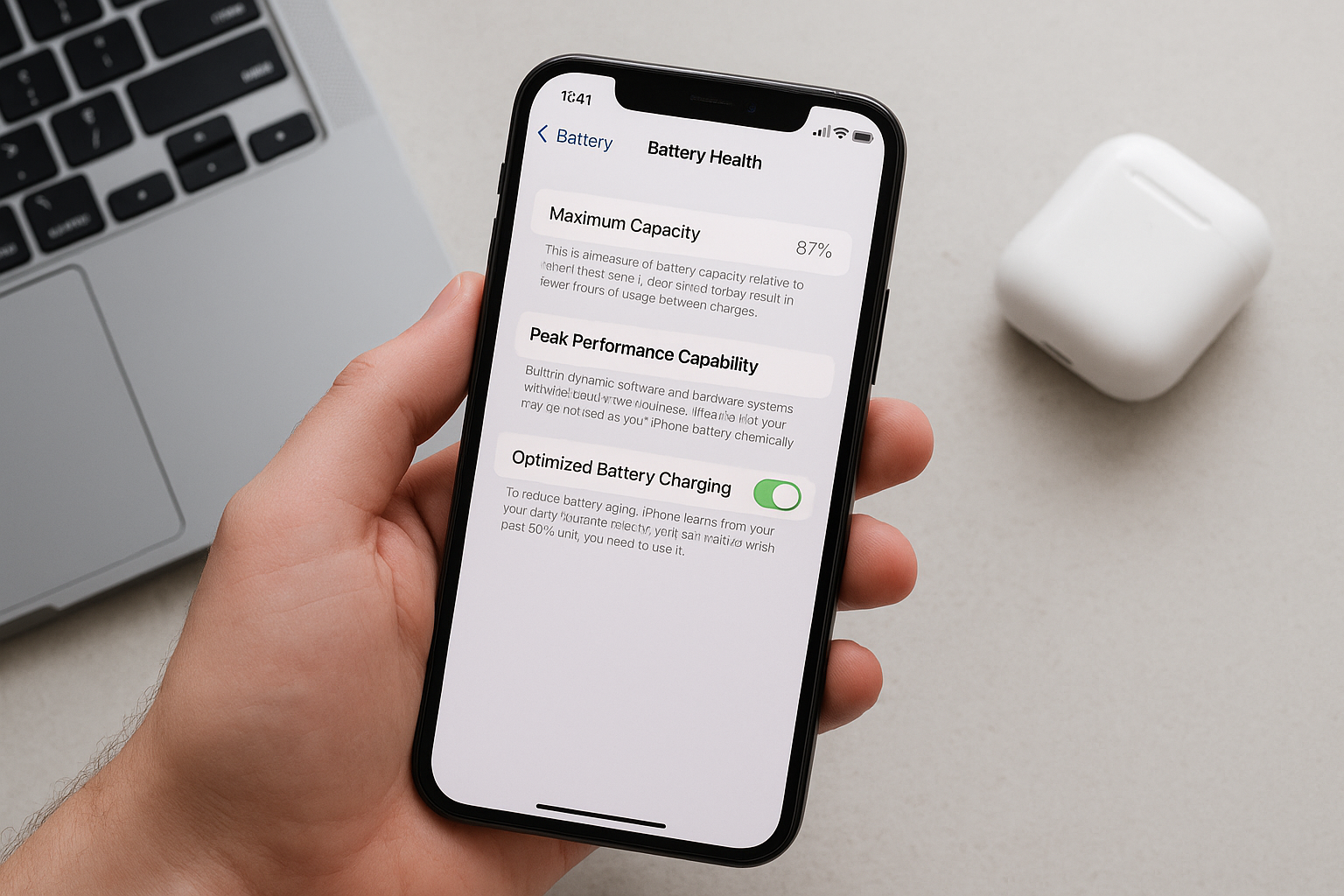
Check iPhone battery health by going to Settings > Battery > Battery Health & Charging. You’ll see Maximum Capacity (a percentage showing how much charge the battery can hold versus new) and a status message about performance. On iPhone 15 models running iOS 17.4 or later, you’ll also see Cycle Count, Manufacture Date, and First Use. As a guide, 100–90% is healthy, 89–80% shows normal wear, and below 80% means service is recommended.
Where to find battery health on your iPhone
The Battery Health & Charging screen shows how much capacity remains and whether iOS is limiting performance to avoid unexpected shutdowns. It also houses charging optimization settings that can slow wear.
All models: the quick path
Open Settings > Battery > Battery Health & Charging. Here you’ll find:
- Maximum Capacity (percentage of original capacity)
- Peak Performance Capability (or a note if performance management is enabled)
- Charging optimization options
Extra details on iPhone 15 models (iOS 17.4 and later)
On iPhone 15 series running iOS 17.4 or later, Apple shows more battery metadata on the same screen:
- Cycle Count (how many full charge cycles your battery has completed)
- Manufacture Date
- First Use
If you don’t see these, update iOS to the latest version. Earlier iPhone models do not display these fields even with iOS 17.4.
What the numbers and messages mean
The battery health page answers two things: how much capacity remains compared to new, and whether iOS is reducing peak performance to keep the device stable.
Maximum Capacity (%)
This percentage compares the battery’s current full‑charge capacity to when it was new. Lithium‑ion batteries lose capacity gradually. Apple designs iPhone batteries to retain up to 80% of their original capacity at 500 complete charge cycles under normal conditions. Actual results vary with temperature, charging habits, and workload.
Expect small recalibrations. The percentage can move a point after updates, temperature swings, or as iOS refines its estimate. Minor fluctuations are normal.
Peak Performance Capability and performance management
Below Maximum Capacity, you’ll see a status:
- Peak Performance Capability: No limits are being applied.
- Performance management applied: iOS enabled limits because the device experienced an unexpected shutdown. You can usually turn this off here; if another shutdown occurs, iOS may reapply it.
- Important Battery Message or Service: The battery’s health is significantly degraded or cannot be verified. Replacement is recommended.
Performance management appears only after a shutdown event. If you never see it, your device hasn’t needed it.
Cycle Count, Manufacture Date, First Use (iPhone 15+ on iOS 17.4+)
Cycle Count reflects cumulative use: one cycle equals 100% of charge used and replenished, not one plug‑in. For example, charging from 50% to 100% twice equals one cycle. It’s a stronger predictor of long‑term wear than age alone. Manufacture Date and First Use help contextualize age and storage time.
Charging optimization options
Two settings affect longevity and daily charging behavior:
- Optimized Battery Charging: Learns your routine and holds the charge near 80% until you need it, reducing time spent at 100% and slowing chemical aging.
- 80% Limit (iPhone 15 series): Caps daily charging at about 80%. Use it if you’re often on a charger and can trade some runtime for lower wear and cooler charging.
How to interpret your battery health
These ranges reflect common experience. Individual devices and workloads differ.
| Maximum Capacity | Typical experience | Suggested action |
|---|---|---|
| 100–95% | Like‑new runtime; no throttling | Use normally; keep Optimized Charging on |
| 94–90% | Minor runtime reduction | No action needed; consider 80% Limit if often plugged in |
| 89–85% | Noticeable decline on heavy days | Review power habits; replacement optional |
| 84–80% | Frequent top‑ups; may trigger performance management during cold spikes or peaks | Plan for replacement within months |
| <80% | Significant runtime loss; higher chance of unexpected shutdown | Replace battery; iOS will flag Service |
How to check cycle count on older iPhones
If your iPhone doesn’t show Cycle Count in Settings, you can still retrieve it from system analytics logs or with a trusted Mac utility.
Method 1: Analytics logs on the iPhone
- Go to Settings > Privacy & Security > Analytics & Improvements and toggle on Share iPhone Analytics. If it was off, use the phone normally and wait up to 24 hours for logs.
- Open Analytics Data and tap the latest “log-aggregated” file.
- Use the Share button to copy the contents to Notes or Files, or AirDrop the file to a Mac for easier searching.
- Search for BatteryCycleCount or com.apple.ioreport.BatteryCycleCount. The integer next to it is your cycle count.
Tip: There may be multiple “log-aggregated” files; check the newest date stamp.
Method 2: Mac utilities
Apps like CoconutBattery or iMazing can read cycle count and full‑charge capacity when the iPhone is connected by cable. Use reputable software, avoid anything requiring device profiles or intrusive permissions, and don’t install configuration profiles you don’t understand.
Factors that affect battery health
Capacity readings reflect chemistry and usage, not just age. The biggest influences are:
- Temperature: Heat accelerates aging. Avoid hot cars, direct sun, under‑pillow charging, or thick wireless chargers that run hot. Ideal ambient temperature during charging is roughly 16–22°C (62–72°F). Cold weather can temporarily reduce performance and may trigger shutdowns at lower percentages, but this effect is usually reversible when the device warms.
- High state‑of‑charge exposure: Sitting at 100% for hours each day increases wear. Optimized Charging and the 80% Limit help by reducing time at full charge.
- Fast and wireless charging: Both are within design limits but can raise temperatures. Use quality chargers and ensure airflow so the phone can stay cool.
- Heavy workloads: Gaming, navigation, and camera use while charging add heat. If possible, pause charging during intense use.
- Deep discharges: Frequently running to 0% is stressful. For everyday use, try to stay roughly between 20% and 80%.
When to replace the battery
Consider replacement if any of the following are true:
- Maximum Capacity is below 80% or Settings shows Service.
- You experience unexpected shutdowns or persistent performance management.
- Daily runtime no longer meets your needs even after power‑saving tweaks.
Apple’s specification: iPhone batteries are designed to retain up to 80% of original capacity at 500 complete cycles under normal conditions. If you have AppleCare+, Apple will service the battery at no additional charge when capacity falls below 80% during coverage. Out‑of‑warranty service is available through Apple and authorized providers; pricing varies by model and region.
After replacement, you should see Maximum Capacity near 100% and Peak Performance Capability restored. If you receive an “Important Battery Message” about being unable to verify a genuine battery, contact the service provider; unverified parts can limit readings and features.
Practical tips to slow battery wear
Small habits add up over months and cycles:
- Enable Optimized Battery Charging; on iPhone 15, consider the 80% Limit if you’re usually near a charger.
- Keep the phone cool: remove thick cases while fast or wireless charging, and avoid direct sun.
- Avoid routine overnight charging on very warm surfaces; a simple stand with airflow helps.
- Use certified chargers and cables to keep heat and ripple low.
- Update iOS; Apple often refines power management and capacity estimation.
- If storing the phone, power it down around 50% and keep it in a cool, dry place. Top up every few months.
Frequently Asked Questions
Why did my Maximum Capacity go up after an iOS update?
iOS periodically recalibrates its estimate of full‑charge capacity. Software updates, temperature changes, and measurement noise can nudge the reported value by a point or two. A small increase doesn’t mean the battery physically improved; the estimate was refined.
Is 85% battery health bad?
No. Around 85% is normal after substantial use and still fine for many people. You’ll see shorter runtime during heavy tasks, but there’s no need to rush a replacement unless it impacts your day or iOS applies performance management.
How many cycles is too many?
Apple’s guideline targets up to 80% capacity at 500 complete cycles under normal conditions. Beyond 500, additional wear is expected but not harmful by itself. Prioritize how the phone performs (runtime, shutdowns) over the raw cycle number.
What’s the difference between Optimized Charging and the 80% Limit?
Optimized Charging learns your routine and pauses around 80% only when it predicts you won’t need 100% immediately. The 80% Limit hard‑caps daily charging at about 80% all the time. Optimized suits most people; the 80% Limit benefits those who prioritize longevity over maximum daily runtime.
Why does my phone say “Performance management applied,” and should I turn it off?
This appears after an unexpected shutdown, often from an aging or cold battery. iOS limits peak power to prevent repeats. You can disable it, but if shutdowns return, iOS may re‑enable the limit. If it recurs, a battery replacement is the lasting fix.
Does fast charging damage the battery?
Fast charging is within the battery’s design envelope. The main risk is heat, not charge speed itself. Use quality chargers, keep the phone ventilated, and let Optimized Charging manage the top end to minimize wear.
Will Apple replace my battery under warranty?
During the standard warranty or with AppleCare+, Apple replaces the battery at no additional charge if capacity drops below 80% within the coverage period. Accidental damage or unauthorized modifications can affect eligibility. For exact terms, check your region’s coverage details.