Quick Answer
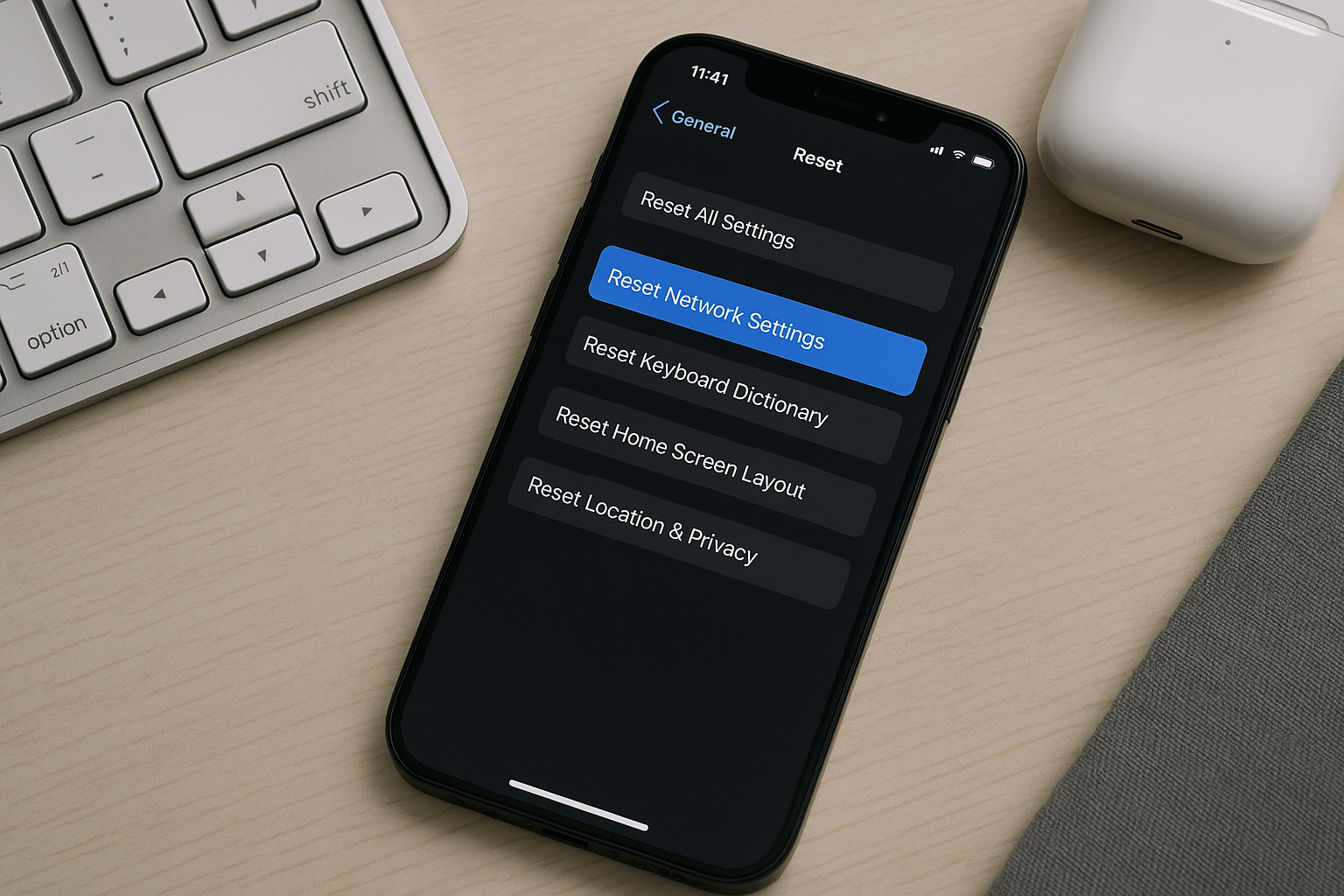
To reset network settings on iPhone without erasing your data, go to Settings > General > Transfer or Reset iPhone > Reset > Reset Network Settings, then confirm with your passcode. This resets Wi‑Fi networks and passwords, cellular settings (including APN), and VPN settings, and often clears Bluetooth pairings. Your photos, messages, apps, files, Apple ID, and eSIM/phone number are not deleted.
Why you might reset network settings
A network reset is a quick, targeted fix for many connectivity problems without wiping your iPhone. It can help when you’re seeing:
- Wi‑Fi won’t connect, keeps dropping, or reports “Incorrect password” when the password is correct
- No cellular data or unreliable LTE/5G after a plan change, number port, or carrier switch
- Personal Hotspot missing, greyed out, or failing to share data
- VPN won’t connect or routes traffic incorrectly
- iMessage, FaceTime, or Wi‑Fi Calling activation errors that persist after basic checks
- Odd network behavior after a major iOS update or restoring from backup
What gets reset — and what stays untouched
Reset Network Settings clears only network-related configurations. Your content and identity on the device remain intact. Here’s the breakdown:
| Item | Affected by reset? | Details |
|---|---|---|
| Wi‑Fi networks & passwords | Yes | All saved networks are removed, including custom DNS/proxy settings tied to those networks. You’ll need to rejoin and re-enter passwords. |
| Cellular settings (including APN) | Yes | Reverts to carrier defaults. Useful after carrier changes, number ports, or APN misconfigurations. |
| VPN configurations | Yes | Manual and profile-based VPN entries are cleared. Reinstall or reconfigure as needed. |
| Bluetooth pairings | Usually yes | Most users will find previously paired accessories removed. Re‑pair headphones, cars, speakers, etc. |
| Personal Hotspot settings | Indirectly | Hotspot relies on cellular settings; you may need to re-enable it after the reset. |
| eSIM/physical SIM and phone number | No | Your plan and number remain. You may see a carrier settings update prompt afterward. |
| Photos, messages, apps, files | No | All personal data and app content stay on the device. |
| Apple ID, iCloud, Face ID/Touch ID | No | Accounts and biometric authentication are unaffected. |
| Location, privacy, Home Screen layout | No | Those are only changed by “Reset All Settings,” not by a network reset. |
Before you start: quick prep
Nothing you care about is erased, but a little prep makes recovery seamless:
- Make sure you know your main Wi‑Fi password(s). If you use iCloud Keychain, saved Wi‑Fi passwords may reappear later, but plan to enter them at least once.
- Have your VPN server address, username, and password ready if you use one for work or privacy.
- If your carrier or MVNO requires a custom APN or configuration profile, bookmark their setup page or note the values.
- Back up your iPhone to iCloud or a computer. Not required, but always good practice before changing system settings.
- If your phone is managed by an employer/MDM, check with IT; restrictions can block the reset or quickly re-deploy profiles afterward.
How to reset network settings on iPhone
Standard steps (iOS 15, iOS 16, iOS 17, iOS 18)
- Open Settings.
- Tap General.
- Tap Transfer or Reset iPhone.
- Tap Reset.
- Tap Reset Network Settings.
- Enter your passcode, then tap Reset Network Settings again to confirm.
Your iPhone will restart. After it boots, cellular service comes up first; then you can rejoin Wi‑Fi and reconfigure VPN if needed.
Older versions (iOS 12–14)
- Open Settings.
- Tap General.
- Tap Reset.
- Tap Reset Network Settings and confirm with your passcode.
What to do right after the reset
Spend a minute restoring your usual connections and double-checking key services:
- Join your primary Wi‑Fi: Settings > Wi‑Fi, select your network, enter the password.
- Re-enable Wi‑Fi Calling or Personal Hotspot if you use them: Settings > Cellular.
- Reinstall or reconfigure VPN: Settings > VPN or your VPN app. If your employer uses a configuration profile, reinstall it.
- Re-pair Bluetooth accessories: Settings > Bluetooth, put devices into pairing mode, and connect. For cars, delete the old iPhone entry from the car first.
- Watch for “Carrier Settings Update” prompts and tap Update if shown.
- Test connectivity: load a webpage on Wi‑Fi and cellular, place a call, send an iMessage, and try Hotspot if relevant.
If problems persist, try these next steps
A network reset resolves most iPhone connection glitches. If you’re still stuck, work through these in order:
- Toggle Airplane Mode on for 10 seconds, then off.
- Restart your iPhone and, if Wi‑Fi issues affect multiple devices, restart your router and modem.
- Update iOS: Settings > General > Software Update, then test again.
- Check with your carrier for outages and confirm your line has the right features (5G, Hotspot, Wi‑Fi Calling, international roaming).
- Reinstall your carrier/APN profile if your MVNO provides one.
- Reset All Settings: Settings > General > Transfer or Reset iPhone > Reset > Reset All Settings. This does not erase your content but reverts system settings (privacy, notifications, Home Screen layout, wallpapers) and removes Apple Pay cards.
- For eSIM issues, try turning your line off and back on (Settings > Cellular), or remove and re-add the eSIM with carrier guidance.
- As a last resort, back up and restore iOS via Finder or iTunes to clear deeper configuration corruption.
Network reset vs. other reset options
Apple offers several reset choices. Use the least disruptive option that fits your issue:
| Option | What it targets | Erases personal data? | When to use |
|---|---|---|---|
| Reset Network Settings | Wi‑Fi, cellular/APN, VPN, and usually Bluetooth pairings | No | Connectivity problems limited to networking |
| Reset All Settings | System settings (privacy, notifications, layout, etc.) | No | Wider device oddities after updates or migrations; be aware Apple Pay cards are removed |
| Erase All Content and Settings | Complete wipe and iOS setup | Yes | Before selling, or when severe issues survive all other fixes |
Tips for special scenarios
Work or school iPhones (MDM-managed)
If your device is managed, the reset may be restricted, and network profiles (VPN, Wi‑Fi certificates) may reappear automatically after the reboot. Contact your IT team if you need those profiles temporarily removed for testing, or if the Reset option is grayed out.
Travel and roaming
Just landed and data won’t work? A quick network reset can refresh roaming agreements and APN settings. After the reset, enable Data Roaming under Settings > Cellular > Cellular Data Options if your plan allows it, and rejoin airport or hotel Wi‑Fi.
Car Bluetooth and CarPlay
After a network reset, re‑pair your car’s Bluetooth or set up CarPlay again. Delete the old iPhone entry from the car’s system first to avoid conflicts, then pair fresh from Settings > Bluetooth. For wired CarPlay, reconnect with the USB cable to prompt setup.
MVNOs and custom APNs
Some budget carriers require a custom APN or profile for data/MMS. After the reset, you might need to reinstall the carrier’s profile or manually enter APN values. Check your carrier’s support page for the latest details.
Frequently Asked Questions
Will resetting network settings delete my photos, messages, or apps?
No. The reset only affects network-related settings such as Wi‑Fi, cellular/APN, VPN, and often Bluetooth pairings. Your photos, messages, apps, files, and Apple ID remain untouched.
Does a network reset remove my eSIM or change my phone number?
No. Your eSIM or physical SIM and phone number are preserved. After the reboot, you may see a prompt to update carrier settings, which you should accept.
Will I lose my Bluetooth pairings?
In many cases, yes—paired Bluetooth accessories are cleared during a network reset. Plan to re‑pair headphones, speakers, smartwatches, and car systems afterward.
Do I need to back up before resetting network settings?
A backup isn’t required because your content isn’t erased, but it’s smart to have a recent backup in case you rely on stored Wi‑Fi passwords or complex VPN configurations and want a reference.
How long does the reset take, and will I miss calls?
The process takes about a minute and includes a brief restart. You could miss a call during that window, but service returns quickly once the phone boots.
Can this fix iMessage, FaceTime, or Wi‑Fi Calling issues?
Often, yes—especially when activation fails due to network misconfiguration. After the reset, rejoin Wi‑Fi, enable Wi‑Fi Calling if your carrier supports it, and give iMessage/FaceTime a few minutes to activate.
What if “Reset Network Settings” is grayed out?
Screen Time restrictions, a corporate MDM profile, or configuration profiles can disable resets. If this is your device, check Settings > Screen Time or remove conflicting profiles. On a work-managed phone, contact your IT administrator to allow the action.