Quick Answer
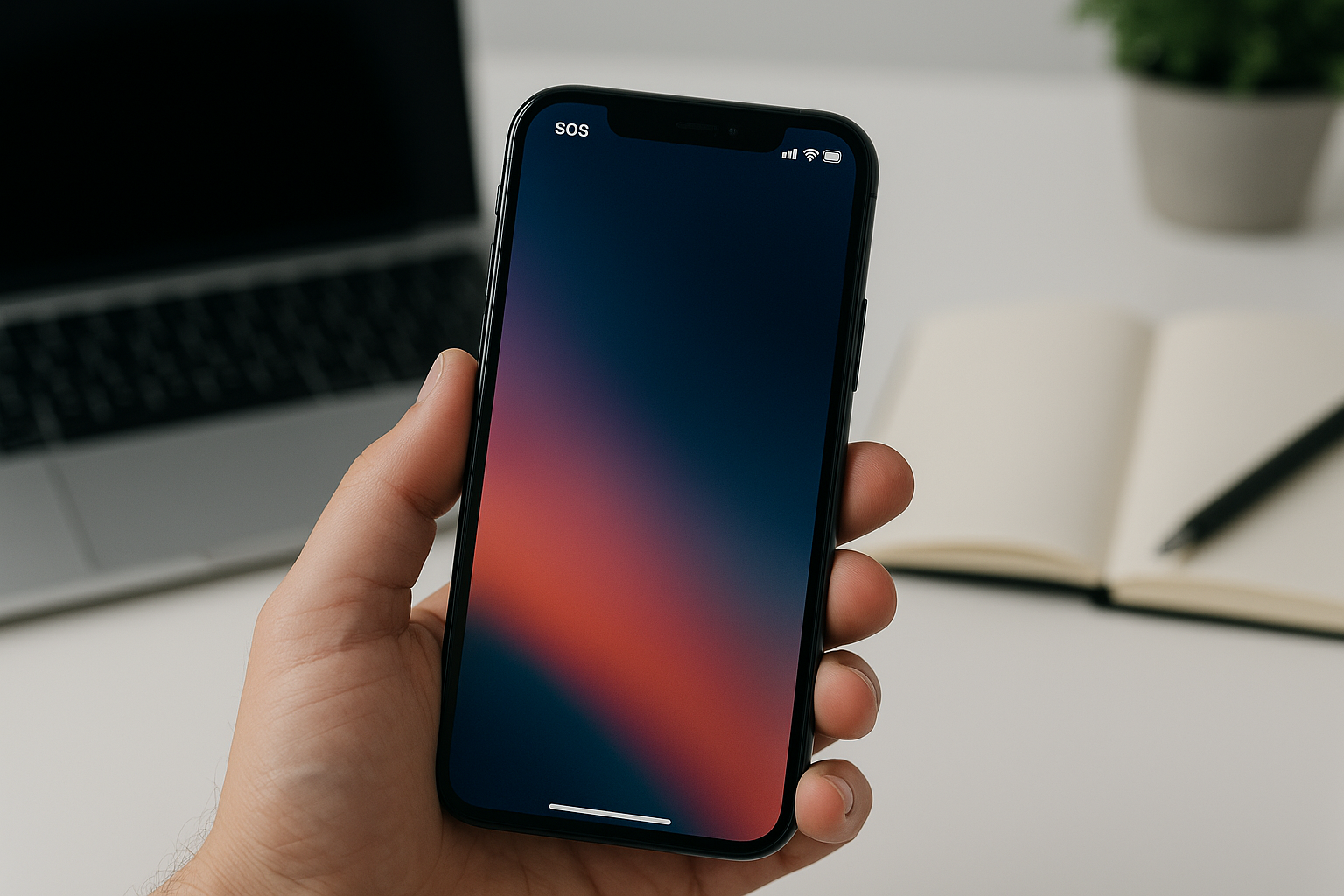
Your iPhone displays “SOS” or “SOS Only” when it has lost connection to your regular cellular network but can still access emergency services through other available carrier networks. This typically happens when you’re in an area with poor coverage from your carrier, when there’s a network outage, when your account has billing issues, or when your SIM card isn’t functioning properly. While in this mode, you can only make emergency calls to services like 911, but you cannot use regular phone features, text messaging, or mobile data.
What SOS Mode Actually Means on Your iPhone
When your iPhone shows “SOS” or “SOS Only” in the status bar where you normally see your carrier name and signal bars, it’s communicating a specific network status. Your device has detected that it cannot connect to your subscribed cellular network but has identified other carrier networks that can handle emergency calls. This is a safety feature built into all cellular devices, ensuring that you can reach emergency services even when your regular network is unavailable.
The distinction between seeing “SOS” versus “SOS Only” depends on your iOS version and region. In the United States, Canada, and Australia, you’ll typically see “SOS” displayed. In other countries, particularly in Europe and Asia, your iPhone will show “SOS Only” or “Emergency Calls Only.” The functionality remains the same regardless of which text appears.
Common Reasons Your iPhone Enters SOS Mode
Network Coverage Issues
The most frequent cause of SOS mode is simply being outside your carrier’s coverage area. If you’re traveling through rural areas, underground locations, or regions where your carrier has limited infrastructure, your phone will lose connection to your network. Your carrier’s coverage map doesn’t always reflect real-world signal availability, especially in buildings with thick walls, basements, or areas with geographical obstacles like mountains or valleys.
SIM Card Problems
Your SIM card serves as the key that connects your iPhone to your carrier’s network. If the SIM card becomes dislodged, damaged, or dirty, your phone cannot authenticate with the network. Physical damage to the SIM card, corrosion on its contacts, or improper installation after removal can all trigger SOS mode. Sometimes the SIM card tray itself can be the issue if it’s not clicking into place properly.
Account and Billing Issues
Carriers will suspend network access if your account has payment problems, has been canceled, or has reached its service end date. When this happens, your phone immediately enters SOS mode because the carrier actively blocks your device from using their network. This also occurs when you’re traveling internationally without an international plan or roaming agreement in place.
Carrier Network Outages
Network outages affect entire regions and can last from minutes to several hours. These outages might result from equipment failure, maintenance work, severe weather damage to cell towers, or overload during emergencies when too many people try to use the network simultaneously. During such outages, your iPhone will show SOS because the network infrastructure isn’t available to process normal connections.
Software Glitches and Settings
Sometimes iOS software bugs or incorrect settings can cause your iPhone to display SOS mode even when network service should be available. This can happen after an iOS update, when airplane mode toggles incorrectly, when carrier settings become corrupted, or when network selection settings get misconfigured to manual rather than automatic mode.
How to Fix the SOS Status on Your iPhone
Restart Your iPhone
A simple restart resolves most temporary software glitches affecting network connectivity. For iPhone X and later, press and hold the side button and either volume button until the power off slider appears, then drag it to turn off your device. Wait thirty seconds, then press and hold the side button again until the Apple logo appears. For iPhone SE and iPhone 8 or earlier, press and hold the top or side button until the slider appears, follow the same process.
Check and Reseat Your SIM Card
Power off your iPhone completely before removing the SIM card. Locate the SIM tray on the side of your device and insert the SIM ejector tool or a straightened paperclip into the small hole. The tray will pop out slightly. Remove the SIM card, inspect it for any visible damage or dirt, gently wipe the gold contacts with a clean, dry cloth if needed, then reinsert it carefully, ensuring it sits flat in the tray. Push the tray back into the phone until it clicks securely into place, then power your iPhone back on.
Toggle Airplane Mode
Cycling airplane mode forces your iPhone to disconnect from all networks and reconnect fresh. Open Control Center by swiping down from the top-right corner on iPhone X and later, or swiping up from the bottom on earlier models. Tap the airplane icon to enable airplane mode, wait ten seconds, then tap it again to disable it. Your iPhone will search for available networks and reconnect.
Update Carrier Settings
Carrier settings updates contain important configuration information for connecting to your network. Go to Settings, select General, then tap About. If a carrier update is available, you’ll see a popup asking if you want to update. Always accept these updates as they improve connectivity and add support for new network features.
Reset Network Settings
This step erases all network configurations and returns them to factory defaults, which can fix persistent connection problems. Open Settings, go to General, scroll to Transfer or Reset iPhone, tap Reset, then select Reset Network Settings. You’ll need to enter your passcode. This action removes all saved Wi-Fi networks and passwords, cellular settings, and VPN configurations, so you’ll need to reconnect to Wi-Fi networks afterward.
Contact Your Carrier
If none of the above solutions work, the problem likely involves your account or the carrier’s network. Call your carrier’s customer service to verify your account is active, your bill is current, and there are no service restrictions. Ask if they’re experiencing network outages in your area or if there are any issues with your account that would prevent network access.
Using Emergency Features in SOS Mode
Even when your iPhone displays SOS, you retain access to critical emergency functions. You can call emergency services by dialing your region’s emergency number, such as 911 in North America, 112 in Europe, or 000 in Australia. Your iPhone will automatically connect through any available carrier network, even networks you’re not subscribed to.
The Emergency SOS feature works by quickly pressing the side button five times in succession on iPhone 8 and later, or by holding the side button and either volume button simultaneously. This triggers a countdown and then automatically calls emergency services while also sending your location to your emergency contacts if you’ve set up this feature in the Health app.
Preventing SOS Mode Issues
While you cannot always prevent SOS mode, especially when traveling through areas with poor coverage, you can minimize occurrences caused by technical issues. Keep your iPhone’s iOS updated to the latest version, as Apple regularly releases patches that improve cellular connectivity. Install carrier settings updates whenever they become available. Handle your SIM card carefully during removal and installation, avoiding touching the gold contacts with your fingers. Consider keeping your iPhone in a protective case that doesn’t block antenna reception.
If you frequently experience SOS mode in areas where your carrier should have coverage, research whether your carrier has the strongest network in your region. Some carriers have better infrastructure in rural areas, while others excel in urban coverage. Your carrier’s coverage map can provide guidance, though real-world performance may vary.
Frequently Asked Questions
Can I send text messages when my iPhone shows SOS?
No, you cannot send regular text messages in SOS mode. The SOS status means your phone has no connection to your carrier’s network, which is required for SMS and iMessage services. You can only make emergency calls to services like 911 during this time. However, if you have access to Wi-Fi, iMessages to other Apple users will still work, though standard SMS texts to non-iPhone users will not go through.
Will my iPhone automatically reconnect when I leave SOS mode?
Yes, your iPhone continuously searches for your carrier’s network and will automatically reconnect as soon as it detects a signal. You don’t need to take any action once you move back into a coverage area or once the network issue causing SOS mode is resolved. The transition back to normal service happens within a few seconds of finding the network.
Does SOS mode drain my battery faster?
Yes, SOS mode can drain your battery more quickly than normal because your iPhone constantly searches for your carrier’s network signal. This continuous scanning requires significant power. If you’re in an area with no coverage for an extended period, consider enabling airplane mode to preserve battery life, though you’ll lose the ability to make emergency calls until you disable it.
Can I use Wi-Fi when my iPhone is in SOS mode?
Yes, Wi-Fi functionality operates independently of cellular service, so you can connect to Wi-Fi networks normally even when your iPhone displays SOS. You can use internet-based services, apps, iMessage, FaceTime, and Wi-Fi calling if your carrier and iPhone model support it. Wi-Fi calling is particularly useful as it allows you to make regular phone calls over Wi-Fi when cellular service is unavailable.
Why does my iPhone show SOS even though I’m in a city?
Urban areas can have coverage gaps due to building construction, underground locations, or local network congestion. Large buildings with metal structures, parking garages, basements, and elevators often block cellular signals. Additionally, if you’re in a building that installed cellular signal blockers or has very thick walls, you might experience SOS mode. Account issues, such as unpaid bills or expired service plans, will also cause SOS mode regardless of your location.
Is there a difference between SOS and No Service?
Yes, there is an important distinction. “SOS” or “SOS Only” means your iPhone can detect other carrier networks available for emergency calls, even though it cannot connect to your own carrier. “No Service” means your iPhone cannot detect any cellular networks at all and cannot make emergency calls. No Service typically occurs in extremely remote areas, in heavily shielded buildings, or when your iPhone’s cellular radio has a hardware problem.
Will my iPhone work abroad if it shows SOS at home?
It depends on why your iPhone is showing SOS. If the issue is account-related, such as service suspension or cancellation, it will not work abroad either. If the problem is a local network outage or temporary coverage gap, your iPhone may work in other countries if you have international roaming enabled. However, if your iPhone shows SOS due to a SIM card or hardware problem, you’ll experience the same issue when traveling internationally until you resolve the underlying cause.