Quick Answer
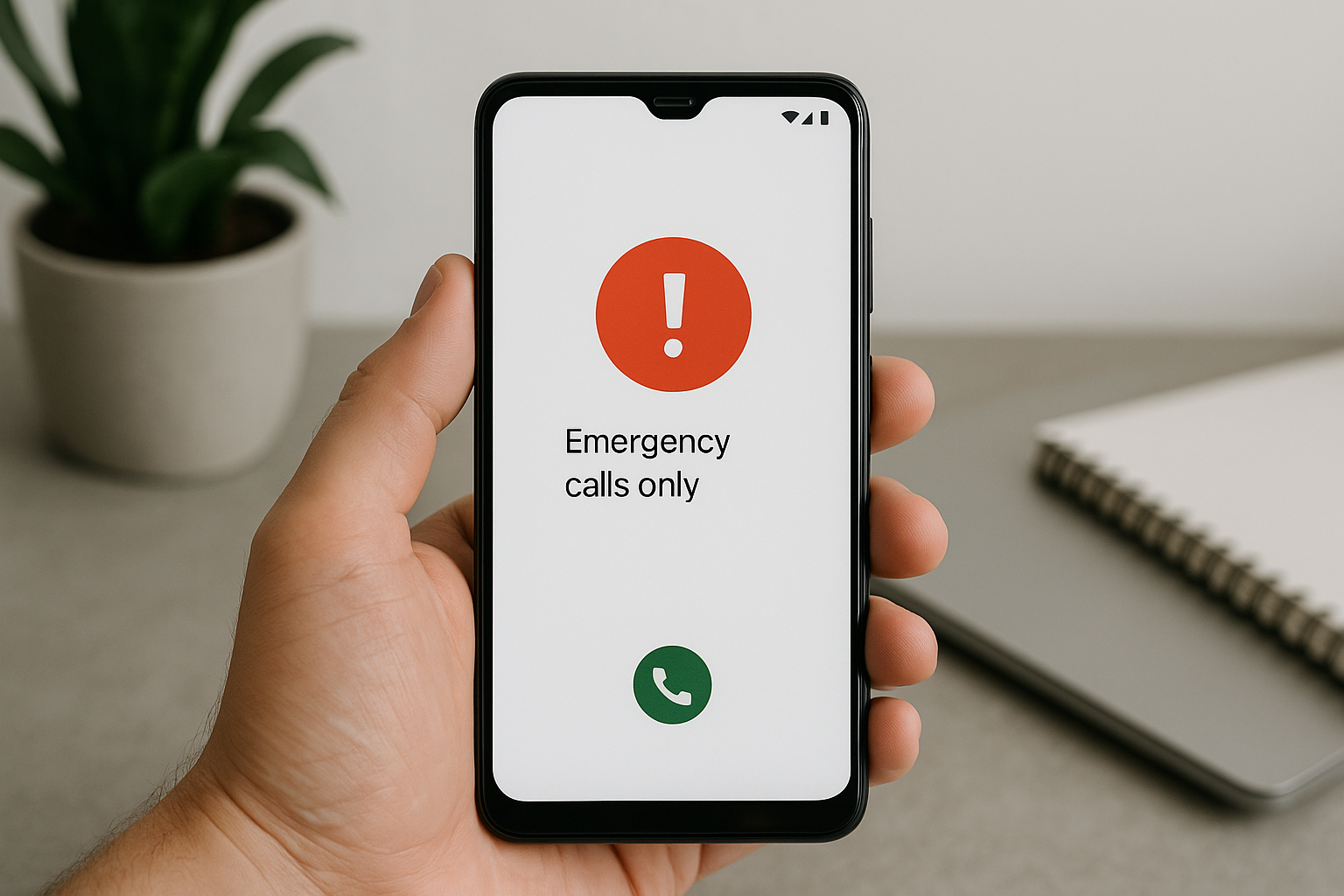
Your Android phone displays “Emergency Calls Only” when it cannot connect to your mobile carrier’s network for regular calls and data, though it can still reach emergency services. This typically happens due to network coverage issues, SIM card problems, carrier account issues, or incorrect network settings. The message means your phone recognizes a cellular signal exists but cannot authenticate with your specific carrier to provide normal service.
Understanding the Emergency Calls Only Status
When your Android device shows this message, it’s essentially in a restricted mode. The phone can detect cellular towers and has enough signal to place emergency calls to services like 911, but something prevents it from accessing your carrier’s network for standard communication. This safety feature ensures that even without active service, you can still reach emergency responders when needed.
The distinction matters because your phone maintains basic connectivity to any available cellular tower for emergencies, regardless of which carrier operates it. However, for regular calls, texts, and data, your device must specifically authenticate with your own carrier’s network using your SIM card credentials and account information.
Common Causes and Solutions
Network Coverage Problems
The most straightforward explanation is that you’re in an area with poor or no coverage from your specific carrier. While emergency signals can connect to any available tower, your regular service requires connection to your carrier’s infrastructure. If you’re in a rural area, inside a building with thick walls, underground, or in a location where your carrier has weak coverage, you’ll see this message.
Move to a different location, preferably outside or near a window, and check if the message disappears. If your service returns after relocating, the issue was simply coverage-related. Consider checking your carrier’s coverage map to identify known dead zones in your area.
SIM Card Issues
Your SIM card acts as your phone’s identification to the carrier network. If it’s not properly seated, damaged, or deactivated, your phone cannot establish a regular connection. Physical damage from wear, moisture, or improper handling can prevent the SIM from functioning correctly.
Power off your device completely, remove the SIM card using the ejector tool, and inspect it for visible damage or dirt. Clean the gold contacts gently with a soft, dry cloth, then reinsert it firmly into the tray. Make sure the card sits flush and the tray clicks securely into place. Restart your phone and wait a few minutes for it to reconnect to the network.
Carrier Account Status
Your carrier might have suspended service due to billing issues, plan expiration, or account problems. If your payment failed, your bill is overdue, or your prepaid plan expired, the carrier can restrict your account to emergency-only access. Similarly, if you recently changed plans or ported your number to another carrier, activation delays can trigger this status.
Log into your carrier account online or through their app to verify your account is active and in good standing. Check for any pending payments, service interruptions, or notifications about your account status. Contact your carrier’s customer service directly if you find any discrepancies or if everything appears normal on your end.
Network Settings Configuration
Incorrect network settings or a corrupted network configuration can prevent your phone from connecting properly. This often happens after software updates, when traveling internationally, or after manually adjusting network preferences. Your phone might be searching for the wrong network type or using incompatible settings for your carrier.
Navigate to Settings, then select “Connections” or “Network & Internet” depending on your Android version. Find “Mobile Networks” and ensure airplane mode is off. Check that your preferred network type matches what your carrier supports—most modern networks use LTE/4G or 5G. Try selecting your carrier manually from the network operator list instead of using automatic selection.
Resetting network settings often resolves configuration issues. Go to Settings > System > Reset Options > Reset Wi-Fi, Mobile & Bluetooth. This action clears all saved networks and Bluetooth connections, so you’ll need to reconnect to Wi-Fi networks afterward, but it frequently fixes persistent connection problems without affecting your personal data.
Software Glitches
Temporary software bugs can interfere with your phone’s ability to communicate with the carrier network. These glitches might occur after an update, when background processes conflict, or due to corrupted system files. A simple restart often clears these temporary issues.
Perform a full restart by holding the power button and selecting restart or power off, waiting 30 seconds, then turning it back on. If the problem persists, check for pending system updates in Settings > Software Update, as manufacturers often release patches that fix known connectivity issues.
Hardware Malfunctions
Physical damage to your phone’s antenna, motherboard, or cellular radio can cause persistent connection failures. Water damage, drops, or manufacturing defects might compromise the hardware components responsible for maintaining cellular connectivity. This is less common than software or SIM issues but can happen with older devices or after physical trauma.
If you’ve tried all software solutions and the problem continues across different locations, hardware failure might be the culprit. Testing with a different SIM card from the same carrier can help isolate whether the issue lies with your SIM or the phone itself. If another SIM also shows emergency-only status, the phone likely needs professional repair or replacement.
Preventive Measures
Keeping your phone’s software updated protects against known bugs that affect network connectivity. Enable automatic updates or check regularly for new versions. Protect your SIM card by handling it carefully during removal and avoiding exposure to moisture or extreme temperatures.
Monitor your carrier account to ensure payments process successfully and your plan remains active. Set up automatic payments or reminders before due dates to prevent service interruptions. If you travel frequently, understand your carrier’s roaming policies and international coverage to avoid unexpected emergency-only status abroad.
Avoid making unnecessary changes to network settings unless you understand their purpose. Incorrect APN settings, network modes, or roaming configurations can disrupt connectivity. If you must adjust these settings, document the original values so you can restore them if problems arise.
When to Contact Support
If basic troubleshooting doesn’t restore service within a few hours, contact your carrier’s technical support. They can check for network outages in your area, verify your account and SIM status, and perform remote diagnostics. Come prepared with your account information, the specific error message, and details about what you’ve already tried.
For hardware-related issues, visit an authorized service center or the manufacturer’s support channels. They can run diagnostic tests to identify faulty components and provide repair options. If your device is under warranty, hardware failures might be covered at no cost.
Frequently Asked Questions
Can I still use Wi-Fi when my phone says Emergency Calls Only?
Yes, Wi-Fi connectivity operates independently of your cellular service. You can still access the internet, use messaging apps, make Wi-Fi calls if your carrier supports it, and use all features that don’t require cellular network access. Only cellular calls, SMS, and mobile data are affected by the emergency-only status.
Will emergency calls work even without a SIM card?
Yes, phones are designed to place emergency calls to services like 911 even without a SIM card installed or with an inactive SIM. The device will connect to any available cellular tower regardless of carrier. However, emergency responders may have difficulty identifying your location or calling you back without an active number associated with your device.
Does roaming affect the Emergency Calls Only message?
Roaming can trigger this message if your carrier doesn’t have roaming agreements in your current location or if roaming is disabled in your settings. When traveling internationally or outside your carrier’s coverage area, enable data roaming in your network settings if you have an appropriate plan. Without roaming enabled or agreements in place, you’ll only have emergency access.
How long does it take for service to restore after fixing the issue?
Once you resolve the underlying problem, service typically restores within one to five minutes as your phone re-registers with the network. After reinserting a SIM card or resetting network settings, allow a few minutes for the connection to establish. If service doesn’t return within ten minutes after addressing the issue, restart your device to force a fresh network connection attempt.
Can a carrier remotely fix the Emergency Calls Only problem?
Carriers can resolve certain issues remotely, including account activation problems, provisioning errors, or network-side authentication failures. They can also verify if outages or maintenance affect your area. However, they cannot fix physical problems with your device, damaged SIM cards, or hardware malfunctions. Contact your carrier first to rule out issues on their end before pursuing hardware solutions.
Does factory resetting the phone fix this issue?
Factory resets resolve software-related problems, including corrupted network configurations or system files causing connectivity issues. However, this drastic step erases all your data and should be a last resort after trying simpler solutions. Before factory resetting, back up your important data and ensure the problem isn’t related to your SIM card, account status, or carrier network, as a reset won’t fix those issues.
Why does the message appear intermittently?
Intermittent emergency-only status usually indicates borderline network coverage where your phone loses and regains connection as signal strength fluctuates. It can also happen if your carrier’s towers are experiencing high traffic or technical problems. A loose SIM card that occasionally loses contact with the reader can cause sporadic disconnections. If the pattern correlates with specific locations, coverage is likely the cause, but if it happens randomly everywhere, check your SIM card seating and consider testing with a replacement SIM.