Quick Answer
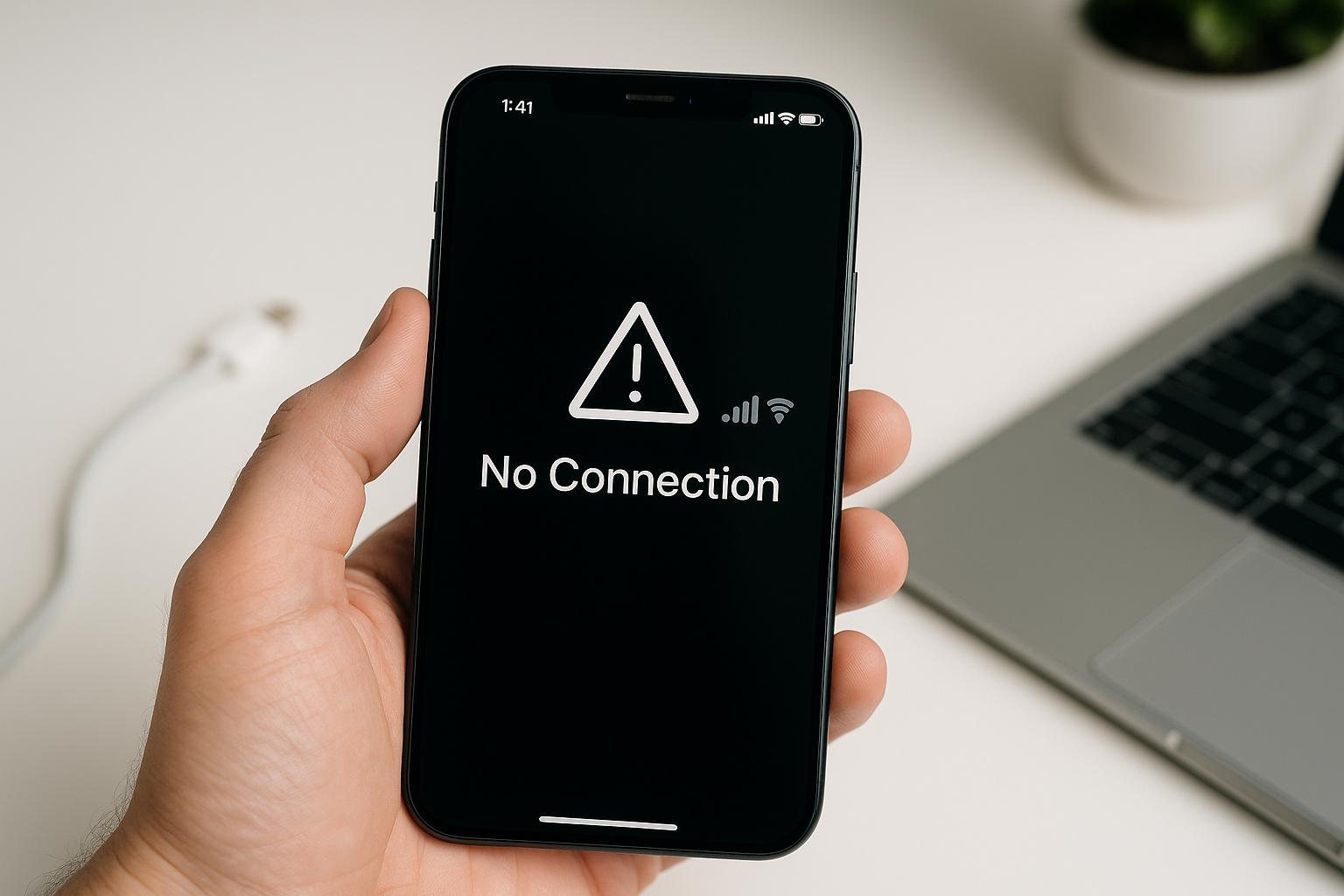
If mobile data isn’t working on your iPhone, start by toggling Airplane Mode off and on, restarting the phone, and confirming Cellular/Mobile Data is enabled for the correct line. Make sure you have coverage and an active data plan. Then update carrier settings and iOS, reseat or re-add your SIM/eSIM, and reset network settings if needed. Also review options like Data Roaming, Low Data Mode, VPN, and content filters, which can block connectivity. If nothing helps, contact your carrier to check for outages, provisioning issues, or a SIM problem, and contact Apple if the device fails to detect a SIM.
Start With The Fast Fixes
Many cellular hiccups clear with a quick refresh. Try these in order:
- Toggle Airplane Mode: Open Control Center, tap the airplane icon on, wait 10 seconds, then turn it off.
- Restart your iPhone: Power off, wait 15 seconds, then power back on to refresh the modem and network sessions.
- Check coverage: Move near a window or outdoors. Weak signal, maintenance, or congestion can appear as “no data.”
- Turn Cellular/Mobile Data off and back on: Settings > Cellular (or Mobile Data) > toggle Cellular Data.
- Turn off Wi‑Fi temporarily: Ensure you’re actually testing cellular, not a flaky Wi‑Fi network.
- Disable VPN: Settings > VPN & Device Management or in your VPN app. Many VPNs block data if a tunnel fails.
If data returns at any step, you’ve likely found the cause. If not, continue below.
Check iPhone Cellular Settings
Confirm your active line and SIM
On dual-SIM/eSIM setups, the wrong line may be active. Go to Settings > Cellular (Mobile Data):
- Ensure Cellular Data is turned on.
- Tap Cellular Data and select the correct line (Primary/Secondary) for data.
- Temporarily disable the other line to rule out conflicts, then test again.
Review Data Options (5G/LTE) and Low Data Mode
In Settings > Cellular > Cellular Data Options:
- Voice & Data: Switch between 5G Auto, 5G On, and LTE. If 5G is unreliable in your area, test LTE.
- Data Mode: For testing, turn off Low Data Mode. If available, choose Standard or Allow More Data on 5G for the most consistent behavior.
- Depending on your region/carrier, you may also see Data Roaming and manual Network Selection here.
Turn On Data Roaming When Abroad
If you’re traveling, data roaming is usually off by default. Go to Settings > Cellular > Cellular Data Options > Data Roaming and enable it. Without roaming, the phone may show signal bars but block data sessions on foreign networks.
Check App-Level Data Restrictions
iOS lets you block cellular data per app. In Settings > Cellular, scroll down and ensure the apps you’re testing have Cellular Data enabled. If they’re off, only Wi‑Fi will work in those apps.
Disable Content Filters and Private Relays Temporarily
Features like iCloud Private Relay, DNS filters, or third-party content blockers can interrupt or reroute traffic. Turn off iCloud Private Relay (Settings > [your name] > iCloud > Private Relay) and disable any DNS/ad-blocking profiles to test connectivity. Re-enable them after you isolate the cause.
SIM, eSIM, and Carrier Account Checks
Reseat or Re-add Your SIM
- Physical SIM: Power off, eject the SIM tray, inspect for damage, corrosion, or dust, reinsert firmly, then power on.
- eSIM: Settings > Cellular > your plan > Remove eSIM, then add it back via a carrier QR code or your carrier app. Confirm you have the credentials or activation method before removing an eSIM.
Verify Your Plan and Status
Data may stop if you hit a cap, a payment failed, or the account changed. Check your carrier app or website for:
- An active plan with data allowance remaining
- No line suspensions, porting in progress, or fraud holds
- No international data blocks if roaming
Check for Carrier Outages
Even with strong signal bars, a regional outage can break data. Look for service alerts on the carrier’s status page or social accounts. If others nearby on the same network have trouble, it’s likely not your phone.
Update Software and Carrier Settings
Install Carrier Settings Updates
Carrier settings fine-tune how your iPhone talks to the network. Connect to Wi‑Fi, then go to Settings > General > About. Wait 10–15 seconds—if a prompt appears, tap Update. Some carriers also push updates via their app.
Update iOS
Bug fixes often target the modem and network stack. Go to Settings > General > Software Update and install the latest version. Ensure battery is above 50% or connect to power, and restart after updating.
Reset Network Components (Safe but Effective)
Reset Network Settings
This clears Wi‑Fi passwords, VPN/APN settings, and known networks but keeps your data and apps. Go to Settings > General > Transfer or Reset iPhone > Reset > Reset Network Settings. After the reboot, re-enter Wi‑Fi passwords and re-enable VPNs if needed. Test cellular data before restoring any custom profiles to isolate the cause.
Reset Cellular Line Settings
On some iOS versions, you can remove and re-add just the cellular plan (eSIM) or toggle Network Selection from Automatic to Manual and back (Settings > Cellular > Network Selection). This forces a fresh registration to the network and can clear attachment issues.
Advanced: APN, Profiles, and VPN Conflicts
Check APN Configuration (When Editable)
Most carriers lock APN settings on iPhone. If yours allows editing (Settings > Cellular > Cellular Data Network), confirm the APN, username, and password match your carrier’s documentation. A single character off in the APN can block data and MMS. If unsure, contact your carrier for the correct values. If fields are missing or greyed out, your carrier controls them—avoid installing random profiles to change them.
Remove Problematic Configuration Profiles
Security, MDM, or DNS-filtering profiles can reroute traffic and cause failures. Check Settings > General > VPN & Device Management (or Profiles). Remove any profile you don’t recognize or temporarily disable it to test. If your device is managed by work or school, consult your admin before making changes.
Test Without VPN, DNS Apps, or Firewalls
Disable third-party VPN apps, DNS changer apps, or firewalls. Some block cellular interfaces when the tunnel is down. After disabling, fully restart your iPhone and try cellular data again.
Helpful Symptoms-to-Fixes Reference
| Symptom | Likely Cause | What to Try First |
|---|---|---|
| Bars show, but apps won’t load on data | Network outage, VPN stuck, APN mismatch | Disable VPN, check carrier status, reset network settings |
| No Service, SOS, or “Searching” | SIM issue, coverage loss, account suspension | Reseat SIM, move to a better area, confirm account status |
| Works on Wi‑Fi only | Cellular Data off, app-level blocks, Low Data Mode | Enable Cellular Data, allow apps under Settings > Cellular, disable Low Data Mode |
| Data fails while roaming | Data Roaming off, roaming not provisioned | Enable Data Roaming, confirm international plan with carrier |
| 5G shows but pages hang | Local 5G congestion or band issue | Switch to LTE in Data Options; test again |
| MMS/photos won’t send without Wi‑Fi | APN/MMS settings wrong, data blocked | Confirm APN with carrier, reset network settings |
Less Obvious Fixes That Often Work
Turn Off Wi‑Fi Assist Temporarily
Wi‑Fi Assist (Settings > Cellular) uses cellular when Wi‑Fi is weak. If it’s misbehaving, turning it off helps confirm whether the phone is preferring a flaky Wi‑Fi connection over a healthy cellular link.
Set Date & Time Automatically
Incorrect time can break network security handshakes. Go to Settings > General > Date & Time and enable Set Automatically.
Remove and Reinstall Carrier App
Some carriers manage eSIMs and provisioning through their app. Reinstalling can refresh entitlements and re-download plan data.
When To Contact Your Carrier or Apple
Reach out to your carrier if you see any of these:
- “SIM Failure” or “SIM Not Supported” after reseating or re-adding
- Porting in progress (number transfer) that has stalled
- Frequent drops to “No Service” or SOS in areas where others have coverage
- International roaming not activating after enabling Data Roaming
Contact Apple Support or visit an Apple Store if:
- Your iPhone can’t detect any SIMs or eSIMs across multiple carriers
- There’s physical damage to the SIM tray or signs of liquid exposure
- Network services fail even after a clean restore and setup as new
A Practical Troubleshooting Flow
Use this order to save time:
- Airplane Mode toggle and restart
- Confirm Cellular Data, the correct line, and Data Roaming (if abroad)
- Switch 5G to LTE and disable Low Data Mode
- Disable VPN/Private Relay; remove DNS/VPN profiles
- Update carrier settings and iOS
- Reseat SIM or re-add eSIM; verify plan status and outages
- Reset Network Settings
- Contact your carrier; then Apple if hardware is suspected
Frequently Asked Questions
Why does my iPhone show 5G or LTE but there’s no internet?
This often points to a network-side issue, a stuck VPN, or an APN misconfiguration. Start by disabling VPN, toggling Airplane Mode, and checking for a carrier settings update (Settings > General > About). If others on the same carrier nearby have the same issue, it’s likely an outage. Reset Network Settings if the problem persists.
How do I reset network settings, and what will I lose?
Go to Settings > General > Transfer or Reset iPhone > Reset > Reset Network Settings. You’ll lose saved Wi‑Fi networks and passwords, paired Bluetooth devices, custom VPN/APN settings, and preferred networks. Your apps, photos, messages, and personal data remain intact.
Can an iOS update or carrier update fix mobile data issues?
Yes. Updates frequently include modem firmware and network compatibility fixes, especially for 5G bands and roaming. Install both iOS and carrier settings updates, then restart your phone. Many users regain data immediately after these updates.
Do I need to change APN settings on an iPhone?
Usually no. Most carriers push APN settings automatically and lock editing. Only adjust APN if your carrier specifically instructs you and provides exact values. If APN fields are greyed out, contact your carrier rather than installing third-party profiles.
Why does cellular data work for some apps but not others?
Per-app cellular restrictions, Low Data Mode, VPN rules, or content filters can block specific apps. In Settings > Cellular, make sure the affected apps are allowed to use Cellular Data. Disable VPN and Private Relay temporarily to test, and review any device management or filtering profiles.
What’s the difference between 5G Auto and 5G On, and which should I use?
5G Auto uses 5G when it won’t significantly reduce battery life; 5G On forces 5G whenever available. If data is unreliable on 5G in your area, switch to LTE or use 5G Auto for better stability. Change this under Settings > Cellular > Cellular Data Options > Voice & Data.
Will a factory reset fix mobile data problems?
A factory reset is rarely necessary and shouldn’t be your first step. Most cellular issues resolve with a carrier/iOS update, a SIM/eSIM refresh, or Reset Network Settings. Consider a full erase only after your carrier and Apple have ruled out account and hardware problems.