Quick Answer
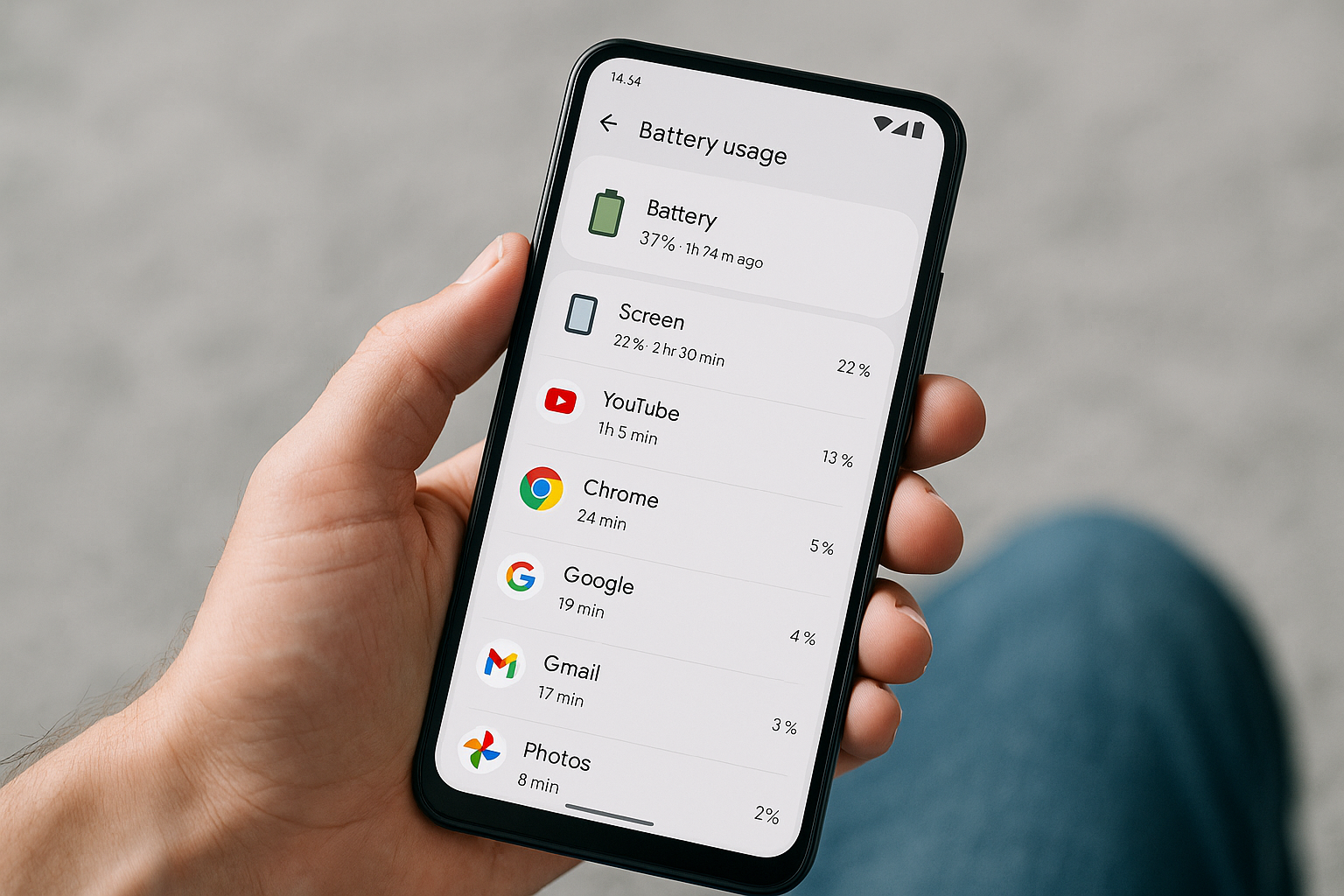
Open Settings > Battery (or Battery & device care on Samsung) and tap Battery usage to see which apps use the most power. The list shows each app’s share of battery used since your last full charge. Tap an app for details or to restrict its background activity. Many phones also let you switch the view to the last 24 hours or last 7 days for a broader picture.
Check battery usage on your Android phone
Android’s built-in battery stats are the most accurate way to find battery-hungry apps. Menu names vary by brand and Android version, but these paths cover the common options.
Google Pixel and most phones on Android 12–14
- Open Settings.
- Tap Battery.
- Tap Battery usage. You’ll see a usage graph and a list under Usage by apps.
- Tap an app to view foreground versus background usage and adjust restrictions.
Tip: For per‑app controls, go to Settings > Apps > See all apps > [App] > Battery, then choose Unrestricted, Optimized (default), or Restricted.
Samsung Galaxy (One UI 5/6)
- Open Settings.
- Tap Battery and device care > Battery.
- Tap Usage since last full charge or tap the graph to open Usage by apps.
- Tap an app for details, then toggle Allow background activity off if needed.
Extra tools: Battery > Background usage limits lets you put apps to Sleep or Deep sleep and enable Put unused apps to sleep to curb idle drain.
Xiaomi/Redmi/POCO (MIUI 13/14 and HyperOS)
- Open Settings.
- Tap Battery.
- Open Battery usage (sometimes labeled Usage stats or Details) to see per‑app drain.
- For per‑app control: Settings > Battery > App battery saver > select an app and choose No restrictions, Battery saver, or Restrict background apps.
OnePlus (OxygenOS 13/14)
- Open Settings.
- Tap Battery.
- Tap Battery usage to view the chart and app list.
- To manage an app: Settings > Apps > [App] > Battery > Optimize or Don’t optimize. You can also open Settings > Apps > Special app access > Battery optimization.
What the Battery usage screen is actually showing
The Battery usage page breaks down power consumption since your last full charge (or over a selectable window like 24 hours/7 days on some devices). The list shows each app’s percentage of the total drain during that period. Example: if your phone drops from 100% to 80% and an app shows 25%, that app used roughly 5% of the battery (25% of the 20% consumed), not 25% of a full charge.
You’ll also see system items such as Screen (display), Android System, Phone idle, and Mobile network standby. These aren’t apps, but they matter: a high Screen entry points to brightness or refresh rate, while high Mobile network standby usually indicates poor signal or frequent network switching.
When you tap an app, many phones split usage into Foreground (time you actively used it) and Background (time it ran tasks like syncing, location checks, push notifications, or media playback). If background dominates, restricting background activity typically helps. If foreground dominates, the app is simply resource‑intensive when open—changing in‑app settings (refresh rate, video auto‑play, maps rendering, etc.) usually makes a bigger difference than OS‑level restrictions.
Get per‑app details and take action
After you identify a top battery user, rein it in without removing it entirely.
- Open the app’s info page: Settings > Apps > See all apps > [App].
- Tap Battery or Battery usage and choose a mode:
- Unrestricted: No limits. Reserve for apps that must run continuously (e.g., health trackers, VPNs).
- Optimized: Default smart limits. Best for most apps.
- Restricted: Aggressively limits background activity. Can delay notifications or sync.
- Samsung: Disable Allow background activity on the app’s Battery screen. Xiaomi: Use Restrict background apps in App battery saver.
- Review permissions: heavy location, camera, microphone, or Nearby Devices access can drain battery. Set Location to While in use and consider turning Precise location off where possible.
- Tune in‑app settings: reduce sync frequency, disable auto‑downloads, limit auto‑play, cut down background refreshing or live updates.
- Audit widgets and live wallpapers tied to the app. Some update frequently and keep the CPU or network active.
If you don’t see clear stats
Battery usage data resets after charging to 100%, a system update, or a reboot. If you just charged fully, use your phone for a few hours and check again. Some manufacturer skins hide the 7‑day view; in that case, check daily to spot repeat offenders. If the Battery usage page shows mostly system items and almost no apps, a power saving mode may be batching background work—temporarily disable extreme saver modes and recheck later.
Also verify:
- Power saving features like Ultra power saving or Extreme battery saver aren’t masking normal behavior.
- Data Saver isn’t blocking background data for apps you’re trying to evaluate.
- Battery usage access is allowed for Device Health Services or equivalent system components (usually on by default).
Quick brand guide to the menu path
| Brand | Path to Battery usage | Useful per‑app controls |
|---|---|---|
| Google Pixel (Android 12–14) | Settings > Battery > Battery usage | App info > Battery: Unrestricted / Optimized / Restricted |
| Samsung (One UI 5/6) | Settings > Battery and device care > Battery > Usage since last full charge | App info > Battery: Allow background activity; Battery > Background usage limits |
| Xiaomi/Redmi/POCO (MIUI/HyperOS) | Settings > Battery > Battery usage or Details | Battery > App battery saver: No restrictions / Battery saver / Restrict background |
| OnePlus (OxygenOS 13/14) | Settings > Battery > Battery usage | Settings > Apps > Special app access > Battery optimization; App info > Battery |
| Motorola, Nokia, others (near‑stock) | Settings > Battery > Battery usage | App info > Battery modes similar to Pixel |
Find battery hogs with third‑party tools (optional)
System stats are best, but utilities can add context and historical trends:
- AccuBattery estimates per‑app drain during active use, tracks charge cycles, and flags wakeups. It doesn’t need special permissions, but its numbers are estimates rather than direct system counters.
- GSam Battery Monitor can read deeper stats if you grant a one‑time ADB permission on Android 10+. Without it, results are limited.
Use reputable tools and avoid “battery booster” apps that constantly kill processes—modern Android already optimizes background activity. Always confirm findings against the built‑in Battery usage page before making changes.
Reduce drain from the top offenders
Once you know what’s using power, these changes usually deliver the biggest improvements without breaking core features:
- Update the app and Android system. Many battery bugs are fixed in updates.
- Limit background activity for social, shopping, and news apps that sync often.
- Review location usage: set to While in use, disable Precise location when possible, and turn off Location for apps that don’t need it.
- Control network use: enable Data Saver, disable auto‑play in streaming apps, and consider restricting background data for specific apps.
- Adjust display settings: reduce brightness, enable Adaptive brightness, shorten screen timeout, and consider a lower refresh rate to cut “Screen” usage.
- Use Adaptive Battery (Settings > Battery). Android prioritizes apps you use most and limits the rest via App Standby Buckets.
- Audit always‑on services: VPNs, cloud backups, and some keyboards or launchers can sit near the top if misconfigured.
- Uninstall or replace persistently heavy apps with lighter alternatives.
When system or hardware is the culprit
If the top items are Mobile network standby or Google Play services, app‑level restrictions won’t help much. Poor cellular signal forces the modem to work harder; switching to Wi‑Fi, enabling Wi‑Fi Calling, or changing carriers/locations can drastically improve battery life. For Google Play services spikes, update Google Play services and the Google app, review account sync (Settings > Passwords & accounts), and look for misbehaving features like Nearby Share, frequent backups, or nonstop location history uploads.
Large Android updates and app re‑indexes can temporarily raise Android System usage. Leave the phone on Wi‑Fi with the screen off to finish background tasks, then recheck Battery usage the next day.
Frequently Asked Questions
Why doesn’t the Battery usage list show exact mAh numbers?
Most Android builds display percentages because batteries differ in capacity, and percentage share since last full charge makes comparisons straightforward across devices. Some manufacturer skins show mAh, but percentage of total drain is the standard view on modern Android.
What does “Restricted” actually do to an app?
Restricted mode aggressively limits background tasks, network access, and wakeups. The app may not sync until you open it, and notifications can be delayed. It’s ideal for infrequently used apps that show high background usage but can break real‑time features like messaging, fitness tracking, or navigation.
Why is “Screen” always near the top of my battery usage?
The display is one of the most power‑hungry parts of a phone. High brightness, long screen‑on time, and high refresh rates push it up the list. Lower brightness, shorter timeouts, dark mode on OLED screens, and adaptive or lower refresh rate settings typically reduce this entry the most.
What if “Mobile network standby” uses a lot of battery?
This usually points to weak cellular signal or frequent network switching. Use Wi‑Fi when available, turn on Wi‑Fi Calling, lock your phone to a stable network type if your carrier allows it, or contact your carrier about coverage. In fringe areas, airplane mode with Wi‑Fi on can save a lot when you don’t need calls.
My Battery usage shows “Android System” or “Google Play services” at the top. Is that normal?
Short‑term spikes can be normal after updates or during heavy background tasks like backups and indexing. If it persists for days, update system apps, reboot, review account sync, disable unused nearby/location features, and check for recently installed apps that constantly call system services.
Can battery saver modes hide or skew usage stats?
Extreme saver modes can pause or batch background work, which may temporarily lower app entries or shift usage toward system categories. They don’t falsify data, but they do change behavior. Evaluate apps under your typical daily settings for the most accurate picture.
How often should I check Battery usage?
Check after a typical day or whenever you notice unusual drain. A full‑day view—or a 7‑day view if your phone provides it—helps filter out one‑off spikes and reveals consistent patterns worth fixing.