Quick Answer
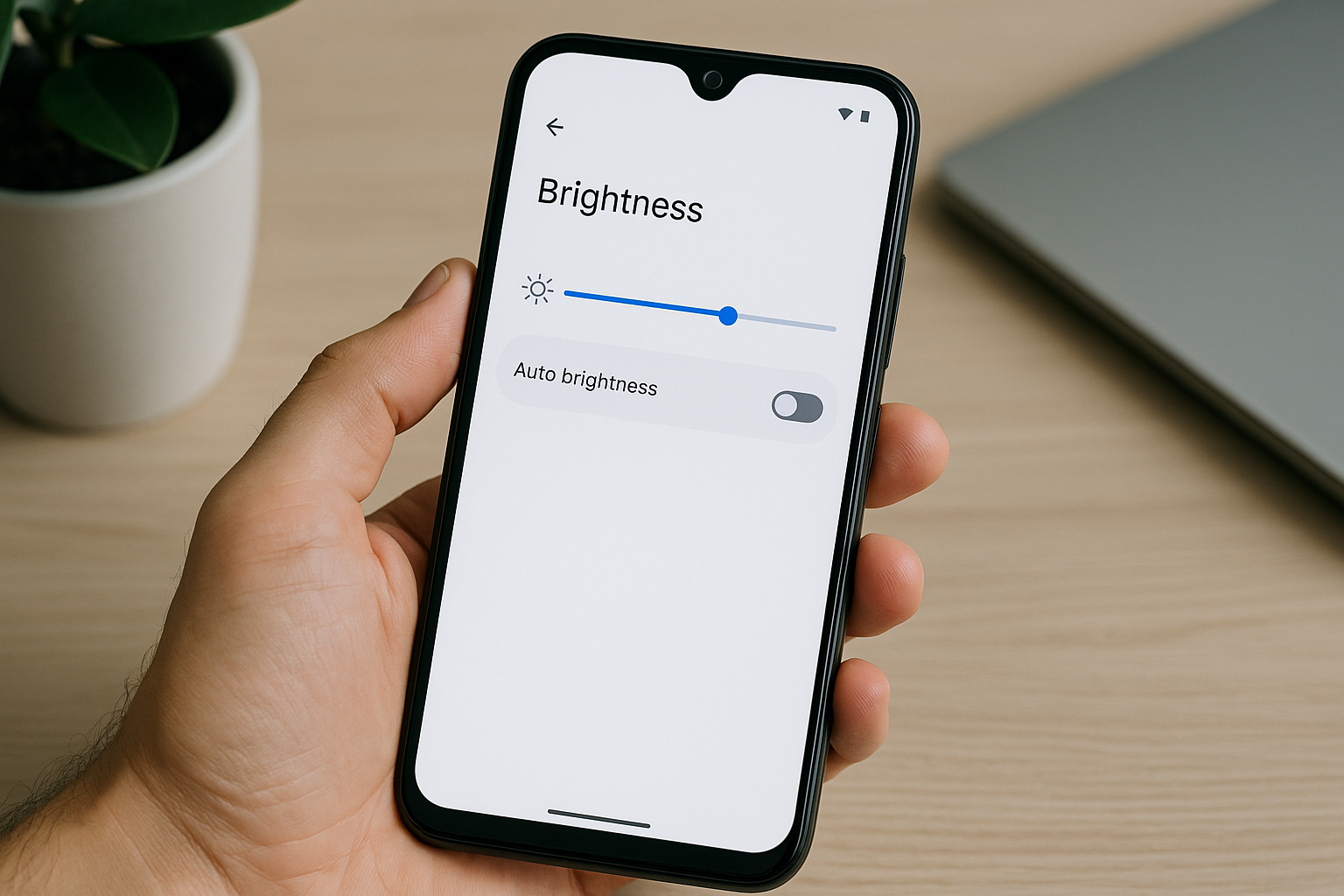
Your Android screen keeps dimming even with auto brightness off because of adaptive brightness learning your usage patterns, battery saver mode automatically reducing brightness, overheating protection kicking in, or third-party apps controlling display settings. Additionally, some manufacturers include separate brightness management features beyond the standard auto brightness toggle that continue adjusting your screen independently.
Understanding the Difference Between Auto Brightness and Adaptive Brightness
Many Android users confuse auto brightness with adaptive brightness, but these are two distinct features on modern Android devices. Auto brightness is the traditional feature that adjusts your screen based on ambient light sensors. When you turn this off, you expect full manual control. However, adaptive brightness represents a more sophisticated system that learns from your manual adjustments and applies those patterns even when auto brightness is disabled.
Adaptive brightness was introduced in Android 9 Pie and continues to operate in the background, tracking when and where you manually adjust brightness levels. The system creates a profile of your preferences based on lighting conditions, time of day, and the apps you’re using. This means your phone might still be making automatic adjustments based on what it thinks you prefer, regardless of your auto brightness setting.
To disable adaptive brightness completely, you need to go beyond just turning off auto brightness. Navigate to Settings, then Display, and look for “Adaptive brightness” as a separate toggle. On some devices, this option appears under Battery or Advanced settings within the Display menu. Turning this off gives you true manual control over your brightness levels.
Battery Saver Mode and Power Management
Battery saver mode is one of the most common culprits behind unexpected screen dimming. When your battery drops below a certain threshold, usually 15% or 20%, your Android device automatically activates power-saving features. Screen brightness reduction is one of the primary methods Android uses to extend battery life, and this happens regardless of your brightness settings.
Even if you manually increase brightness while in battery saver mode, the system will continue pushing it back down. Some devices allow you to customize battery saver settings to exclude brightness changes, but not all manufacturers offer this flexibility. Check your battery settings to see if battery saver is active and either disable it temporarily or adjust its parameters to prevent brightness interference.
Beyond battery saver, some Android devices have multiple power management modes like “optimized,” “medium power saving,” and “maximum power saving.” Each of these modes implements different levels of brightness restriction. Samsung devices, for instance, have an adaptive power saving feature that monitors your usage patterns and automatically switches between power modes, causing unexpected dimming throughout the day.
Thermal Throttling and Overheating Protection
When your Android device gets too hot, it implements thermal throttling to reduce heat generation and protect internal components. Screen brightness is a significant heat source, so dimming the display is one of the first protective measures your phone takes when temperature sensors detect overheating.
This thermal protection operates at the hardware and system level, completely bypassing your brightness preferences. You’ll notice this most often during intensive tasks like gaming, video recording, GPS navigation in direct sunlight, or when using your phone while charging. The dimming is temporary and will reverse once your device cools down to safe operating temperatures.
If you experience frequent thermal dimming, consider addressing the root cause rather than fighting the symptom. Remove your phone case during intensive tasks, avoid direct sunlight when possible, reduce screen brightness proactively before overheating occurs, close unnecessary background apps, and never use your phone for demanding tasks while it’s charging, especially with fast charging.
Manufacturer-Specific Brightness Features
Different Android manufacturers implement their own brightness management systems on top of standard Android features. Samsung devices have “Extra brightness” and “Auto brightness adjustment” options. OnePlus phones include “Sunshine display” for outdoor visibility. Xiaomi devices feature “Automatic contrast” that adjusts brightness based on screen content. These features can cause dimming even when you believe all automatic adjustments are disabled.
To identify manufacturer-specific features, thoroughly explore your Display settings menu. Look for any options mentioning adaptive, automatic, intelligent, or smart display adjustments. Check both the main Display settings and any Advanced or Additional settings submenus. Reading your device’s manual or searching online for your specific model and “brightness settings” can reveal hidden features you weren’t aware of.
Screen Timeout and Attention-Aware Features
Screen timeout settings cause dimming before your screen turns off completely. This is different from sudden dimming, but it’s often mistaken for automatic brightness adjustments. By default, Android dims your screen about 10 seconds before the timeout duration you’ve set. If you have a 30-second timeout, your screen will dim at 20 seconds as a warning.
Many modern Android devices also include attention-aware or “Smart stay” features that use the front camera to detect whether you’re looking at the screen. When these systems don’t detect your eyes, they may dim the display to save power. These features can be overly sensitive or misinterpret your gaze, leading to unwanted dimming during active use. You’ll find these options under Display settings, often labeled as “Screen attention” or similar names.
Third-Party Apps and System Permissions
Apps with permission to modify system settings can control your brightness without your explicit knowledge. Screen filter apps, blue light filters, reading modes, and even some fitness or wellness apps adjust brightness based on their own algorithms. These apps often request permission during installation, and you may have granted access without realizing the implications.
To audit which apps have this permission, go to Settings, then Apps or Application Manager. Tap the menu icon and select “Special access” or “Advanced,” then choose “Modify system settings” or “Display over other apps.” You’ll see a list of apps with permission to change system settings including brightness. Revoke access for any apps that shouldn’t have control over your display.
Some apps also use accessibility services to control system functions. While legitimate accessibility apps need these permissions, malicious or poorly designed apps can abuse them. Check Settings, then Accessibility, and review which apps have accessibility service access. Disable any that don’t require it for their core functionality.
Display Refresh Rate and Content-Based Adjustments
Newer Android devices with variable refresh rate displays automatically adjust refresh rates based on content, which can create the perception of dimming even though brightness remains constant. When your phone switches from 120Hz to 60Hz during static content, the display may appear less vivid, which users sometimes interpret as dimming.
Additionally, some devices implement content-based brightness adjustments where the system analyzes what’s on screen and adjusts brightness accordingly. Video players, reading apps, and image viewers might trigger these adjustments. While this isn’t traditional auto brightness, it produces similar effects. Check your Display settings for options related to video enhancement, content optimization, or dynamic display adjustments.
Sensor Issues and Hardware Problems
Sometimes the problem isn’t software but hardware. If your ambient light sensor is malfunctioning or if debris covers it, your phone might receive incorrect light readings and adjust brightness accordingly. The sensor is typically located near the front camera, and anything blocking it can cause erratic brightness behavior.
Screen protectors, particularly poorly cut or thick ones, can interfere with sensor function. Dirt, dust, or case designs that partially cover the sensor area create similar problems. Clean the area around your front camera and sensors carefully, and if you recently applied a screen protector, ensure it has proper cutouts for all sensors.
A failing battery can also cause unexpected dimming. As lithium-ion batteries degrade, they become less capable of delivering consistent power, and your phone may reduce brightness to maintain stability. If your device is several years old and experiences dimming along with other performance issues, battery degradation might be the underlying cause.
Steps to Completely Stop Automatic Dimming
To gain complete manual control over your brightness, systematically disable all automatic features. First, turn off auto brightness in your Display settings. Then separately disable adaptive brightness if your device has this option. Check for and disable any manufacturer-specific brightness features with names suggesting automatic adjustment.
Next, review your battery settings and disable battery saver mode, or configure it to exclude brightness adjustments if that option exists. Turn off any attention-aware or smart stay features. Audit apps with system modification permissions and revoke access where unnecessary. Finally, ensure your screen timeout is set to an acceptable duration and that you understand the pre-timeout dimming behavior.
If dimming persists after these steps, restart your phone to clear any temporary system states. For persistent issues, consider backing up your data and performing a factory reset, as this eliminates any software conflicts or corrupted settings causing the problem. Before resetting, test your device in safe mode, which disables third-party apps and can help identify whether an app is causing the issue.
Frequently Asked Questions
Why does my screen dim when I open certain apps?
Some apps implement their own brightness controls or request lower brightness for comfortable viewing, particularly video streaming apps, e-readers, and night mode apps. Additionally, if an app triggers your phone’s thermal protection by using significant resources, your device may dim the screen to reduce heat. Check individual app settings for brightness or display options, and consider whether resource-intensive apps are causing your phone to overheat.
Can a software update cause new dimming behavior?
Absolutely. Android updates and manufacturer software updates frequently introduce new battery management features, adaptive brightness improvements, or display optimization algorithms that weren’t present in previous versions. After an update, review all your Display and Battery settings to check for new features that may have been enabled by default. Manufacturers sometimes reset certain preferences during major updates.
How do I know if my phone is dimming due to overheating?
When thermal throttling causes dimming, your phone will feel noticeably warm or hot to the touch, particularly around the camera area and upper portion of the device. The dimming typically occurs during or immediately after intensive tasks like gaming, video recording, or GPS navigation. Once you stop the demanding activity and allow your phone to cool for a few minutes, brightness should return to your set level automatically.
Does dark mode affect automatic brightness adjustments?
Dark mode itself doesn’t directly cause dimming, but some devices link dark mode activation with brightness reductions as part of battery saving strategies. When you enable dark mode, check whether your brightness level changed simultaneously. Some phones also have scheduling features that enable dark mode and reduce brightness together at sunset or bedtime. These are separate settings you can configure independently.
Why does my brightness slider move by itself?
If you see the brightness slider physically moving without your input, adaptive brightness is learning from your adjustments and applying them automatically. This feature tracks your manual changes and creates patterns based on ambient light conditions. To stop this behavior, you must disable adaptive brightness separately from auto brightness. The option location varies by manufacturer but is typically found in Display settings or under an Advanced submenu.
Can screen dimming damage my phone?
No, automatic screen dimming is actually a protective feature designed to prevent damage. When your phone dims due to overheating, it’s protecting sensitive components from heat damage that could cause permanent hardware failure. Similarly, dimming to conserve battery prevents deep discharge that can harm battery longevity. Rather than fighting these protective measures, address the underlying causes like excessive heat generation or battery degradation.
Will disabling all auto brightness features drain my battery faster?
Potentially, yes. Automatic brightness features typically optimize battery life by reducing brightness when full brightness isn’t necessary. If you manually set brightness high and keep it there constantly, you’ll use more battery than if adaptive features made intelligent adjustments. However, if you’re mindful about manually adjusting brightness based on your environment and needs, you can achieve similar efficiency. The convenience versus control trade-off depends on your usage patterns and preferences.