Quick Answer
Your iPhone screen continues to dim even with Auto-Brightness disabled because several other iOS features control screen brightness independently. True Tone adjusts color temperature and perceived brightness, Attention Aware Features dim the display when you’re not actively looking at it, and Low Power Mode reduces screen brightness automatically. Additionally, overheating protection, Reduce White Point accessibility settings, and certain display accommodations can all override your manual brightness settings regardless of the Auto-Brightness toggle.
Understanding iPhone’s Multiple Brightness Control Systems
Many iPhone users assume that disabling Auto-Brightness gives them complete control over their screen brightness, but iOS manages display illumination through several independent systems. These features work simultaneously, and each can adjust your screen brightness based on different environmental factors or device conditions. The Auto-Brightness feature specifically responds to ambient light sensors, but it represents just one piece of a larger brightness management ecosystem built into iOS.
Apple designed these overlapping systems to balance screen visibility, battery life, eye comfort, and device safety. While this approach benefits most users, it can be frustrating when your screen dims unexpectedly and you don’t understand why. The key to solving persistent dimming issues lies in identifying which specific feature is causing the behavior and adjusting it according to your preferences.
True Tone Technology and Perceived Brightness
True Tone uses advanced sensors to measure the color temperature of your surrounding environment and adjusts the display accordingly. While it primarily affects color temperature rather than actual brightness levels, it can create the perception that your screen has dimmed. When True Tone shifts your display toward warmer tones in environments with incandescent lighting, the screen often appears less bright even though the brightness slider hasn’t changed.
This feature is separate from Auto-Brightness and remains active even when you’ve disabled automatic brightness adjustments. You’ll find True Tone on iPhone 8 and newer models, and it operates continuously unless you specifically turn it off. To disable True Tone, go to Settings, select Display & Brightness, and toggle off True Tone. Many users find that disabling this feature immediately resolves their perceived dimming issues, particularly when moving between different lighting environments throughout the day.
Attention Aware Features Monitoring Your Face
iPhones with Face ID include Attention Aware Features that use the TrueDepth camera system to detect whether you’re actively looking at your screen. When the system determines you’re not paying attention to your device, it automatically dims the display to save battery power. This feature operates independently of Auto-Brightness and can cause your screen to dim even in the middle of reading or viewing content if you look away momentarily.
The Attention Aware system is particularly sensitive and can interpret various scenarios as inattention. Wearing sunglasses, having the phone at certain angles, or being in specific lighting conditions that make facial recognition more difficult can all trigger unwanted dimming. If you hold your phone while watching content but glance elsewhere occasionally, the feature may constantly adjust brightness levels, creating a frustrating user experience. You can disable this by going to Settings, selecting Face ID & Passcode, entering your passcode, and toggling off Attention Aware Features.
Low Power Mode’s Brightness Reduction
When Low Power Mode activates on your iPhone, either manually or automatically at 20% battery, it reduces your maximum screen brightness as part of its power-saving measures. This reduction occurs regardless of your Auto-Brightness settings, and you’ll notice the brightness slider’s maximum position has been lowered. The system prioritizes battery conservation over display brightness, and this behavior is baked into Low Power Mode’s functionality.
Even if you manually increase brightness while in Low Power Mode, you won’t be able to reach the same maximum levels available when the feature is off. If your screen appears consistently dimmer than expected, check whether the battery icon in your status bar is yellow, indicating Low Power Mode is active. You can disable it by going to Settings, selecting Battery, and toggling off Low Power Mode, or by charging your device above 80%, which automatically disables the feature.
Overheating Protection and Thermal Management
Your iPhone includes thermal management systems that protect internal components from heat damage. When the device’s internal temperature rises beyond safe operating limits, iOS automatically reduces screen brightness as one of several cooling measures. This dimming happens suddenly and can be quite aggressive, sometimes reducing brightness to minimal levels regardless of your settings.
Overheating typically occurs during processor-intensive tasks like gaming, video recording, or navigation with GPS, especially in warm environments or direct sunlight. You might also notice this when charging your phone while simultaneously using demanding apps. The dimming is accompanied by a temperature warning message in severe cases, but often the screen simply dims without explanation. The only solution is to let your iPhone cool down by closing demanding apps, removing it from direct sunlight, taking off any thick cases, and ceasing charging temporarily if applicable.
Accessibility Settings That Affect Brightness
Several accessibility features can dim your screen through different mechanisms. Reduce White Point specifically lowers the intensity of bright colors on your display, which creates an overall dimming effect even though it doesn’t technically adjust the brightness slider. This feature is particularly useful for people sensitive to bright displays, but if enabled accidentally, it causes confusion about why the screen appears dim.
You’ll find Reduce White Point under Settings, then Accessibility, followed by Display & Text Size. If the slider is adjusted beyond zero, your screen will appear dimmer than the brightness setting suggests. Similarly, other display accommodations like Color Filters can affect perceived brightness by changing how colors render on screen. The Zoom feature, when set to certain magnification levels or using particular filters, can also impact apparent screen brightness.
Display Zoom and Scale Settings
The Display Zoom feature, which changes the size of interface elements, can sometimes interact unexpectedly with brightness settings. While it doesn’t directly control brightness, switching between Standard and Zoomed view requires a device restart, and users occasionally report brightness inconsistencies after making this change. The system may need time to recalibrate various display settings after such fundamental changes to the interface rendering.
Night Shift’s Color Temperature Changes
Night Shift shifts your display toward the warmer end of the color spectrum during evening hours, reducing blue light exposure. While it’s designed to affect color temperature rather than brightness, the warmer tones can create the impression of a dimmer screen, especially if you have it set to maximum warmth. Night Shift operates on a schedule or can be manually enabled in Control Center, and it works independently from Auto-Brightness.
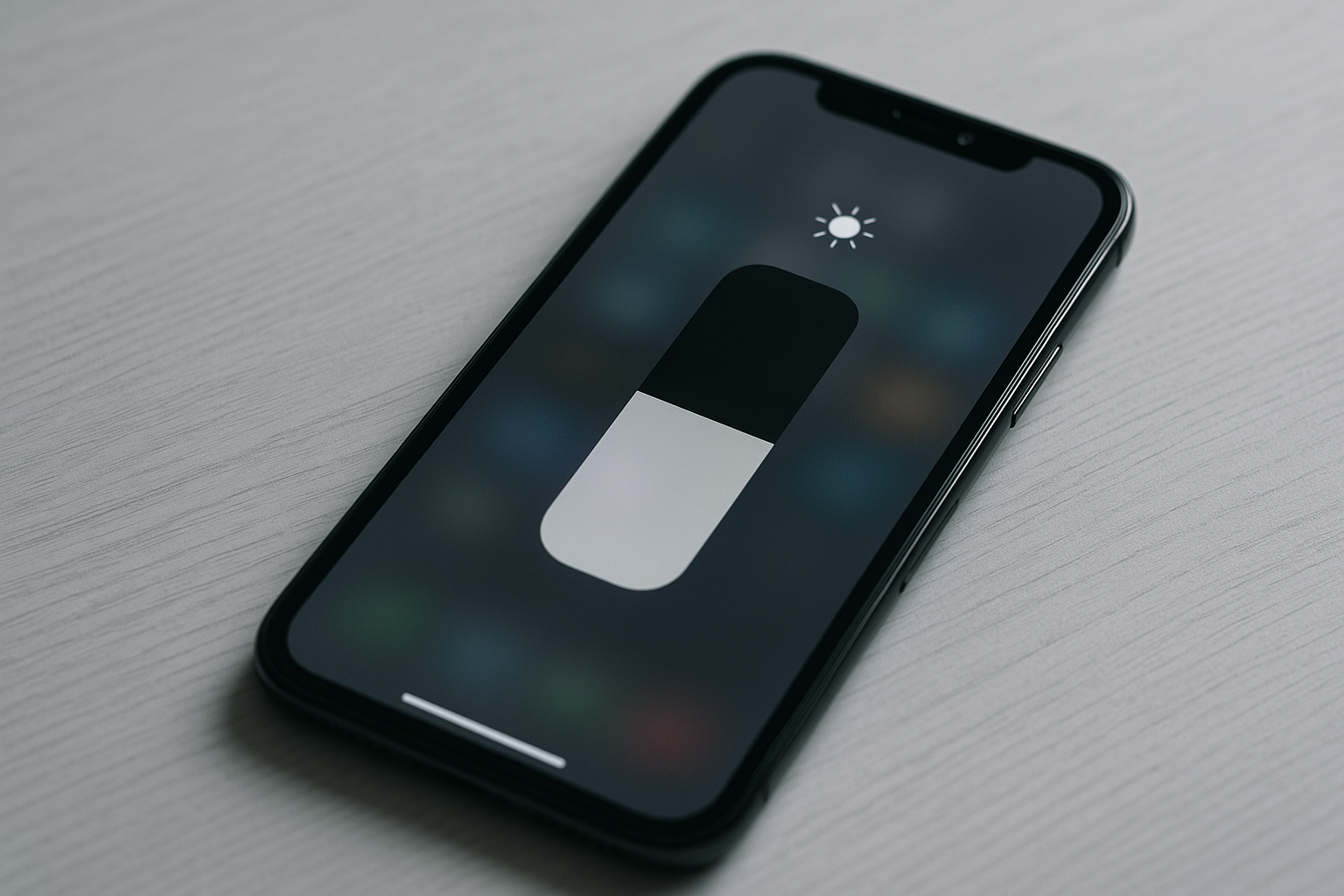
Users who schedule Night Shift often forget they’ve enabled it and wonder why their screen appears dim during evening hours. You can check Night Shift status in Control Center by pressing and holding the brightness slider, which reveals the Night Shift button. To adjust or disable it completely, navigate to Settings, then Display & Brightness, and select Night Shift to modify scheduling and color temperature intensity.
Solving Persistent Dimming Issues
If you’ve checked all the common causes and your screen still dims unexpectedly, try a systematic approach to identify the culprit. First, restart your iPhone, as temporary software glitches can sometimes cause brightness control problems. If the issue persists, reset all settings by going to Settings, General, Transfer or Reset iPhone, and selecting Reset All Settings. This won’t delete your data but will return all system settings to defaults, potentially resolving configuration conflicts.
Another effective troubleshooting step involves checking for iOS updates, as Apple regularly releases patches that fix display-related bugs. Occasionally, specific iOS versions have known brightness control issues that subsequent updates address. Go to Settings, General, and Software Update to check for available updates. Additionally, inspect your screen protector if you use one, as some protectors can interfere with the ambient light sensor near the top of your display, causing erratic brightness behavior even with Auto-Brightness disabled.
Hardware issues, while less common, can also cause dimming problems. If your iPhone has suffered liquid damage or physical trauma, internal components related to display control might be malfunctioning. In such cases, or if software troubleshooting doesn’t resolve the issue, contacting Apple Support or visiting an Apple Store for diagnostics becomes necessary. They can run hardware tests to determine whether your device requires repair or replacement.
Frequently Asked Questions
Can a dirty ambient light sensor cause dimming even with Auto-Brightness off?
While Auto-Brightness specifically uses the ambient light sensor, a dirty or obstructed sensor generally won’t cause dimming when the feature is disabled. However, screen protectors that cover the sensor area or cases that partially block it can occasionally create unexpected behavior. If you suspect sensor issues, clean the area around the front-facing camera and sensors with a soft, slightly damp cloth and ensure your screen protector has proper cutouts.
Does iOS have a hidden auto-brightness feature that can’t be turned off?
There is no hidden auto-brightness feature in iOS beyond the one you can disable in Settings. However, the multiple independent brightness control systems described above can create the impression of a secret auto-brightness function. True Tone, Attention Aware Features, and thermal management all adjust brightness automatically through different mechanisms, which explains why disabling Auto-Brightness alone doesn’t prevent all automatic adjustments.
Why does my iPhone screen dim when I open certain apps?
Apps don’t have direct control over system brightness settings, but processor-intensive apps can cause your iPhone to heat up, triggering thermal management that dims the screen. Gaming apps, video streaming, and augmented reality applications are common culprits. Additionally, if an app causes your battery to drain quickly and triggers Low Power Mode, this will reduce maximum brightness. Some apps may also request display characteristics that iOS interprets in ways that affect perceived brightness.
Will disabling all brightness features drain my battery faster?
Disabling features like Auto-Brightness, True Tone, and Attention Aware Features means your screen brightness will remain at whatever level you set manually, which could increase battery consumption if you keep brightness high. These features are designed partly for power efficiency, automatically reducing brightness when possible. However, if you manually set brightness to moderate levels appropriate for your environment, the battery impact of disabling these features is minimal and often worth the trade-off for consistent display behavior.
Can third-party apps control my iPhone’s brightness without permission?
Third-party apps cannot directly control system brightness levels without explicit user interaction. iOS restricts this capability to protect user experience and security. However, apps can open system settings or prompt you to adjust brightness, but they cannot make changes automatically in the background. If your brightness changes when using specific apps, it’s more likely due to the device’s thermal response to the app’s resource usage rather than the app itself controlling brightness.
How do I know if my dimming problem is hardware or software related?
Software-related dimming issues typically respond to the troubleshooting steps outlined above, such as disabling various brightness features, restarting your device, or updating iOS. If dimming persists after disabling all automatic brightness features, resetting all settings, and updating to the latest iOS version, you’re likely dealing with a hardware problem. Additional signs of hardware issues include visible display damage, dimming that occurs in specific screen areas rather than uniformly, or brightness that won’t increase at all even when all power-saving features are disabled.
Does Screen Time or any parental controls affect brightness?
Screen Time itself doesn’t directly control brightness, but it can restrict access to Settings, preventing you from adjusting brightness-related features. If Screen Time restrictions are active, you might be unable to disable features like Auto-Brightness, True Tone, or Low Power Mode, which would explain persistent dimming. Check Screen Time settings under Settings to see if Content & Privacy Restrictions are limiting your ability to change display settings. You’ll need the Screen Time passcode to modify these restrictions.