Quick Answer
Your iPhone alarm may not be going off due to incorrect volume settings, Do Not Disturb mode being enabled, silent mode interfering with alarm sounds, software glitches, or outdated iOS versions. The most common culprits are the ringer volume being turned down too low or accidentally set alarms being deleted or disabled. Checking your alarm settings, volume levels, and phone configurations typically resolves the issue within a few minutes.
Volume and Sound Settings
The most frequent reason people miss their iPhone alarms is volume-related. Your iPhone has separate volume controls for different functions, and the alarm uses the ringer volume, not the media volume you adjust while watching videos or listening to music. Even if your phone sounds loud during media playback, your alarm might be silent if the ringer volume is too low.
To check your ringer volume, press the volume buttons on the side of your iPhone when you’re not actively playing media. You’ll see a bell icon appear on the screen rather than a speaker icon. Make sure this volume is set high enough to wake you. Alternatively, go to Settings, then Sounds & Haptics, and adjust the Ringer and Alerts slider. For added security, turn off the “Change with Buttons” toggle so you can’t accidentally lower your alarm volume with the side buttons.
Another sound-related issue involves the silent mode switch. The physical mute switch on the left side of your iPhone silences calls and notifications, but it should not affect alarms. However, certain software bugs have occasionally caused silent mode to interfere with alarm sounds. Make sure the switch isn’t showing orange, which indicates silent mode is active. While this shouldn’t technically prevent alarms from sounding, switching it off eliminates one potential variable.
Do Not Disturb and Focus Modes
Focus modes, including Do Not Disturb, are designed to filter notifications and calls during specific times or activities. Many iPhone users enable Do Not Disturb at bedtime to avoid being disturbed by late-night messages or calls. The good news is that alarms are specifically designed to bypass Do Not Disturb settings and should sound regardless of which Focus mode is active.
However, bugs in iOS updates have occasionally caused Focus modes to interfere with alarm functionality. If you suspect this might be the issue, try temporarily disabling all Focus modes before bedtime. You can do this by swiping down from the top-right corner to access Control Center and tapping the active Focus mode to turn it off. If your alarm works reliably without Focus modes enabled, you may need to wait for an iOS update that fixes the bug or adjust your Focus settings.
Alarm Configuration Problems
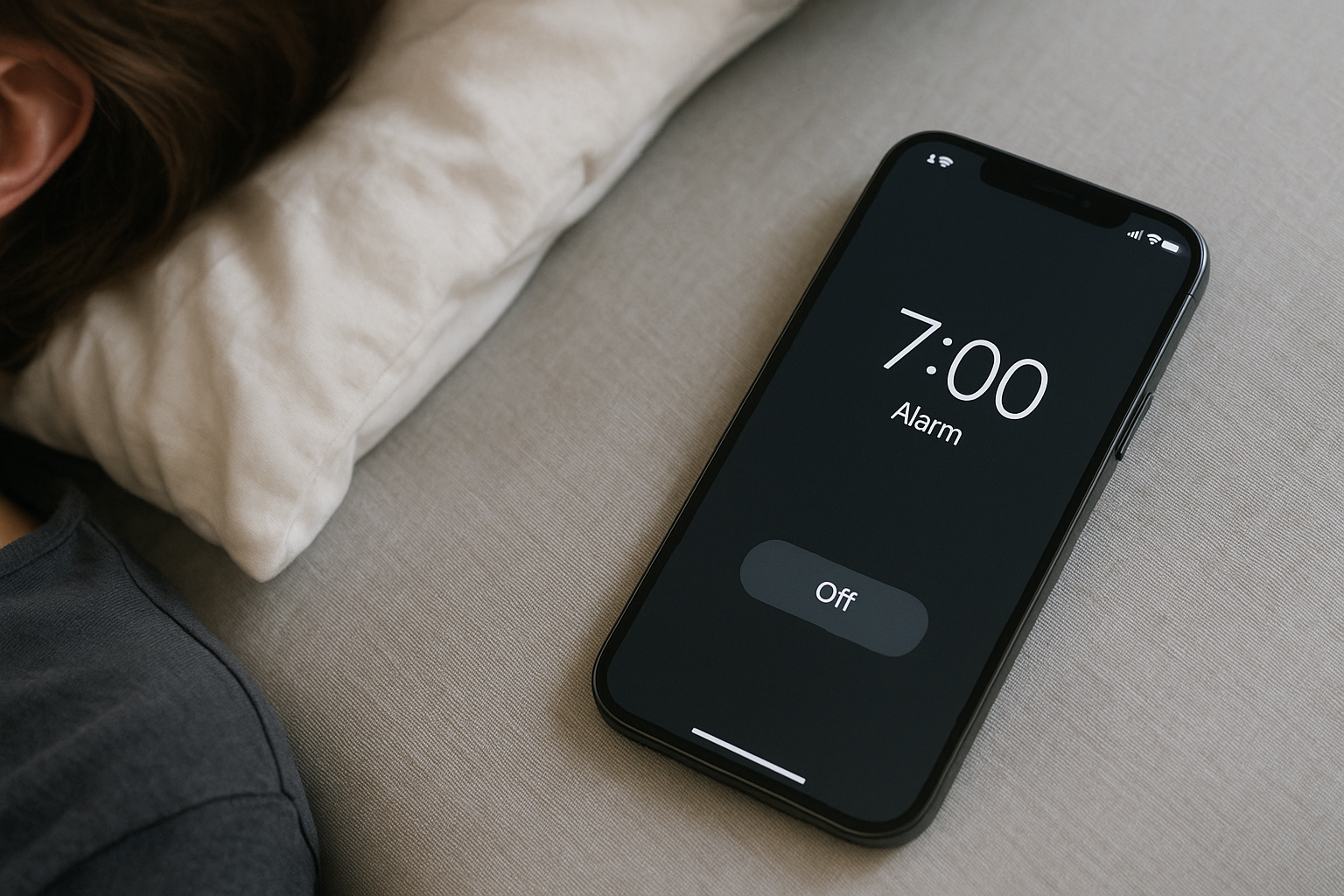
Sometimes the problem lies within how the alarm itself is set up. Open the Clock app and tap the Alarm tab to review all your alarms. Check that the alarm is actually enabled—it should show a switch that’s green. If it’s gray, the alarm is disabled and won’t sound. Also verify that you’ve set the correct time and selected the right AM or PM designation.
The “Snooze” feature can also create confusion. If you have a habit of hitting snooze repeatedly, you might be turning off the alarm entirely without realizing it. When an alarm goes off, you have the option to either snooze (which delays it by nine minutes) or stop it completely. In a groggy state, it’s easy to tap the wrong option.
Check the sound you’ve selected for your alarm as well. If you’ve chosen “None” as the alarm sound, your phone will only vibrate, which many people sleep through. Tap “Edit” next to your alarm, then select “Sound” to choose an audible alert tone. Picking a gradually increasing tone or a more jarring sound can help ensure you actually wake up.
Software Bugs and iOS Updates
Apple occasionally releases iOS updates that inadvertently introduce alarm-related bugs. Over the years, there have been several documented instances where specific iOS versions caused alarm failures. These issues typically affect certain alarm configurations or occur under specific conditions, like when the phone is in low power mode or when certain third-party apps are running.
If you’re experiencing persistent alarm problems, check whether you’re running the latest version of iOS. Go to Settings, then General, then Software Update. If an update is available, install it, as Apple often releases patches to fix known bugs. Before updating, read release notes or search online to see if other users are reporting alarm issues with the newest version—in rare cases, updating might actually introduce a new problem.
Restarting your iPhone can resolve temporary software glitches that prevent alarms from functioning properly. Simply hold down the power button and volume button simultaneously until the power-off slider appears, then slide to shut down. Wait about 30 seconds, then press and hold the power button again to restart. This simple step clears temporary memory issues and resets background processes that might be interfering with the Clock app.
Bedtime and Sleep Schedule Features
Apple’s Health app includes a sleep schedule feature that integrates with the Clock app. If you’ve configured a sleep schedule, it creates special bedtime alarms that work differently from regular alarms. These sleep schedule alarms have their own set of settings and can sometimes conflict with regular alarms or fail to sound due to configuration issues.
To review your sleep schedule settings, open the Health app, tap Browse, then Sleep. Check your schedule settings and make sure they align with when you actually want to wake up. Some users prefer to disable the sleep schedule entirely and rely solely on traditional alarms in the Clock app, which tends to be more straightforward and reliable.
Hardware Issues and Physical Damage
While less common, hardware problems can prevent your alarm from sounding. If your iPhone’s speaker is damaged, malfunctioning, or obstructed by debris, it won’t produce sound effectively. Test your speaker by playing music or videos at various volume levels. If the sound is distorted, crackling, or extremely quiet even at maximum volume, you may have a hardware issue that requires professional repair.
Water damage, even if your phone is water-resistant, can affect speaker performance over time. Exposure to moisture can corrode internal components or leave residue that dampens sound output. If you suspect water damage, place your iPhone in a dry environment for 24 hours and avoid charging it during this time. If the speaker still doesn’t work properly afterward, visit an Apple Store or authorized service provider.
Battery and Power Considerations
Your iPhone needs sufficient battery power to sound an alarm. If your phone dies during the night, the alarm obviously won’t go off. This seems obvious, but it happens more often than you might think, especially with older iPhones that have degraded batteries. Make it a habit to charge your phone overnight or ensure it has enough battery to last until your alarm time.
Low Power Mode is designed to conserve battery by reducing background activity and visual effects, but it should not prevent alarms from sounding. However, some users have reported occasional issues with alarms when Low Power Mode is enabled, particularly on older iOS versions. If you notice a pattern of missed alarms while in Low Power Mode, try disabling it before bedtime to see if that resolves the problem.
Third-Party Apps and Interference
Certain third-party applications can potentially interfere with system functions, including alarms. Apps that modify system sounds, provide alternative alarm functionality, or run intensive background processes might conflict with the native Clock app. If you’ve recently installed a new app and subsequently experienced alarm problems, try uninstalling that app to see if it resolves the issue.
Battery-intensive apps that run in the background can also cause system instability that affects alarm reliability. Check your battery usage in Settings under Battery to identify apps consuming excessive resources. Consider closing or uninstalling apps that show unusually high background activity, especially if you don’t use them regularly.
Frequently Asked Questions
Will my iPhone alarm go off if my phone is on silent mode?
Yes, your iPhone alarm should go off even when the phone is in silent mode. Alarms are designed to override the mute switch, so flipping the physical switch on the side of your iPhone to silent mode will not prevent your alarm from sounding at full volume based on your ringer settings.
Why does my iPhone alarm go off but there’s no sound?
This typically happens when the ringer volume is turned down to zero or when you’ve accidentally selected “None” as the alarm sound. Check your volume settings under Sounds & Haptics in Settings, and verify that your alarm has an actual sound selected rather than “None.” Also ensure the ringer volume is set to an audible level.
Can I use headphones or Bluetooth speakers for my iPhone alarm?
Your iPhone alarm will play through connected Bluetooth devices or wired headphones if they’re connected when the alarm goes off. However, this isn’t reliable for waking up because the headphones might disconnect overnight or fall off while you sleep. For the most dependable wake-up call, rely on your iPhone’s built-in speaker and disconnect audio devices before sleeping.
What should I do if my iPhone alarm keeps failing after trying all troubleshooting steps?
If you’ve checked all settings, updated iOS, restarted your phone, and your alarm still doesn’t work reliably, you may need to reset your iPhone settings or contact Apple Support. As a backup solution, set multiple alarms at different times and consider using a traditional alarm clock until you resolve the iPhone issue.
Does deleting and recreating alarms help fix alarm problems?
Yes, deleting problematic alarms and creating fresh ones can sometimes resolve issues caused by corrupted alarm data or configuration errors. Open the Clock app, swipe left on the alarm that’s not working, tap Delete, then create a new alarm from scratch with your desired settings.
Will my alarm still go off if my iPhone is powered off?
No, your iPhone alarm will not sound if the device is completely powered off. Your phone must be on for alarms to function, though it can be locked or in sleep mode. Make sure your iPhone has sufficient battery charge to remain on throughout the night until your alarm time.
How can I make sure my iPhone alarm is loud enough to wake me up?
Set your ringer volume to maximum by going to Settings, then Sounds & Haptics, and sliding the Ringer and Alerts volume all the way up. Choose an alarm sound that’s particularly effective at waking you, such as Radar or Alarm, which have sharp, attention-grabbing tones. Additionally, disable the “Change with Buttons” option to prevent accidentally lowering the volume with the side buttons.