Quick Answer
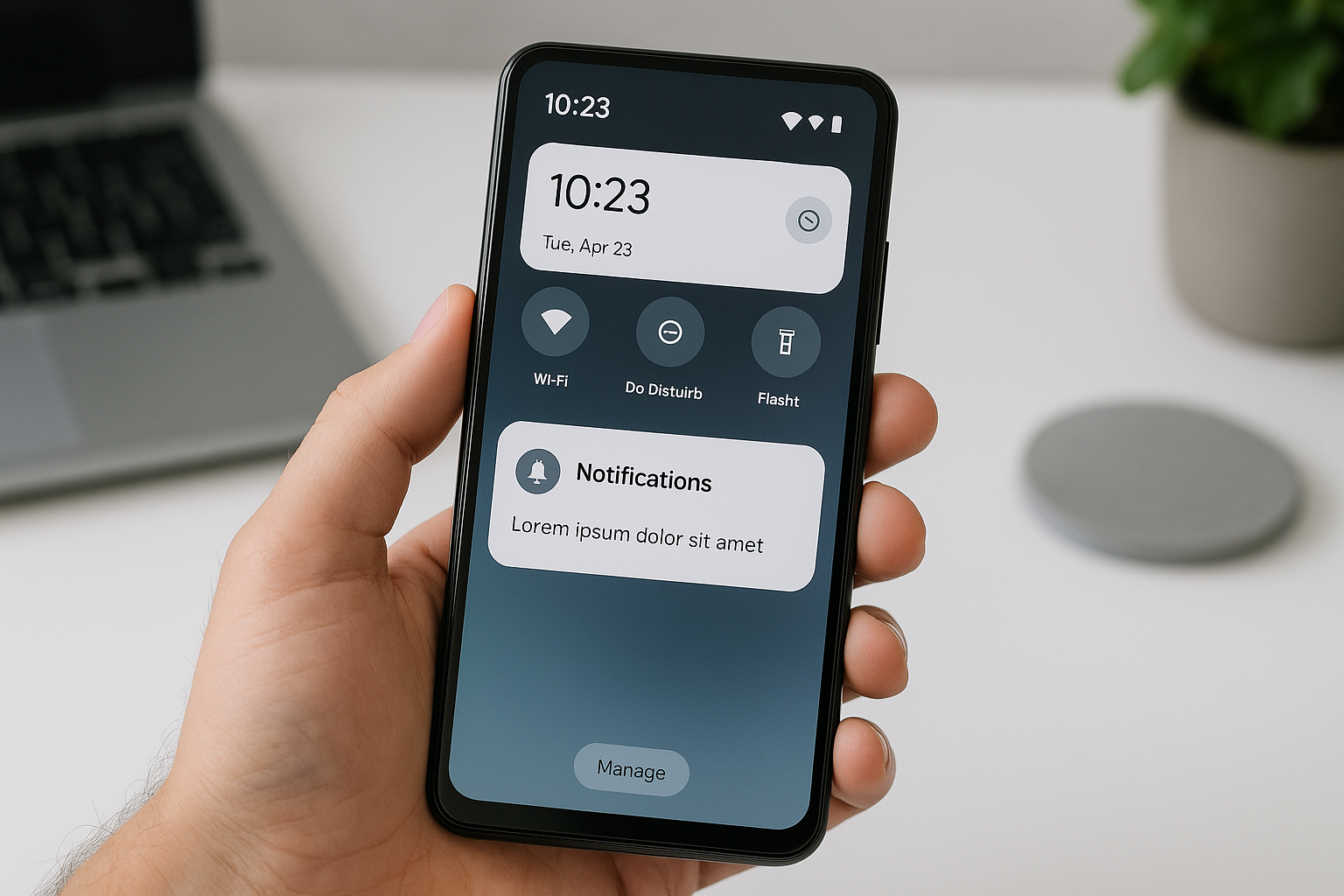
Android notifications get delayed primarily due to battery optimization features that put apps into a deep sleep mode, background data restrictions, poor network connectivity, or adaptive battery settings that limit background activity. Manufacturers like Samsung, Xiaomi, and OnePlus add aggressive power-saving features that can severely restrict notification delivery. Fixing delayed notifications typically requires adjusting battery optimization settings for specific apps, disabling adaptive battery, ensuring stable internet connectivity, and checking that background data isn’t restricted.
Battery Optimization and Doze Mode
Android’s built-in battery optimization system is the most common reason for notification delays. When your phone sits idle, Android enters Doze mode after a certain period, which restricts network access and background processing for apps. This energy-saving feature can prevent apps from checking for new messages, emails, or updates in real-time. While Doze mode includes periodic maintenance windows where apps can sync, these windows become less frequent the longer your device remains stationary.
Battery optimization works differently across Android versions. Newer versions use Adaptive Battery, which learns your app usage patterns and restricts background activity for apps you rarely use. If you opened an app once and never returned to it, Android assumes it’s low priority and delays its notifications significantly. This machine learning approach sometimes misjudges which apps matter to you, leading to delayed notifications from apps you actually care about but don’t open frequently.
Manufacturer-Specific Battery Management
Phone manufacturers add their own battery management layers on top of stock Android, and these custom implementations often cause more aggressive notification delays. Samsung’s Device Care, Xiaomi’s MIUI optimization, OnePlus’s battery optimization, and Huawei’s power management are particularly strict. These systems can kill background processes entirely, preventing apps from running background services that check for notifications.
Xiaomi devices, for example, have multiple layers of battery optimization that need individual configuration. MIUI includes Battery Saver, App Battery Saver, and a permissions system that controls autostart behavior. If any of these settings restrict an app, you’ll experience notification delays ranging from minutes to hours. OnePlus phones similarly require disabling battery optimization in multiple locations within their OxygenOS settings.
Background Data and Network Restrictions
Data Saver mode and background data restrictions prevent apps from accessing the internet when running in the background. When these features are enabled, apps can only fetch notifications when you actively open them or when connected to Wi-Fi. Many users enable Data Saver to reduce mobile data usage without realizing it blocks real-time notifications.
Network connectivity issues compound this problem. Unstable Wi-Fi connections, weak cellular signals, or switching between networks can interrupt the persistent connections apps maintain for push notifications. Apps using Google’s Firebase Cloud Messaging rely on a constant connection to Google’s servers. If that connection drops and doesn’t properly reconnect, notifications queue up until the connection is reestablished.
App-Specific Notification Settings
Each app has its own notification settings that can cause delays. Some apps use a pull notification system rather than push, meaning they check for new content at set intervals instead of receiving instant updates from a server. Email apps, for instance, might sync every 15 minutes rather than instantly. If an app’s sync interval is set to manual or extended periods, you’ll experience delays even when all system settings are configured correctly.
Notification channels introduced in Android 8.0 give granular control over how different types of notifications behave within a single app. If you’ve accidentally minimized the importance of certain notification channels, Android deprioritizes them and may delay their delivery. Checking each app’s notification channel settings ensures all important categories are set to make sound and appear on the lock screen.
RAM Management and App Killing
Aggressive RAM management causes Android to terminate background apps to free memory for active applications. When an app gets killed, it can’t maintain the background services needed for instant notifications. Budget and mid-range Android phones with limited RAM are more prone to this issue because they need to manage memory more aggressively to maintain performance.
The problem intensifies when you have many apps installed. Android prioritizes keeping recently used apps in memory and terminates older background processes. If you haven’t opened your messaging app in several hours but have been using other apps actively, Android might kill the messaging app’s background process, preventing it from receiving notifications until the system restarts it.
Solutions to Fix Delayed Notifications
Resolving notification delays requires a systematic approach addressing each potential cause. Start by disabling battery optimization for apps where timely notifications matter. Navigate to Settings, then Apps, select the specific app, tap Battery, and choose “Unrestricted” or disable battery optimization. Repeat this for all critical apps like messaging, email, and communication tools.
Next, disable Adaptive Battery or ensure important apps aren’t being restricted. Go to Settings, Battery, Adaptive Battery, and either turn it off completely or review which apps are being restricted. Some manufacturers hide these settings in different locations, so you might need to search for “battery optimization” or “background restrictions” in your settings menu.
Allow background data usage for essential apps by visiting Settings, Apps, selecting each app, then Data Usage, and ensuring “Background data” and “Unrestricted data usage” are enabled. This ensures apps can check for notifications even when Data Saver is active or you’re using mobile data.
For manufacturer-specific issues, search online for your specific phone model and “notification delay fix” because each brand requires different steps. Xiaomi users need to enable Autostart, disable battery optimization, and remove apps from recent apps cleaner. Samsung users should disable “Put apps to sleep” in Device Care settings. OnePlus users need to adjust both system battery optimization and Advanced Optimization settings.
Keep your apps updated and ensure you’re running the latest Android version available for your device. Developers regularly fix notification delivery issues, and system updates often improve background process management. Check the Google Play Store for app updates and your phone’s system settings for OS updates.
When Technical Issues Cause Delays
Sometimes the problem lies with the app developer’s server infrastructure or Google’s notification delivery system. If Firebase Cloud Messaging experiences outages or if an app’s notification server goes down, no amount of phone configuration will fix the delay. These issues are temporary and resolve once the service provider fixes their infrastructure.
Corrupted app data can also interfere with notification delivery. Clearing an app’s cache and data forces it to rebuild its notification connection from scratch, which sometimes resolves persistent issues. Be aware that clearing data logs you out and resets the app, so have your login credentials ready.
Network configuration problems at your ISP or cellular carrier can block notification ports or throttle persistent connections. This is rare but can happen with overly restrictive corporate networks or certain VPN configurations. Testing notifications on different networks helps identify if your connection is the culprit.
Frequently Asked Questions
Why do I only get notifications when I open the app?
This happens when battery optimization or background data restrictions prevent the app from running in the background. The app can only check for new notifications when you actively open it because Android has killed its background processes. Disable battery optimization for that specific app and ensure background data is enabled to allow real-time notification delivery.
Do notification delays happen on all Android phones?
Notification delays can occur on any Android device, but they’re more common and severe on phones from manufacturers that implement aggressive battery management. Xiaomi, OnePlus, Huawei, and Samsung devices tend to have more notification issues than Google Pixel phones, which run stock Android with less aggressive background restrictions. Budget phones with limited RAM also experience more frequent delays due to aggressive memory management.
Will disabling battery optimization drain my battery faster?
Disabling battery optimization for a few essential apps has minimal impact on battery life. Modern apps are designed to be efficient with background resources, using Google’s push notification system rather than constantly polling servers. The battery drain from allowing five to ten important apps to run unrestricted is negligible compared to the overall battery consumption of screen time and active app usage.
Why do notifications sometimes arrive all at once?
Batch notification delivery occurs when your phone exits Doze mode or when background processes are allowed to run during maintenance windows. Android queues notifications during deep sleep periods and delivers them simultaneously when the device wakes up or connects to a charger. This also happens when network connectivity is restored after a period of being offline or having poor signal.
Can third-party apps fix Android notification delays?
Third-party apps claiming to fix notification delays have limited effectiveness because they face the same background restrictions as other apps. Some apps attempt to maintain persistent connections or wake other apps, but Android’s security model prevents apps from reliably bypassing system-level battery optimization. The most effective solution is properly configuring your phone’s built-in settings rather than relying on additional software.
How do I know if the delay is my phone or the app’s servers?
Test notifications from multiple apps and services. If delays affect only one app while others work fine, the problem likely lies with that app’s servers or configuration. If all apps experience delays, your phone’s settings are the culprit. You can also check the app developer’s social media or status pages for reported server issues, or test the same app on another device to isolate whether the problem is device-specific.
Why do notifications work fine when connected to Wi-Fi but delay on mobile data?
This indicates that Data Saver mode is enabled or background data is restricted for specific apps. Data Saver allows unrestricted access on Wi-Fi but blocks background data on cellular connections to reduce data usage. Disable Data Saver entirely or add exceptions for apps that need real-time notifications regardless of connection type by enabling unrestricted data usage in each app’s settings.