Quick Answer
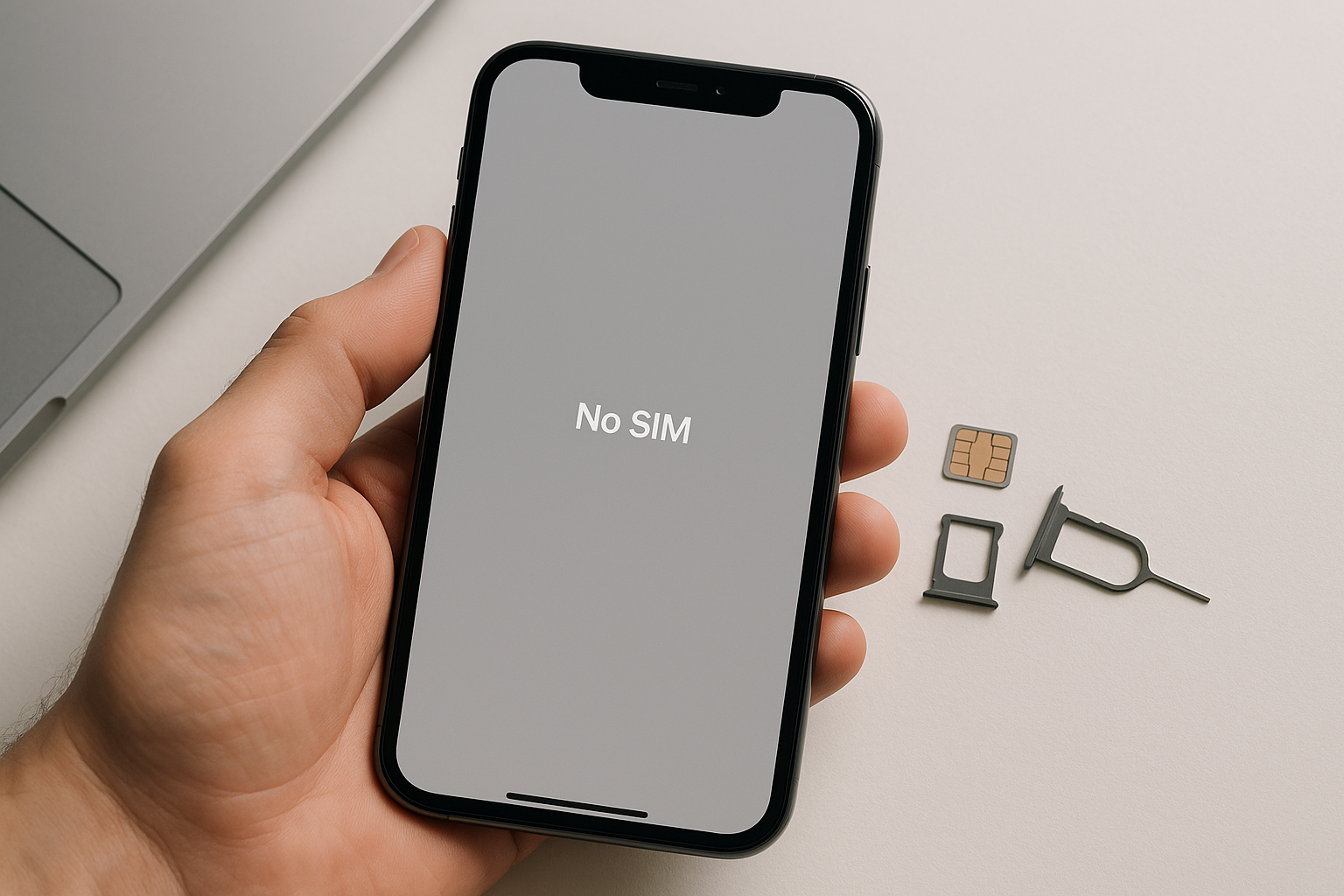
Your iPhone displays “No SIM” or “Invalid SIM” when it cannot detect or recognize the SIM card inserted in the device. This usually happens due to a loose SIM card, dirt or damage on the SIM card or tray, a carrier lock issue, software glitches, or hardware problems with the SIM reader. Most cases can be resolved by reseating the SIM card, restarting your phone, updating iOS, or checking with your carrier about activation status.
Common Causes Behind the Error Message
When your iPhone suddenly shows these error messages, several factors might be at play. Understanding the root cause helps you apply the right solution quickly. The SIM card itself might have physical issues, such as scratches, bending, or accumulation of dust and debris that prevents proper contact with the phone’s reader. Sometimes the problem isn’t the card at all but rather the metal tray that holds it, which can become slightly misaligned or damaged over time.
Software-related issues also trigger these alerts frequently. An incomplete iOS update, corrupted carrier settings, or temporary system glitches can prevent your iPhone from properly communicating with the SIM card. Carrier locks present another common scenario, especially if you’re using a SIM card from a different carrier than the one your iPhone was originally locked to. Additionally, if you’ve recently switched carriers or got a new SIM card but haven’t activated it properly, your phone won’t recognize it as valid.
Hardware failures, though less common, do occur. The SIM card reader inside your iPhone can malfunction due to water damage, physical impact, or simple wear and tear. If you’ve dropped your phone recently or exposed it to moisture, the internal components responsible for reading the SIM might have sustained damage.
Step-by-Step Troubleshooting Solutions
Restart Your iPhone
Before diving into more complex solutions, perform a simple restart. This clears temporary software glitches that might be interfering with SIM card detection. For iPhone 8 and later models, press and quickly release the volume up button, press and quickly release the volume down button, then press and hold the side button until the Apple logo appears. For iPhone 7, hold both the volume down and side buttons together. For earlier models, hold the top or side button until you see the slider, then drag to power off.
Remove and Reinsert the SIM Card
Removing the SIM card and carefully placing it back can resolve detection issues. Power off your iPhone first to prevent any potential data corruption. Locate the SIM tray on the right side of your device (or on top for older models). Insert the SIM eject tool or a straightened paperclip into the small hole next to the tray. Apply gentle pressure until the tray pops out. Remove the SIM card and inspect it for visible damage, dirt, or debris. Clean the gold contacts gently with a soft, lint-free cloth if needed. Check that the SIM card matches your tray size—some people accidentally use adapters that can cause poor contact. Reinsert the card ensuring it sits flat and aligned properly, then slide the tray back into the phone until it clicks into place.
Check for Carrier Settings Updates
Carriers periodically release updates that improve connectivity and fix compatibility issues. Your iPhone typically installs these automatically, but you can manually check. Connect to Wi-Fi, then go to Settings, select General, and tap About. If an update is available, you’ll see a prompt to install it. These updates ensure your device communicates correctly with your carrier’s network using the latest protocols.
Update iOS to the Latest Version
Outdated iOS versions sometimes contain bugs that affect SIM card recognition. Apple regularly releases updates that address these issues. Navigate to Settings, tap General, then Software Update. If an update is available, download and install it while connected to Wi-Fi and with sufficient battery charge or a power adapter connected. Back up your data before updating to prevent any potential loss.
Reset Network Settings
Corrupted network configurations can interfere with SIM functionality. Resetting network settings returns all network-related preferences to factory defaults without affecting your personal data. Go to Settings, select General, scroll down to Transfer or Reset iPhone, tap Reset, then choose Reset Network Settings. You’ll need to enter your passcode. Keep in mind this removes saved Wi-Fi passwords, VPN settings, and APN configurations, so you’ll need to re-enter these afterward.
Verify Your iPhone Isn’t Carrier Locked
If you’re using a SIM card from a different carrier than your iPhone was originally sold with, carrier lock restrictions might prevent it from working. Check your lock status by going to Settings, then General, then About. Scroll down to Carrier Lock. If it says “No SIM restrictions,” your phone is unlocked. If it shows a specific carrier, you’ll need to contact that carrier to request an unlock, which they’ll typically do if you’ve met their requirements like completing payment plans or contract terms.
Contact Your Carrier
Your carrier can verify whether your SIM card is properly activated and provisioned for your account. They can also check if there are network-side issues affecting service in your area or if your account has any restrictions. If you recently got a new SIM card, it might need activation on their end. Carriers can also send a new SIM card if yours is damaged or defective.
Test with Another SIM Card
Borrowing a SIM card from a friend or family member (preferably from the same carrier) helps determine whether the issue lies with your SIM card or your iPhone. If another SIM works fine, your original card is likely damaged and needs replacement. If the error persists with multiple SIM cards, your iPhone’s hardware is probably at fault.
When Hardware Repair Becomes Necessary
If you’ve exhausted all software solutions and tested with different SIM cards without success, hardware damage is the likely culprit. The SIM card reader is a delicate component that can fail due to various reasons. Water damage is a frequent cause, even if your phone seems to work fine otherwise. Liquid can corrode the tiny pins that make contact with the SIM card over time.
Physical damage from drops or impacts can also dislodge or break internal components. In some cases, manufacturing defects cause premature failure of the SIM reader, though this is relatively rare with modern iPhones. If your device is still under warranty or you have AppleCare+, contact Apple Support to arrange a repair or replacement. They’ll run diagnostics to confirm the hardware issue before proceeding.
For out-of-warranty devices, you can still visit an Apple Store or authorized service provider for repair, though you’ll pay for the service. Third-party repair shops offer less expensive alternatives, but using unauthorized repair services might void any remaining warranty coverage and could cause additional problems if not performed correctly.
Preventing Future SIM Card Issues
Taking preventive measures reduces the likelihood of encountering these errors again. Handle your SIM card carefully during removal and insertion, avoiding touching the gold contacts with your fingers as oils can interfere with conductivity. Keep the SIM tray clean and free from debris. When switching SIM cards, do so in a clean environment rather than outdoors where dust can enter the tray slot.
Protect your iPhone from water exposure even if it has water resistance ratings, as these protections degrade over time. Avoid subjecting your phone to extreme temperatures, which can cause expansion and contraction that might affect the SIM tray fit. Regularly update your iOS and carrier settings to ensure compatibility with network changes your carrier implements.
If you travel internationally, research whether your carrier offers international roaming and whether your iPhone model supports the frequency bands used in your destination country. Using the wrong SIM card for your device can sometimes cause detection issues.
Frequently Asked Questions
Why does my iPhone say No SIM after an iOS update?
iOS updates occasionally contain bugs that affect SIM card detection, or the update process itself might temporarily corrupt carrier settings. Try restarting your iPhone first, then check for a carrier settings update by going to Settings, General, and About while connected to Wi-Fi. If the problem persists, remove and reinsert your SIM card, or reset network settings to restore proper functionality.
Can a damaged SIM card be repaired or does it need replacement?
SIM cards cannot be repaired if they’re physically damaged, scratched, or bent. You’ll need to get a replacement from your carrier, which is typically free or very inexpensive. Contact your carrier’s customer service or visit a retail location. They’ll deactivate your old SIM and issue a new one with the same phone number and account details. Activation usually takes just a few minutes.
Will resetting network settings delete my photos or apps?
Resetting network settings only affects network-related configurations such as saved Wi-Fi passwords, VPN settings, Bluetooth connections, and APN configurations. Your photos, apps, messages, contacts, and other personal data remain completely untouched. However, you’ll need to reconnect to Wi-Fi networks by re-entering passwords and reconfigure any custom network settings you previously used.
How do I know if my iPhone’s SIM reader is broken?
Test with multiple SIM cards from different sources. If none of them work and you’ve already tried all software solutions including iOS updates, restarts, and network resets, the SIM reader likely has hardware damage. Another indicator is if the SIM tray feels loose or doesn’t click properly into place. Physical damage from drops or water exposure also suggests potential reader malfunction. Professional diagnostics from Apple can confirm the issue.
Can I use my iPhone without a SIM card?
You can use an iPhone without a SIM card for many functions, but cellular calling and mobile data won’t work. You’ll still have access to Wi-Fi connectivity, allowing you to browse the internet, use apps, send iMessages to other Apple devices, make FaceTime calls, and use most features that don’t require a cellular connection. This setup works well for using an old iPhone as a secondary device or for children.
Why does the error appear and disappear randomly?
Intermittent “No SIM” or “Invalid SIM” errors typically indicate a loose connection between the SIM card and the reader. This happens when the SIM card isn’t seated properly in the tray, the tray itself is slightly bent, or internal contact pins are worn or dirty. Movement or temperature changes can cause the connection to make and break contact. Try removing and carefully reinserting the SIM card, ensuring it sits completely flat and the tray clicks firmly into place.
Does airplane mode affect SIM card detection?
Airplane mode temporarily disables all wireless connections including cellular service, but it doesn’t prevent your iPhone from detecting the SIM card itself. If you see “No SIM” or “Invalid SIM” while in airplane mode, the error exists independently of the airplane mode setting. Toggle airplane mode off to restore cellular connectivity, but this won’t fix underlying SIM detection issues caused by hardware problems, improper insertion, or carrier lock restrictions.