Quick Answer
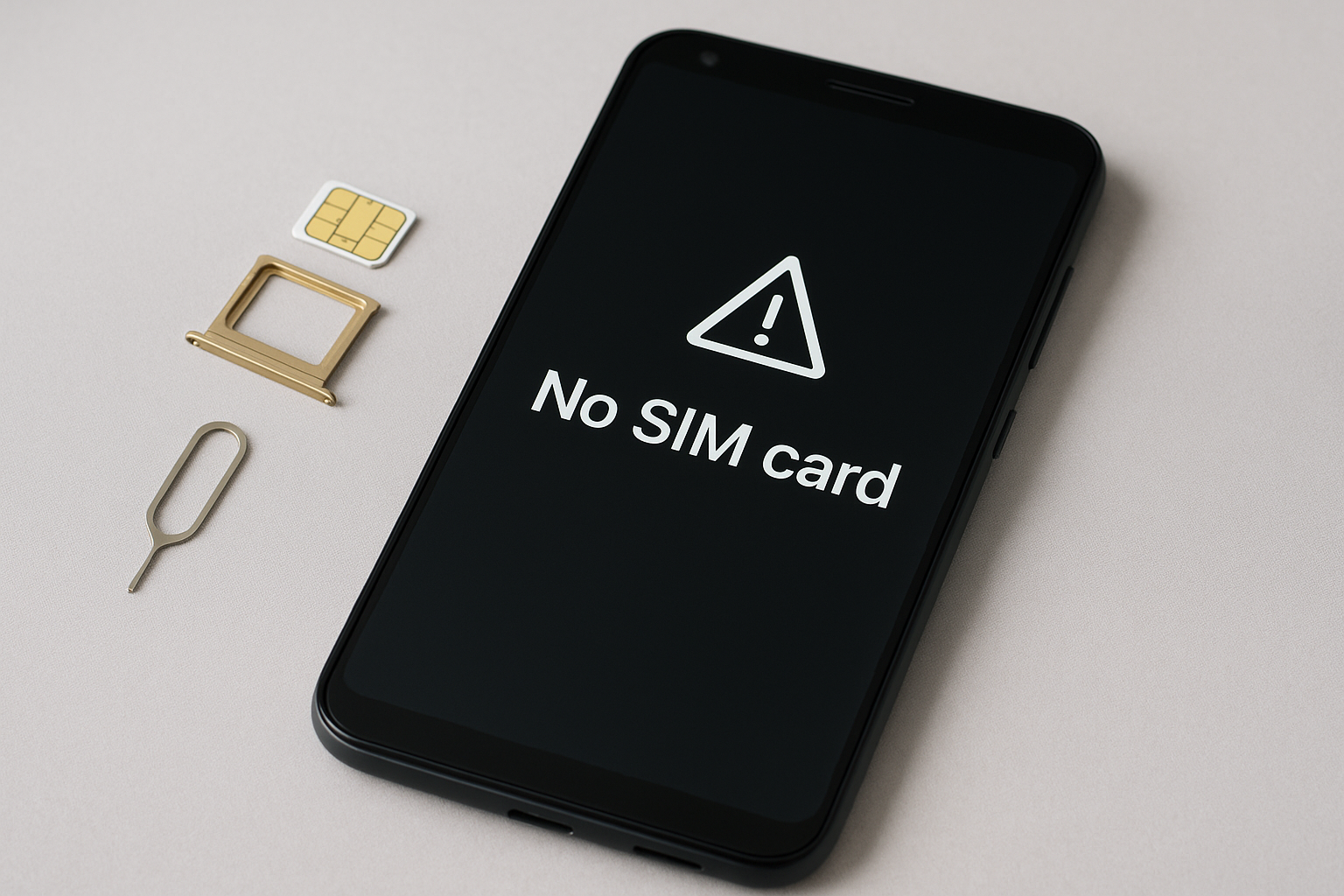
Your Android phone displays a “No SIM Card” error when it cannot detect or read the SIM card installed in the device. This usually happens due to a loose SIM card, dirt or debris in the SIM tray, a damaged SIM card, software glitches, or hardware problems with the SIM card reader. Most cases can be resolved by removing and reinserting the SIM card properly, cleaning the contacts, or restarting your phone.
Understanding the SIM Card Error
The SIM card serves as your phone’s connection to your mobile network, storing your subscriber information and allowing you to make calls, send texts, and use mobile data. When your Android phone fails to recognize this card, it essentially becomes disconnected from your carrier’s network. The error message might appear suddenly even if your phone was working fine moments before, or it could show up after you’ve dropped your device, updated the software, or switched SIM cards.
This issue affects all Android devices regardless of manufacturer—whether you’re using a Samsung Galaxy, Google Pixel, OnePlus, or any other brand. The underlying causes remain consistent across devices, though some manufacturers have specific quirks in how they handle SIM detection.
Physical Connection Problems
The most common reason for a “No SIM Card” error is a physical connection issue between your SIM card and the phone’s reader. Even slight movement can disrupt this connection, which is why the problem sometimes appears after dropping your phone or carrying it in your pocket during physical activity.
When you insert a SIM card, it must make contact with small metal pins inside the SIM tray slot. If the card shifts even slightly, these connections break. The SIM card sits in a tray that slides in and out of your phone, and this tray can become loose over time. Temperature changes can also cause the phone’s components to expand or contract minutely, which might be enough to interrupt the connection.
To address this, power off your phone completely and locate the SIM tray. Use the ejection tool that came with your phone or a small paperclip to gently push into the tiny hole next to the tray. Remove the tray carefully and inspect both the SIM card and the tray itself. Look for any visible damage, such as cracks or bent metal contacts. Remove the SIM card from the tray, wipe it gently with a soft, dry cloth, and reinsert it ensuring it sits flush in the tray. The card should fit in only one orientation, so check that you’re placing it correctly. Slide the tray back into the phone until it clicks into place, then power on the device.
Dirt and Debris Interference
Dust, lint, and other small particles can accumulate in the SIM card slot over time, preventing proper contact between the card and the reader. This is particularly common if you carry your phone in dusty environments or in pockets with fabric lint. Even a tiny speck of debris can interrupt the electrical connection needed for your phone to detect the SIM card.
When cleaning the SIM card and tray, pay attention to the gold-colored contacts on the card itself. These should be shiny and free from smudges or oxidation. If they appear dull or dirty, use a slightly dampened cloth with isopropyl alcohol to clean them gently, then dry thoroughly before reinserting. For the SIM slot in your phone, you can use compressed air to blow out any debris, but do this carefully to avoid damaging internal components. Never insert sharp objects or apply excessive force when cleaning.
Software and Settings Issues
Sometimes the problem isn’t physical at all. Software glitches or incorrect settings can make your phone fail to recognize a perfectly functional SIM card. Android system updates occasionally introduce bugs that affect SIM detection, or corrupted system files can interfere with the phone’s ability to communicate with the SIM card.
A simple restart often resolves temporary software glitches. Hold down the power button and select restart rather than just power off. This allows Android to properly shut down and restart all services, including those responsible for SIM card detection. If a basic restart doesn’t work, try booting into safe mode, which disables third-party apps that might be interfering with system functions. To enter safe mode on most Android devices, press and hold the power button, then press and hold the “Power Off” option until you see a prompt to reboot into safe mode.
Check your network settings by going to Settings > Network & Internet > Mobile Network. Ensure that mobile data is enabled and that you haven’t accidentally disabled the SIM card functionality. Some Android phones allow you to manage dual SIM settings even if you only have one card installed, and these settings can sometimes become misconfigured.
Damaged or Expired SIM Cards
SIM cards can wear out or become damaged over time. Physical damage from cutting a SIM card to fit a smaller tray, bending, or exposure to liquids can render the card unreadable. The chip embedded in the SIM card contains delicate circuits that can fail, especially if the card is several years old.
Inspect your SIM card carefully for visible cracks, chips, or discoloration. If you’ve recently cut a SIM card down from a larger size to fit a micro or nano SIM slot, you may have damaged the chip during cutting. Even professional SIM cutters can sometimes cut too close to the chip’s circuitry.
Contact your mobile carrier if you suspect your SIM card is damaged. Most carriers will replace defective SIM cards for free or a minimal charge. They can also check on their end whether your SIM card is still active in their system. Occasionally, SIM cards can be deactivated due to account issues or security concerns, which would produce the same error message on your phone.
Hardware Problems with Your Phone
If you’ve tried all the above solutions and your phone still shows the error, the problem might be with the phone’s SIM card reader itself. This component can fail due to manufacturing defects, water damage, or physical trauma from dropping the device. Hardware failures are less common than the issues mentioned earlier but do occur, particularly in older phones or those that have been damaged.
Water damage is particularly problematic because even if your phone appears to work normally, moisture can corrode the SIM reader’s internal contacts over time. If your phone has been exposed to water, even if it’s water-resistant, corrosion might develop gradually and eventually affect the SIM card connection.
To determine whether the problem is with your phone or the SIM card, try inserting your SIM card into another compatible phone if possible. If the card works in a different device, your phone’s hardware is likely faulty. Conversely, try a different SIM card in your phone. If another card works, your original SIM is the problem. This process of elimination helps identify whether you need a new SIM card or phone repair.
Carrier and Network Issues
Less commonly, the error might relate to your carrier’s network or account status. If your account has been suspended due to non-payment, exceeded usage limits, or security holds, your carrier might have temporarily deactivated your SIM card. Network outages or maintenance in your area can also occasionally cause SIM detection problems, though these typically resolve quickly.
Check your carrier’s website or social media channels for any reported outages in your area. You can also contact customer service to verify that your account is in good standing and that your SIM card is properly activated on their network. Carriers can see on their end whether your SIM card is communicating with their towers and can perform remote diagnostics to identify problems.
Preventive Measures
Once you’ve resolved your “No SIM Card” error, you can take steps to prevent it from recurring. Use a quality phone case that protects against drops and impacts, as physical shock is a common cause of SIM connection problems. Keep your phone away from extremely dusty or dirty environments when possible, and consider using a phone with an IP rating for dust and water resistance if you work in challenging conditions.
Avoid removing and reinserting your SIM card unnecessarily, as repeated handling increases wear on both the card and the tray mechanism. When you do need to remove it, handle the card by its edges and never touch the gold contacts with your fingers, as oils from your skin can interfere with conductivity.
Keep your Android operating system updated, as manufacturers regularly release patches that fix bugs affecting hardware communication. However, if an error appears immediately after an update, the update itself might have caused the problem, and you may need to wait for a subsequent patch or perform a factory reset.
Frequently Asked Questions
Can a “No SIM Card” error appear randomly without any physical cause?
Yes, this error can appear due to temporary software glitches even when nothing physical has happened to your phone or SIM card. Background processes can crash, memory issues can occur, or system updates can introduce bugs that affect SIM detection. These random occurrences usually resolve with a simple restart. If the error appears repeatedly without any physical trigger, you should investigate software or hardware problems more thoroughly.
Will a factory reset fix the “No SIM Card” error?
A factory reset can resolve the issue if it’s caused by corrupted system files or problematic third-party apps, but it won’t fix physical problems with the SIM card or reader. Before attempting a factory reset, try simpler solutions like restarting your phone and reinserting the SIM card. Factory resets erase all your data, so back up important information first and consider it a last resort before seeking professional repair.
How long do SIM cards typically last before they need replacement?
SIM cards generally last five to ten years under normal use, though they can fail earlier if physically damaged or frequently removed and reinserted. The embedded chip is quite durable, but the card itself can wear out, especially the gold contacts that interface with your phone. If your SIM card is more than five years old and causing problems, requesting a replacement from your carrier is a reasonable step.
Does airplane mode affect SIM card detection?
Airplane mode disables your phone’s cellular radio but shouldn’t cause a “No SIM Card” error. When you enable airplane mode, your phone knows the SIM card is present but simply doesn’t use it to connect to the network. If the error appears specifically when toggling airplane mode on or off, you may have a software bug that requires an update or restart to resolve.
Can extreme temperatures cause this error?
Extreme heat or cold can temporarily affect your phone’s components, including the SIM card reader. Very cold temperatures can cause materials to contract, potentially interrupting the connection between the SIM card and its reader. Excessive heat can cause similar expansion-related issues or, in severe cases, damage electronic components. If your phone has been exposed to temperature extremes, let it return to room temperature naturally before attempting to use it.
Will using a SIM card adapter cause detection problems?
Yes, SIM card adapters—which allow you to use a smaller SIM card in a device requiring a larger size—are a common source of “No SIM Card” errors. These adapters add thickness and can prevent proper contact between the card and the reader. They can also shift inside the tray, breaking the connection. If you must use an adapter, ensure it’s high quality and fits precisely, but consider getting a properly sized SIM card from your carrier instead.
Should I try bending the SIM tray to fix connection issues?
No, you should never attempt to bend or modify your SIM tray or the phone’s internal components. This will likely cause more damage and could void your warranty. If the tray appears loose or damaged, seek professional repair or contact the manufacturer. Home repairs involving physical modifications to phone components rarely succeed and often make problems worse, potentially causing permanent damage to your device.