Quick Answer
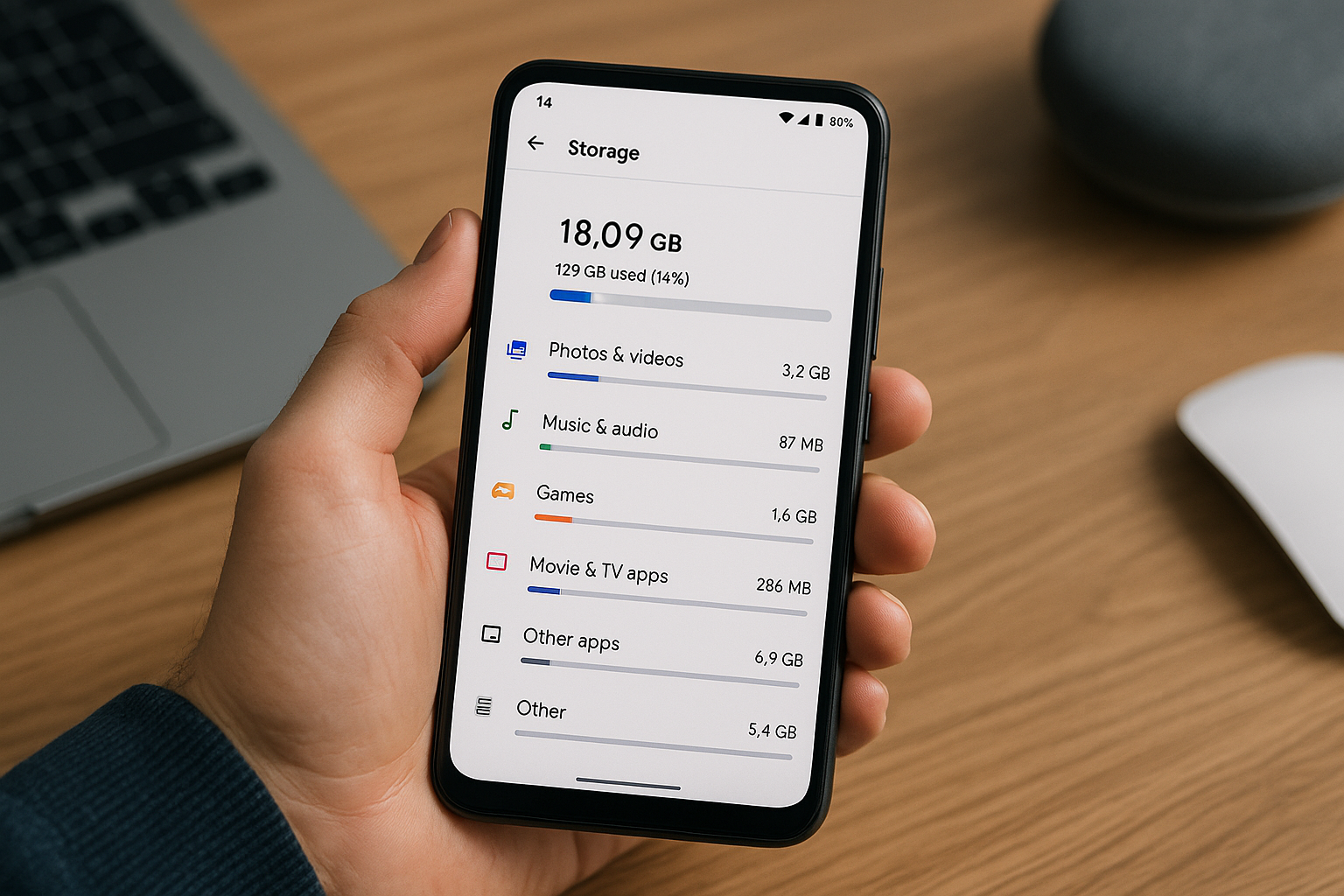
Open Settings on your Android phone and go to Storage (on Samsung: Settings > Battery and device care > Storage) to see total space, what’s used, and which categories—apps, photos, videos, audio, and “Other”—are taking it. Tap a category to review files, or use “Free up space”/“Clean” to safely remove junk. For more detail, use the Files by Google app’s Clean tab to find large, duplicate, and temporary files, and sort apps by size in Settings > Apps to clear cache or uninstall what you don’t use. Empty the bin/trash in Google Photos and your Gallery to reclaim space immediately.
Find Your Storage Screen on Popular Android Phones
Menu names vary by brand and Android version. You can always search “Storage” in Settings. These paths cover common layouts on Android 12–14.
| Brand | Menu path | Notes |
|---|---|---|
| Google Pixel / Stock Android | Settings > Storage | “Free up space” opens Files by Google suggestions. |
| Samsung (One UI) | Settings > Battery and device care > Storage | Includes Trash for Gallery and My Files; shows large files and duplicates. |
| OnePlus / Oppo / Realme | Settings > About device > Storage (or Settings > Storage) | Tap categories to drill down; a “Cleanup” tool may appear. |
| Xiaomi / Redmi / POCO (MIUI/HyperOS) | Settings > About phone > Storage | “Cleaner” suggests cache and residual files to remove. |
| Motorola | Settings > Storage | Often links to Files by Google for cleanup. |
| Nothing Phone | Settings > Storage | Standard Android category breakdown. |
What the Storage Categories Actually Mean
Understanding the labels helps you target the right items:
- Apps: Installed apps plus their data and cache. Big games, social, and chat apps often dominate.
- Photos & videos: Media in DCIM/Camera, Screenshots, Movies, and other folders. 4K/8K, slow‑motion, and screen recordings grow quickly.
- Audio: Music, podcasts, voice notes, and ringtones.
- Documents & other files: PDFs, ZIPs, APKs, and downloads that aren’t media.
- System: Android OS and preinstalled components. You generally can’t change this.
- Cache / temporary files: Data apps store for speed. Safe to clear; caches rebuild as you use apps.
- Other: Mixed app data, thumbnails, residual folders from uninstalled apps, and some update files. It shrinks as you clean up apps and leftovers.
- Trash / Bin: Recently deleted items held for 30–60 days by apps like Google Photos or Samsung Gallery. Emptying this frees space immediately.
Step-by-Step: Check Storage and See What’s Taking Space
On Android 12–14 (Pixel and most phones)
- Open Settings > Storage.
- Review the usage bar and category list (Apps, Photos & videos, Audio, etc.).
- Tap any category for details. For example, Apps shows which apps use the most space; Photos & videos opens your gallery or file manager.
- Tap Free up space to open Files by Google’s cleaning suggestions.
On Samsung (One UI)
- Open Settings > Battery and device care > Storage.
- Check the usage chart and categories such as Images, Videos, Audio, Documents, Installation files, and Apps.
- Empty Trash in Samsung Gallery and My Files to permanently delete items you already removed.
- Open Duplicate files or Large files to review and delete space hogs.
Use Files by Google to Spot Large and Duplicate Files Fast
Files by Google is on many devices and is the quickest way to locate what’s bloating storage.
- Open Files by Google and go to the Clean tab.
- Review cards such as Junk files, Large files, Duplicates, and Backed up media. Tap each card to preview before deleting.
- Switch to the Browse tab > Internal storage to check folders like Download, DCIM/Camera, Movies, Screen recordings, and WhatsApp.
- Use the search bar’s filters (for example, “Large files”) to surface the biggest items.
Tip: “Backed up media” means Google Photos has already uploaded the originals. If you rely on cloud backups, deleting local copies is safe.
See Which Apps Are Using the Most Space
- Go to Settings > Apps > See all apps.
- Sort by size (menu > Sort by size) to rank apps by total space, including app, data, and cache.
- Tap a large app > Storage and cache:
- Clear cache: Removes temporary files without affecting logins or personal data.
- Clear storage (or Clear data): Resets the app to first‑install state. You’ll lose offline content and may need to sign in again—use with care.
- Uninstall or disable apps you no longer use. For some preinstalled apps, “Uninstall updates” reclaims space used by updates.
Notes:
- Some apps store large offline downloads (Spotify, Netflix, YouTube, Maps). Manage those inside each app rather than clearing all data.
- On older phones with microSD, a few apps let you move part of their data to the SD card (Settings > Apps > [App] > Storage > Change). Many modern apps don’t support full moves.
Clean the Usual Storage Hogs
Target these areas for quick wins:
- Downloads: Open Files by Google or My Files (Samsung) > Downloads. Sort by size or date and delete old PDFs, installers (APK/ZIP), and attachments.
- Camera folders: 4K/8K video, slow‑mo, HDR, and screen recordings fill storage rapidly. Check DCIM/Camera, Movies, and Screen recordings. Move or delete unneeded clips.
- Screenshots: Clear old screenshots from DCIM/Screenshots; they accumulate quietly.
- Messaging media:
- WhatsApp: WhatsApp > Settings > Storage and data > Manage storage. Review Large files and Chats by size; delete groups or forwarded media in bulk.
- Telegram: Settings > Data and Storage > Storage Usage. Tap Clear cache and set Keep media to a shorter window (for example, 3 days). Limit Max cache size.
- Google Messages: Open a conversation > Details > Media to remove large attachments.
- Social app caches: Instagram, TikTok, X, and Facebook cache lots of media. Go to Settings > Apps > [App] > Storage > Clear cache.
- Streaming downloads:
- Netflix: Downloads > Manage, or App Settings > Delete all downloads.
- YouTube: Library > Downloads > Manage. In Settings > Downloads, lower quality or change storage location if available.
- Spotify: Settings > Storage > Remove downloads and Clear cache. Consider reducing Download quality.
- Podcast apps: Remove played episodes; limit auto‑downloads in settings.
- Offline maps: Google Maps > Profile > Offline maps > Manage. Delete old areas or reduce map quality. Use SD card if your phone supports it.
- Trash/Bin: Empty Google Photos Bin and Samsung Gallery Trash to reclaim space immediately.
- Residual folders: After uninstalling big games or editors, open Files by Google > Browse and delete leftover folders named after the app if you’ve fully removed it.
Move or Back Up Instead of Deleting
If you need to keep media, shift it off internal storage:
- Google Photos: In the Photos app, enable Backup. Then use Free up space in Photos to remove local copies that are safely backed up. Choose Storage saver (compressed) to save cloud space, or Original quality if you have Google One storage.
- Cloud drives: Move large, rarely used files to Google Drive, OneDrive, or Dropbox. Many apps let you keep files offline only when needed.
- MicroSD card: If your phone supports it, use your file manager to move folders like DCIM/Camera, Movies, and Download to the SD card. In the Camera app settings, set Storage location to SD card for new captures.
- Computer backup: Connect via USB (File Transfer/MTP). Copy DCIM, Movies, Music, and Download to your computer or an external drive, then delete them from the phone.
Why “System” and “Other” Use So Much Space
System covers the operating system, preinstalled apps, and essential services. It tends to grow with major updates and security patches and can’t be safely reduced manually. “Other” aggregates app data that doesn’t fit a category, caches, thumbnails, update packages awaiting installation, and residuals from old apps. You can’t delete “Other” directly, but you can reduce it:
- Restart the phone to clear stale temporary files and finish housekeeping after updates.
- Clear cache on bloated apps (Settings > Apps > [App] > Storage > Clear cache).
- Uninstall apps you no longer use, then remove their leftover folders with a file manager.
- Install pending system updates and reboot; large OTA files usually delete after installation.
- Avoid manual deletions in Android/data and Android/obb; recent Android versions restrict access and you risk breaking apps.
Set It and Forget It: Prevent Running Out of Space
These settings keep storage under control with minimal effort:
- WhatsApp auto‑download: WhatsApp > Settings > Storage and data. Disable auto‑download for videos or restrict to Wi‑Fi. Use Manage storage regularly.
- Telegram cache rules: Settings > Data and Storage > Storage Usage. Set a reasonable Max cache size and an auto‑clear schedule.
- Google Photos: Keep Backup on and use Free up space monthly. Consider Storage saver quality to reduce cloud usage.
- Camera settings: Use HEVC for video and HEIF for photos if supported; lower default video resolution from 4K/60 to 1080p/30 when quality allows.
- Streaming quality: Set lower download quality in Netflix, YouTube, and Spotify if storage is tight.
- Files by Google reminders: Open Clean periodically and enable tips for large or duplicate file alerts.
- Maintain headroom: Keep at least 10–15% of storage free for smooth updates and performance.
Frequently Asked Questions
Why does my storage still look full after I delete files?
Deleted items often sit in a Trash/Bin for 30–60 days in apps like Google Photos, Samsung Gallery, and file managers. Empty those bins to free space immediately. Also restart your phone so Android can finish cleanup and recalculate usage, and clear big app caches that may have grown separately.
Is clearing app cache safe, and how much space will it free?
Clearing cache is safe; it removes temporary data only. Many apps rebuild cache quickly, so savings can be temporary. It’s most helpful when you need a short‑term boost to install updates or when a single app’s cache has grown to several gigabytes.
Should I use third‑party cleaner apps?
Stick to built‑in tools and trusted apps like Files by Google. Many “cleaner” apps add notifications, ads, or background usage without better results. Your phone’s Storage screen, Files by Google, Samsung’s Device care, and app‑level controls cover everything you need.
Can I move apps to the SD card to save space?
Only some apps support moving part of their data to an SD card, and the option is less common on modern Android. Check Settings > Apps > [App] > Storage for a Change button. Media files (photos, videos, music) are better candidates to move to SD, and you can set your camera to save new shots there.
What is the “Other” category and how can I reduce it?
“Other” bundles miscellaneous app data, caches, thumbnails, and leftovers. Reduce it by clearing large app caches, uninstalling unused apps, rebooting, finishing system updates, and deleting residual folders from uninstalled apps using a file manager. Avoid touching Android/data and Android/obb.
How do I find the largest files on my phone?
Open Files by Google > Clean and tap Large files, or go to Browse and use size filters. On Samsung, go to Settings > Battery and device care > Storage > Large files. Review before deleting, and consider moving videos and RAW photos to cloud, SD card, or a computer if you need to keep them.
How much free space should I keep for smooth performance?
Keep at least 10–15% of total storage free. Android needs working room for app updates, system patches, and caches. If you’re frequently below that threshold, set up regular photo backups, limit auto‑downloads in messaging apps, and run a monthly cleanup via Files by Google or your phone’s storage tools.