Quick Answer
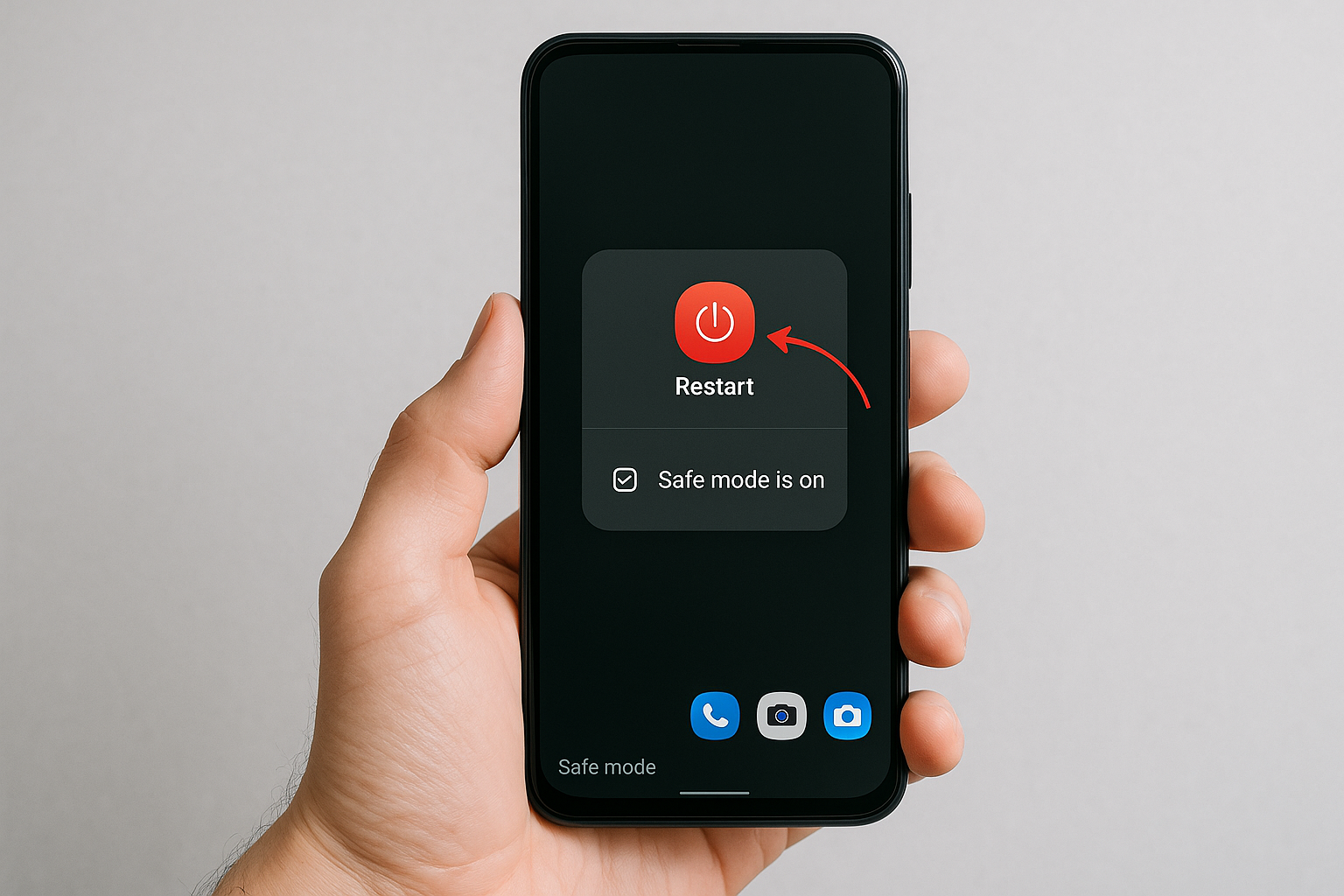
To turn off Safe Mode on Android, restart your phone. If you see a “Safe mode is on” notification, tap it and confirm to restart without Safe Mode. If the screen is frozen or the power menu won’t appear, force restart by holding the power and volume buttons (see brand shortcuts below). If Safe Mode keeps coming back, check for stuck buttons, uninstall recently installed apps, and clear the cache partition from recovery.
What Safe Mode Does (and Why You’re Seeing It)
Safe Mode starts Android with only core system apps and services so you can diagnose issues like crashes, freezes, battery drain, or malware. You’ll know you’re in Safe Mode if you see a “Safe mode” watermark and only preinstalled apps appear in the app drawer (most downloaded apps and widgets are hidden). Devices can enter Safe Mode automatically after repeated system crashes, a failed boot, or if a volume button—usually Volume Down—is pressed during startup.
Turn Off Safe Mode: The Fast Methods
Method 1: Restart Normally
- Press and hold the Power button (or Side key) until the power menu appears. On some Samsung phones, hold Side key + Volume Down to open the power menu.
- Tap Restart (or Reboot). If you only see Power off, power down, then press and hold Power to turn the phone back on.
- After the restart, the “Safe mode” label should be gone and all apps should return.
This works on virtually all Android devices and is the quickest way to exit Safe Mode.
Method 2: Use the “Safe mode is on” Notification
Many phones (Samsung, Google Pixel, Motorola, and others) show a persistent notification while in Safe Mode.
- Swipe down from the top of the screen to open Notifications.
- Tap “Safe mode is on — Tap here to turn off.”
- Confirm Restart to reboot with third‑party apps enabled.
Method 3: Force Restart if the Screen Is Frozen
If the power menu won’t respond, a forced restart usually works. On most devices, press and hold Power + Volume Down for about 7–10 seconds until the screen goes black and the logo appears. Some brands use slightly different key combos—see the table below.
If Safe Mode Keeps Coming Back
If the phone reboots straight back into Safe Mode, there’s a trigger to fix. Common causes include:
- Stuck hardware buttons: A pressed or damaged Volume Down key at boot frequently forces Safe Mode.
- Crashing or malicious apps: Recently installed or updated apps that crash system components can push the OS to load only core services.
- Broken launcher or keyboard: If your default launcher or keyboard fails, Android falls back to basics in Safe Mode.
- System cache issues after updates: Corrupted temporary system data can cause boot oddities that resolve after wiping the cache partition.
Step‑by‑Step Fix When You’re Stuck in Safe Mode
1) Check the Hardware Buttons and Case
A stuck Volume Down button is the #1 reason Android loops into Safe Mode.
- Remove the phone case and any clip, stand, or magnetic accessory that might press a button.
- Press each physical key (Power, Volume Up, Volume Down) several times to free grit. Ensure they click and rebound cleanly.
- Clean around the buttons with a soft brush or a short burst of compressed air.
- Test buttons: open the Camera and press Volume Up/Down to see if they respond accurately and aren’t firing on their own.
- Restart. If Safe Mode stops appearing, the issue was likely mechanical.
2) Disconnect Cables and Accessories
Unplug USB cables, headphones, and OTG accessories. Some devices behave unpredictably at boot when accessories are connected. Restart with nothing attached.
3) Uninstall or Disable Problem Apps (While Still in Safe Mode)
You can remove troublesome apps in Safe Mode—only system apps are running, making this safer and more effective.
- Go to Settings > Apps (or Apps & notifications).
- Tap See all apps and sort by Recently installed or Recently updated.
- Uninstall the last few apps you added before the problem started. Prioritize utilities with overlay, accessibility, input, battery optimization, or VPN permissions.
- Restart the phone normally.
If you can’t uninstall, try Force stop, then Clear cache and Clear storage for that app before removing it. Avoid touching essential system apps.
4) Restore Your Default Launcher and Keyboard
If you use a third‑party home screen or keyboard, switch back to the system defaults to rule them out.
- Settings > Apps > Default apps:
- Home app: choose System launcher/Pixel Launcher/One UI Home.
- Keyboard: choose Gboard, Samsung Keyboard, or your device’s stock keyboard.
- Open the Play Store page for your launcher/keyboard and update it. If problems persist, clear its cache/storage or uninstall its updates.
5) Update Android and Your Apps
Bugs that trigger Safe Mode loops often disappear after updates.
- Settings > System > System update (or Settings > Software update) and install any available updates.
- Restart.
- Open Google Play Store > profile icon > Manage apps & device > Update all.
6) Wipe the Cache Partition (No Data Loss)
Clearing the system cache can fix odd boot behavior after OS or app updates. This does not erase personal data. (On some newer devices, the cache partition option may be hidden or unavailable.)
- Power off the phone completely.
- Enter Recovery mode (see brand shortcuts). On many devices:
- Hold Power + Volume Down to reach the bootloader, use volume keys to highlight Recovery Mode, then press Power.
- At the “No command” screen, hold Power and tap Volume Up once to enter recovery.
- Use volume keys to highlight Wipe cache partition, then press Power to confirm.
- Select Reboot system now.
7) Reset Settings or Factory Reset (Last Resort)
If none of the steps above help, back up your data and reset.
- Settings > System > Reset options:
- Try Reset Wi‑Fi, mobile & Bluetooth or Reset app preferences first.
- If needed, choose Erase all data (factory reset). This wipes the phone; make sure you know your Google account password to pass device protection after reset.
Brand‑Specific Shortcuts
| Brand | Force restart keys | Enter recovery (from power off) | Notes |
|---|---|---|---|
| Samsung (recent Galaxy) | Hold Side key + Volume Down ~7–10s until logo | Hold Volume Up + Side key until logo; on some models, connect a USB cable first | Older models with Bixby use Volume Up + Bixby + Power for recovery |
| Google Pixel | Hold Power ~30s until it restarts | Hold Power + Volume Down to bootloader > select Recovery; at “No command,” hold Power and tap Volume Up | Short Power + Volume Up shows the power menu; use a long Power hold to force reboot |
| OnePlus | Hold Power (Side) ~10s until reboot | Hold Power + Volume Down; in the menu, choose Language > Recovery | Some models show Fastboot first; navigate with Volume keys |
| Motorola | Hold Power 10–20s until the screen goes black | Hold Power + Volume Down to bootloader > select Recovery | Use the “No command” trick (Power + tap Volume Up) to enter recovery |
| Xiaomi/Redmi/POCO | Hold Power ~10s until restart | Hold Volume Up + Power until the Mi logo, then release to enter Recovery | MIUI shows a simple recovery menu; use Volume/Power to navigate |
| OPPO/Realme | Hold Power ~10s until restart | Hold Volume Down + Power to enter ColorOS/realme UI recovery | Choose your language, then select Wipe cache partition or related options |
| Sony Xperia | Hold Power + Volume Up for ~10s until it vibrates/restarts | Hold Volume Down while connecting USB, then use Fastboot/Recovery options | Key combos vary by model; consult Sony support for older devices |
Tips to Prevent Safe Mode from Returning
Keep your phone’s buttons clean and unobstructed, avoid tight or misaligned cases that press on keys, update Android and apps regularly, install apps from trusted sources only, and be cautious with apps that need elevated permissions (accessibility, overlays, VPN). If Safe Mode returns after installing or updating a specific app, replace it with a more stable alternative.
What to Expect After Leaving Safe Mode
Your installed apps and data remain intact. Because widgets and third‑party launchers are disabled in Safe Mode, you may need to re‑add widgets or set your preferred launcher as default again. If an app caused the issue and you removed it in Safe Mode, wait a day or two of normal reboots before reinstalling to confirm the fix.
Frequently Asked Questions
What is Safe Mode on Android?
Safe Mode boots Android with only core system apps and services for troubleshooting. If crashes or freezes stop in Safe Mode, a third‑party app is usually the cause. You’ll see a “Safe mode” label on screen, and most downloaded apps and widgets won’t load until you restart normally.
Why does my phone keep starting in Safe Mode?
The most common trigger is a stuck Volume Down button during boot. Other causes include a recently installed app that crashes the system UI, a broken launcher or keyboard, or temporary system cache issues after an update. Check your buttons and case first, then remove recent apps and clear the cache partition. If problems persist, back up and factory reset.
Can I turn off Safe Mode without the power button?
If your power button is broken but the phone is responsive, enable the Accessibility Menu (Settings > Accessibility > Accessibility Menu) to get on‑screen power controls and restart. If USB debugging is already enabled, you can also connect to a computer and run “adb reboot.” Without either option, a hardware repair is the reliable fix.
Will I lose data when I exit Safe Mode?
No. Exiting Safe Mode by restarting does not delete apps or data. Only a factory reset erases your data. Wiping the cache partition is also safe for personal data.
Why are my widgets gone after Safe Mode?
Widgets and home screen layouts from third‑party launchers are disabled in Safe Mode and may not auto‑restore. Re‑add your widgets and, if needed, set your preferred launcher as the default again under Settings > Apps > Default apps > Home app.
How do I know if a specific app caused the Safe Mode issue?
If your phone boots normally after uninstalling a recent app while in Safe Mode, that app was likely the trigger. You can reinstall to confirm, or try an alternative. Reviewing Settings > Apps > Special app access (e.g., “Display over other apps,” “Modify system settings,” “Accessibility”) can help identify apps with elevated permissions that commonly cause instability.
Does Safe Mode turn off Wi‑Fi, Bluetooth, or mobile data?
No. Connectivity features usually remain available in Safe Mode. Only non‑system apps are disabled. Some manufacturer features tied to vendor apps might be unavailable until you restart normally.