Quick Answer
On iPhone, the quickest way to recover deleted messages is the Recently Deleted folder in Messages (available on iOS 16 and later) for about 30 days. If the messages aren’t there, restore from an iCloud or computer (Finder/iTunes) backup created before you deleted them. Note that a full restore replaces current data with the backup’s state. If you use Messages in iCloud and the deletion synced across devices, only Recently Deleted or a suitable pre-deletion backup can bring them back. If none of these apply, check other devices or ask the sender to resend.
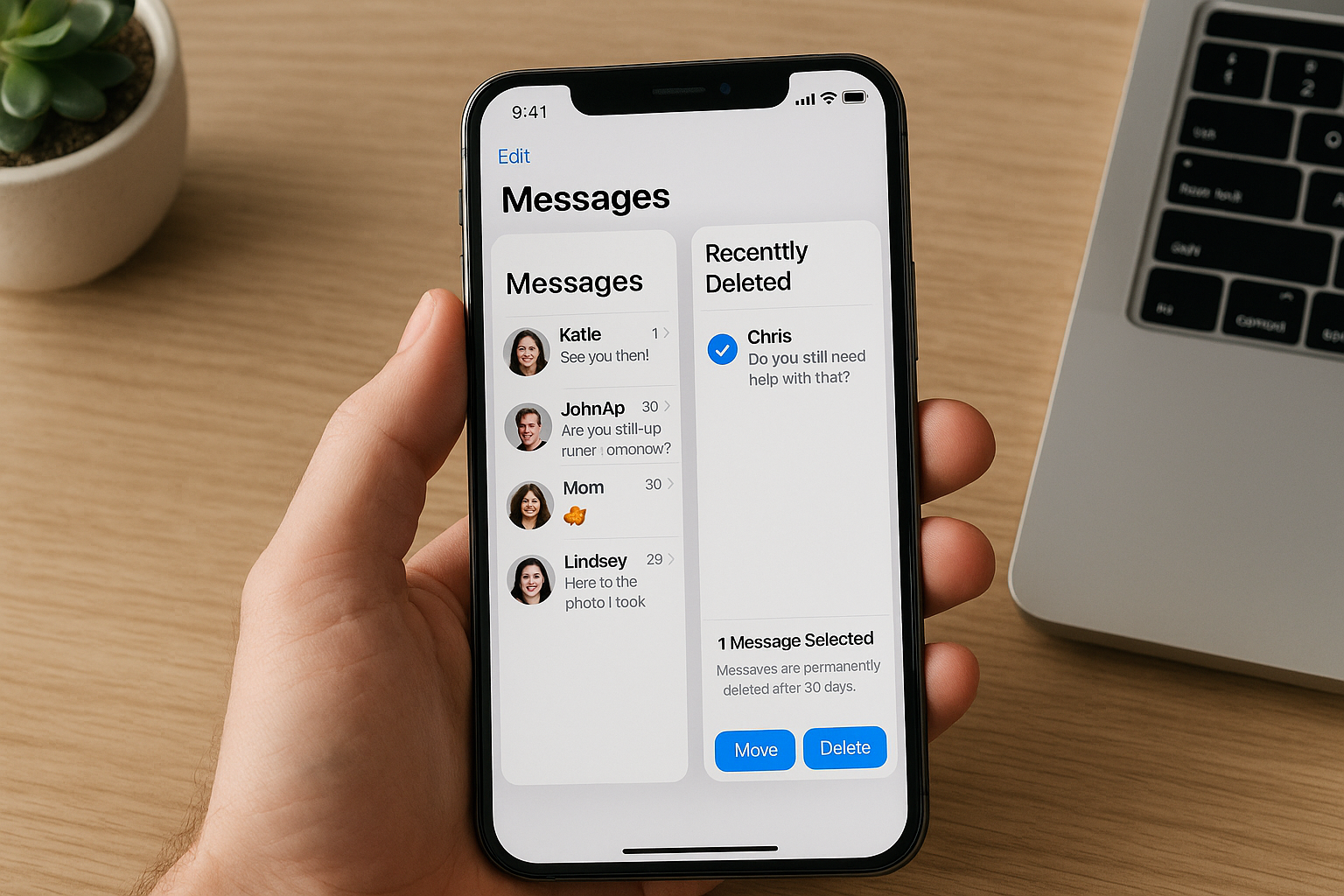
First Step: Check Recently Deleted (iOS 16 and later)
Apple added a built-in recovery area for Messages starting in iOS 16. Deleted conversations and individual texts move to Recently Deleted for about 30 days before being permanently removed. This is the fastest and least disruptive recovery method.
How to restore from Recently Deleted
- Open Messages.
- Tap Filters (top left). If you see Edit instead, tap it and choose Show Recently Deleted.
- Tap Recently Deleted.
- Select the conversations or individual messages you want to restore.
- Tap Recover > Recover Messages.
If you don’t see Recently Deleted, you may be on iOS 15 or earlier (update your iPhone), or there’s nothing within the retention window. Each item shows how many days remain—recover important threads right away.
Recover from an iCloud Backup
If the message isn’t in Recently Deleted and you had iCloud Backup enabled before you deleted it, you can restore the phone from a backup made when the message still existed. This is an all-or-nothing restore: your iPhone reverts to the backup’s state for data types included in that backup.
Before you start
- Check your last iCloud backup date: Settings > [your name] > iCloud > iCloud Backup. Confirm the timestamp predates the deletion.
- If Messages in iCloud is ON (Settings > [your name] > iCloud > Show All > Messages), your messages live in iCloud and are excluded from iCloud device backups. In that case, restoring an iCloud backup won’t resurrect messages already deleted from iCloud. Your only Apple-native option is Recently Deleted.
- Protect your current data: make a temporary local backup of your iPhone. On a Mac (Finder) or Windows PC (iTunes or Apple Devices app), create an encrypted backup so Health data and passwords are preserved.
How to restore from iCloud
- Go to Settings > General > Transfer or Reset iPhone > Erase All Content and Settings.
- After the erase, follow setup and choose Restore from iCloud Backup.
- Select a backup dated before you deleted the messages.
- Finish setup and allow Messages to re-index. Then check the Messages app.
Important: A full restore replaces current on-device data with what’s in the chosen backup for supported categories. Anything created after the backup—photos, app data, newer messages—may be lost unless also synced via iCloud services (Photos, Contacts, etc.).
Recover from a Mac/PC Backup (Finder or iTunes)
If you’ve previously backed up your iPhone to a computer, restoring that backup can bring back deleted texts, iMessages, and attachments—provided the backup predates deletion and Messages in iCloud was off at the time.
How to restore from Finder (macOS Catalina or later)
- Connect your iPhone to the Mac via USB and open Finder.
- Select your iPhone in the sidebar.
- Under General, click Restore Backup.
- Choose a backup dated before the deletion (prefer encrypted if available) and click Restore.
How to restore from iTunes (Windows or macOS Mojave or earlier)
- Connect your iPhone and open iTunes (or the Apple Devices app on newer Windows 11 builds).
- Click the device icon > Summary > Restore Backup.
- Select the appropriate backup and restore.
As with iCloud, this is a full restore that returns your device to the backup’s state for supported data types.
If You Use Messages in iCloud
Messages in iCloud syncs your messages across devices and helps save local storage. When you delete a message or conversation, that deletion syncs to all devices signed in with the same Apple ID.
- Good news: Recently Deleted is available when using Messages in iCloud and syncs across devices, providing a short-term safety net.
- Bad news: Restoring a device backup won’t bring back messages already removed from iCloud. The master message database is in iCloud, and device backups exclude it.
- What to do: Check Recently Deleted immediately on your iPhone and any other Apple device. If it’s gone there, Apple doesn’t offer another native recovery path. Turning Messages in iCloud off after deletion will not restore past content.
Other Places to Check
You may not need a full restore. Try these quick options first:
- Other Apple devices: If Messages in iCloud is off, a Mac or iPad might still have the thread if it hasn’t synced the deletion. Open Messages and search by contact, phone number, or keyword. If found, copy the text, export as PDF on a Mac (File > Print > Save as PDF), or take screenshots.
- Text Message Forwarding: If you’d previously enabled Settings > Messages > Text Message Forwarding to a Mac or iPad, those devices may retain SMS copies even if your iPhone doesn’t.
- Photos and Files: Attachments you received may already exist in Photos or Files. Open Photos > Albums > Recents, or search by date or contact name. Also check the Shared with You sections in Photos, Safari, and other apps for linked content from Messages.
- Ask the other person: Request that the sender or recipient forward the message, image, or a screenshot of the thread.
- Email or third-party archives: If you use services that auto-forward texts or export chats, search your email or the service’s archive.
Third-Party Recovery Tools: Read This Before You Pay
Many apps claim to recover deleted iPhone messages directly from the device. Because of iOS encryption and data protection, they generally cannot retrieve messages that no longer exist in a backup or in Recently Deleted on a non‑jailbroken device. Reputable tools mainly scan your backups and let you preview or export messages without restoring your entire phone.
- Legitimate use case: Browsing and exporting messages from an existing Finder/iTunes backup when you don’t want to perform a full restore.
- Approach bold promises with caution: Tools that advertise “deep scans” to recover long‑deleted texts without any backup are unlikely to work on a standard iPhone.
- Privacy and security: Avoid granting full device access to unknown vendors. Read independent reviews, never install profiles that weaken security, and don’t disable protections for a tool.
If the information is legally or professionally critical, contact a digital forensics professional before making changes that could overwrite residual data.
Pros and Cons of Each Recovery Method
| Method | What it can restore | Requirements | Overwrites current data? | Time window | Difficulty |
|---|---|---|---|---|---|
| Recently Deleted | Individual messages or entire conversations | iOS 16+; item deleted within retention period | No | About 30 days | Easy |
| iCloud Backup Restore | Messages as of backup date (if Messages in iCloud is off) | Backup predating deletion; device erase | Yes | Backup timestamp | Moderate |
| Finder/iTunes Backup Restore | Messages as of backup date | Local backup predating deletion | Yes | Backup timestamp | Moderate |
| Other Devices | Copies of messages not yet synced/deleted | Another device with Messages not fully synced | No | Before sync occurs | Easy |
| Third-Party Tools | Messages from existing backups; export without restoring | Backups available; app installation; trusted vendor | No (export only) | Backup timestamp | Varies |
Troubleshooting Tips
You don’t see Recently Deleted
Update to iOS 16 or later: Settings > General > Software Update. If you’re already updated and still don’t see it, there may be nothing within the 30‑day window, or the message was never deleted on that device.
Recovered messages are incomplete
Attachments may be missing if they weren’t included in the chosen backup or were offloaded. Try a different backup date, confirm that iCloud Photos or other sync services have the media, or ask the sender to resend the file.
A backup exists but messages didn’t return
Messages in iCloud may have been enabled when the backup was made, excluding messages from that device backup. Check Settings > [your name] > iCloud > Messages. If it’s on now and the item isn’t in Recently Deleted, Apple doesn’t provide another native recovery path.
Restore option is grayed out in Finder/iTunes
Make sure you’ve trusted the computer on your iPhone, install any macOS/iTunes or Apple Devices app updates, and confirm a backup is available. For encrypted backups, you must know the password—Apple cannot reset it.
After restore, Messages looks empty at first
Indexing and re-downloading content can take time. Keep the phone on power and Wi‑Fi, open Messages, and allow it to finish syncing and indexing before assuming the restore failed.
Prevent This Next Time
You can’t remove all risk of accidental deletions, but these habits make recovery far easier:
- Keep iOS updated so you have the Recently Deleted safety net.
- Enable regular backups. If you prefer iCloud, verify it runs daily while charging on Wi‑Fi. If you prefer local backups, create an encrypted Finder/iTunes backup weekly or before major changes.
- Decide whether Messages in iCloud fits your needs. It simplifies syncing and storage but deletions sync, too. If you want a local history independent of iCloud, keep it off and rely on regular computer backups—understanding you’ll need more on-device storage.
- Save important attachments to Photos or Files when you receive them. On a Mac, you can archive key conversations by printing to PDF for long‑term reference.
- Consider enabling Text Message Forwarding to a trusted Mac or iPad to create an additional copy of SMS/MMS threads.
What About Carriers and Apple Support?
Mobile carriers typically don’t store SMS/MMS or iMessage content for customer retrieval, though they may retain logs (timestamps and phone numbers). Apple Support can’t recover deleted messages from their servers. Your real-world options are the Recently Deleted folder, your own backups, other devices you control, and the sender.
Frequently Asked Questions
How long do deleted iPhone messages stay in Recently Deleted?
About 30 days. Each item shows the remaining days before permanent deletion. After that window, Messages removes the content and it can’t be restored from that folder.
Can I recover messages without a backup?
If you’re on iOS 16 or later, check Recently Deleted. Beyond that, there’s no reliable Apple‑supported way to restore permanently deleted messages without a backup. Be wary of tools that promise deep recovery from the device itself.
Will restoring from a backup delete my newer data?
Yes. A full restore from iCloud or Finder/iTunes rolls your iPhone back to the backup’s state for included data types. Newer items may be lost unless they’re synced separately (for example, iCloud Photos). Make a fresh local encrypted backup before restoring if you might need to return to your current state.
What if I only need one conversation, not a full restore?
Use Recently Deleted to recover just that conversation or selected messages. If it’s not there, use a backup viewer tool to extract only messages from an existing Finder/iTunes backup without restoring the entire phone.
Do iCloud device backups include messages if Messages in iCloud is on?
No. When Messages in iCloud is enabled, your messages live in iCloud and are excluded from iCloud device backups. Deletions sync across devices. Your recovery options are Recently Deleted or finding a copy on another device that hadn’t synced yet.
Can my carrier retrieve my deleted texts?
Generally, no. Most carriers don’t retain message content for retrieval, and they have no access to iMessage contents. They may provide call or text logs, but not message bodies.
Can Apple recover my messages for me?
No. Apple can’t restore deleted messages. Recovery is limited to what’s on your device, in Recently Deleted, or in your own backups.