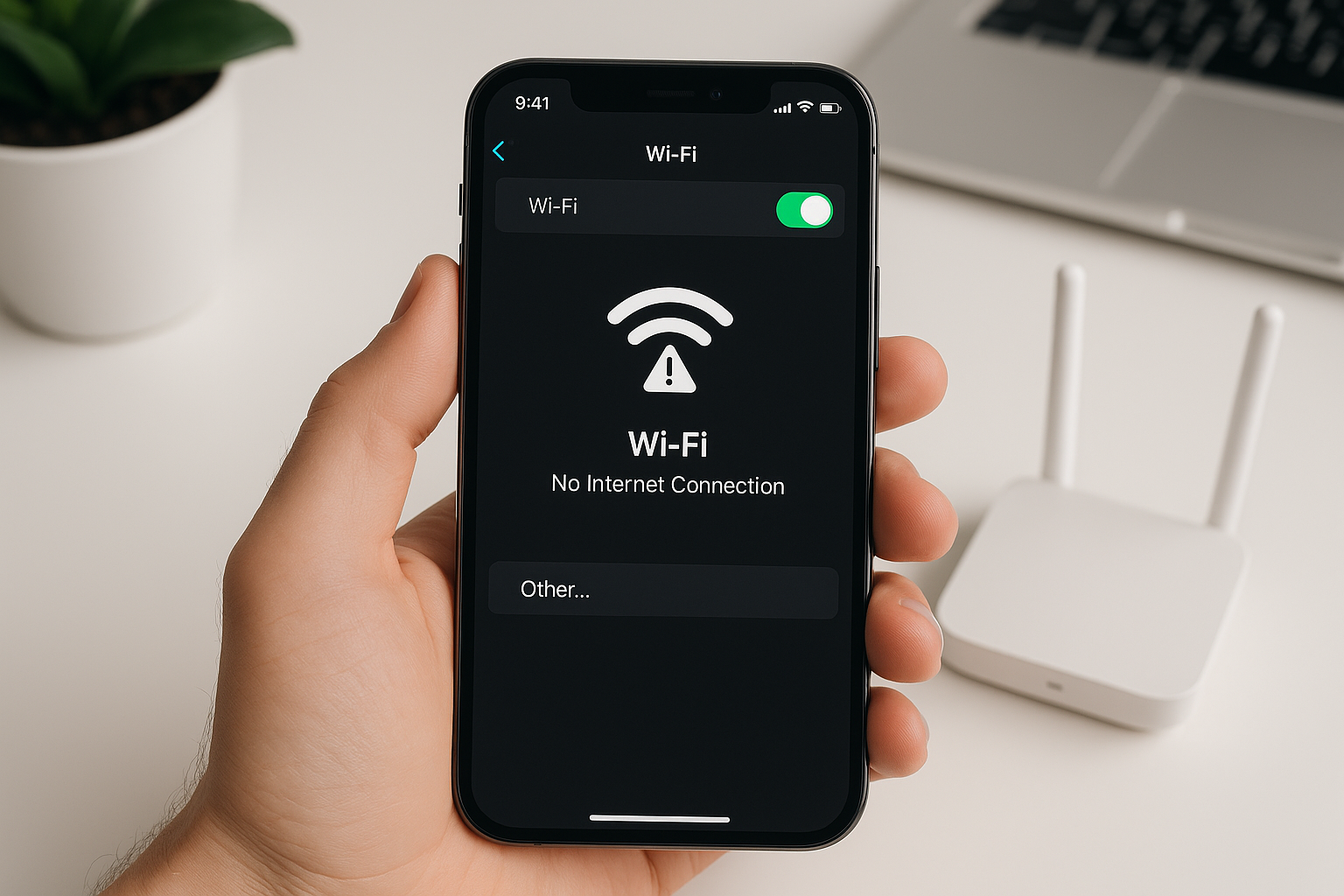
Quick Answer
If Wi‑Fi isn’t working on your iPhone, start with quick toggles: turn Airplane Mode on and off, then toggle Wi‑Fi off and back on. Restart your iPhone and your router, forget and rejoin the network, and check for a captive portal sign‑in. If problems persist, update iOS, disable VPN or Low Power/Data modes, change DNS, or reset network settings. Hardware or ISP issues are possible if no iPhone fixes help.
Before You Start: Confirm What’s Broken
Identify whether the fault is with your iPhone, the Wi‑Fi network, or the internet connection:
- Try the same network on another device. If everything fails to load, look to the router or ISP.
- Test your iPhone on a different Wi‑Fi (friend’s house, coffee shop, or a mobile hotspot). If it works there, the issue is likely your home network.
- If only your iPhone has trouble on a working network, continue with the fixes below.
12 Fixes That Solve Most iPhone Wi‑Fi Problems
1. Toggle Airplane Mode and Wi‑Fi
Refreshing the radios often clears temporary connection glitches.
- Open Control Center, turn Airplane Mode on, wait 10 seconds, then turn it off.
- Go to Settings > Wi‑Fi and toggle Wi‑Fi off and back on, then reconnect to your network.
2. Restart Your iPhone and Your Router
Reboots renew IP leases and clear memory/cache issues on both ends.
- On iPhone: Settings > General > Shut Down. Wait 30 seconds, then power on.
- On the router: unplug power for 30–60 seconds, then plug it back in. Wait 2–3 minutes for the connection to fully restore.
If you use a separate modem and router, restart the modem first, then the router.
3. Check Passwords and Captive Portals
An “Incorrect password” alert usually means a typo or a saved, outdated key. On public Wi‑Fi, you may need to accept terms on a captive portal page before internet access works.
- Confirm the Wi‑Fi password with the network owner. Watch for case sensitivity and trailing spaces.
- After connecting, open Safari and visit a non‑HTTPS site like neverssl.com to trigger captive portal sign‑in if it doesn’t appear automatically.
- Outdated WEP security is often rejected. Use WPA2 or WPA3 on the router for compatibility and security.
4. Forget the Network and Rejoin (and Check Auto‑Join/Private Address)
For a clean handshake and fresh IP settings:
- Settings > Wi‑Fi > tap the “i” next to your network > Forget This Network > Forget.
- Return to Wi‑Fi, select the network, and re‑enter the password.
- On the same “i” screen, ensure Auto‑Join is enabled.
- If your workplace or school uses MAC allow‑listing, toggle Private Wi‑Fi Address off for that SSID and rejoin so your actual MAC can be recognized. For home and public Wi‑Fi, keep it on for privacy.
5. Disable VPN, Security Profiles, and Wi‑Fi Assist
VPNs, content filters, and certain privacy features can block traffic or captive portals. Wi‑Fi Assist can mask weak Wi‑Fi by quietly switching to cellular.
- Settings > VPN: disconnect or remove VPNs you don’t need.
- Settings > General > VPN & Device Management: remove unknown or outdated configuration profiles.
- Settings > Wi‑Fi > “i” next to the network: temporarily turn off Limit IP Address Tracking if captive portals won’t load (this uses iCloud Private Relay when available).
- Settings > Cellular (Mobile Data) > scroll down and toggle off Wi‑Fi Assist while troubleshooting.
6. Turn Off Low Power Mode and Low Data Mode
These modes can delay connection checks and pause background networking, which may interfere with sign‑in pages or auto‑join.
- Settings > Battery > Low Power Mode: turn off.
- Settings > Wi‑Fi > tap “i” next to your network > Low Data Mode: turn off.
7. Update iOS, Carrier Settings, and Router Firmware
Software updates often resolve Wi‑Fi drops, DNS failures, and compatibility bugs.
- Settings > General > Software Update: install the latest iOS.
- Settings > General > About: wait for a carrier settings update prompt if available.
- Update your router via its app or web interface. Check release notes for Wi‑Fi stability fixes and apply the latest stable firmware.
8. Move Closer and Pick the Right Band (2.4 GHz vs 5 GHz)
Signal strength and interference dramatically impact reliability. 5 GHz is faster with shorter range; 2.4 GHz travels farther but is more crowded.
- Stand near the router and retest. Thick walls, metal, microwaves, cordless phones, and baby monitors can degrade 2.4 GHz.
- If your router offers separate SSIDs (e.g., “Home‑2G” and “Home‑5G”), try both. Use 2.4 GHz for long range and legacy devices; use 5 GHz for speed near the router. If your router supports Wi‑Fi 6/6E, 5 GHz/6 GHz can improve performance in busy areas.
9. Change DNS to Cloudflare or Google
If pages fail to load while the Wi‑Fi icon shows connected, DNS resolution may be the culprit. Switch to reliable public DNS servers:
- Settings > Wi‑Fi > “i” > Configure DNS > Manual.
- Delete old entries, then add 1.1.1.1 and 1.0.0.1 (Cloudflare) or 8.8.8.8 and 8.8.4.4 (Google). Save and test again.
10. Check IP and Proxy Settings
Manual IPs, custom subnets, or proxies can block traffic if misconfigured.
- Settings > Wi‑Fi > “i” > Configure IP: set to Automatic (DHCP) unless your network admin requires Manual settings.
- Scroll to HTTP Proxy: set to Off unless you specifically use a proxy.
11. Reset Network Settings
This is the most effective iPhone‑side reset for stubborn Wi‑Fi issues. It erases saved Wi‑Fi networks and passwords, clears VPN/APN settings, and resets Bluetooth and cellular preferences—have your Wi‑Fi password handy.
- Settings > General > Transfer or Reset iPhone > Reset > Reset Network Settings.
- After the reboot, reconnect to Wi‑Fi and retest.
12. Rule Out ISP and Hardware Problems
When iPhone fixes don’t help, verify the problem isn’t upstream or hardware‑related.
- Test your iPhone on another Wi‑Fi network or a personal hotspot. If it works there, suspect your router or ISP.
- Try another device on your Wi‑Fi. If nothing gets online, check your ISP’s status page or contact support.
- On the router, review MAC filtering, device limits, parental controls, and security modes. Use WPA2/WPA3‑Personal unless your network is managed by IT.
- If Wi‑Fi is greyed out in Settings, networks never appear, or the phone had liquid/impact damage, contact Apple Support—this often points to a hardware radio/antenna fault.
Quick Reference: Match Symptoms to Likely Causes
| Symptom | Likely Cause | What to Try First |
|---|---|---|
| Connected to Wi‑Fi but pages won’t load | DNS failure, captive portal pending, ISP outage | Open Safari to trigger login; change DNS to 1.1.1.1; disable VPN/Private Relay; test another device |
| “Incorrect password” repeatedly | Saved old key, security mismatch, router glitch | Forget and rejoin; confirm WPA2/WPA3 on router; reboot router |
| Works on other Wi‑Fi but not at home | Band/channel congestion, MAC filter, ISP issue | Try 2.4 vs 5 GHz; check router filters/parental controls; contact ISP |
| Wi‑Fi drops when screen locks | Low Power/Data Mode, aggressive router power save | Disable Low Power/Data Mode; update router firmware |
| Public Wi‑Fi connects but no internet | Captive portal blocked by VPN/Private Relay | Disable VPN/Limit IP Address Tracking; open Safari to accept terms |
| Wi‑Fi toggle greyed out | Hardware fault or severe OS corruption | Update iOS; if unchanged, contact Apple Support |
Extra Tips for Reliable Wi‑Fi at Home
Small router‑side tweaks prevent most drops and slowdowns. Use WPA2/WPA3‑Personal security and avoid mixed WPA/WEP modes. If “Smart Connect” band steering causes flapping between bands, assign unique SSIDs for 2.4 and 5 GHz so you can choose the best band per device. For 2.4 GHz, set channel width to 20 MHz and use non‑overlapping channels 1, 6, or 11. If your home is large or has thick walls, a mesh Wi‑Fi system with well‑placed nodes beats a single router tucked in a corner. Keep the router elevated and in open air; avoid closed cabinets and behind‑TV placements that block signal.
Frequently Asked Questions
Why does my iPhone say “Incorrect password” when it’s correct?
iPhones often cache an old key. If the router password changed, the phone will keep trying the outdated one until you remove it. Go to Settings > Wi‑Fi > “i” > Forget This Network, then rejoin with the current password. Also confirm the router uses WPA2/WPA3; obsolete WEP or enterprise modes can trigger confusing errors.
Should I disable “Private Wi‑Fi Address” on my iPhone?
Keep it on for most networks; it randomizes your phone’s MAC address to protect privacy. The exception is enterprise or school networks that allow‑list device MACs. For those, turn it off for that specific SSID and rejoin so your registered hardware MAC is used.
Wi‑Fi is connected but slow. Is my iPhone the problem or the router?
Test speed near the router on both 2.4 and 5 GHz. If performance improves when you move closer or switch bands, it’s a coverage or interference issue—adjust router placement or channels. If every device is slow, the bottleneck is your ISP or router. If only your iPhone is slow while others are fine, try changing DNS, disabling VPN/Private Relay, and resetting network settings.
Which band should I use: 2.4 GHz or 5 GHz?
Use 5 GHz for higher speeds and less interference at short to medium range. Use 2.4 GHz for longer range and through walls, especially for older or smart‑home devices. If your router exposes separate SSIDs, connect your iPhone to 5 GHz when you’re near the router and 2.4 GHz when you need range.
What does “Reset Network Settings” erase?
It deletes saved Wi‑Fi networks and passwords, clears VPN and APN settings, and resets cellular and Bluetooth configurations. It doesn’t remove your apps, photos, or other personal data. After the reset, you’ll need to re‑enter Wi‑Fi passwords and reconnect Bluetooth accessories.
How do I stop my iPhone from switching to cellular data on weak Wi‑Fi?
Turn off Wi‑Fi Assist in Settings > Cellular (Mobile Data) by toggling it off at the bottom of the screen. This forces the phone to stay on Wi‑Fi even if the connection is weak, which helps you diagnose and fix the Wi‑Fi rather than silently falling back to cellular.
My iPhone doesn’t see any networks and the Wi‑Fi switch is greyed out. What now?
If a software update and a network settings reset don’t restore the toggle, the Wi‑Fi/Bluetooth module may be faulty due to hardware failure or liquid damage. Make a backup and contact Apple Support or an authorized service provider for diagnostics and repair options.