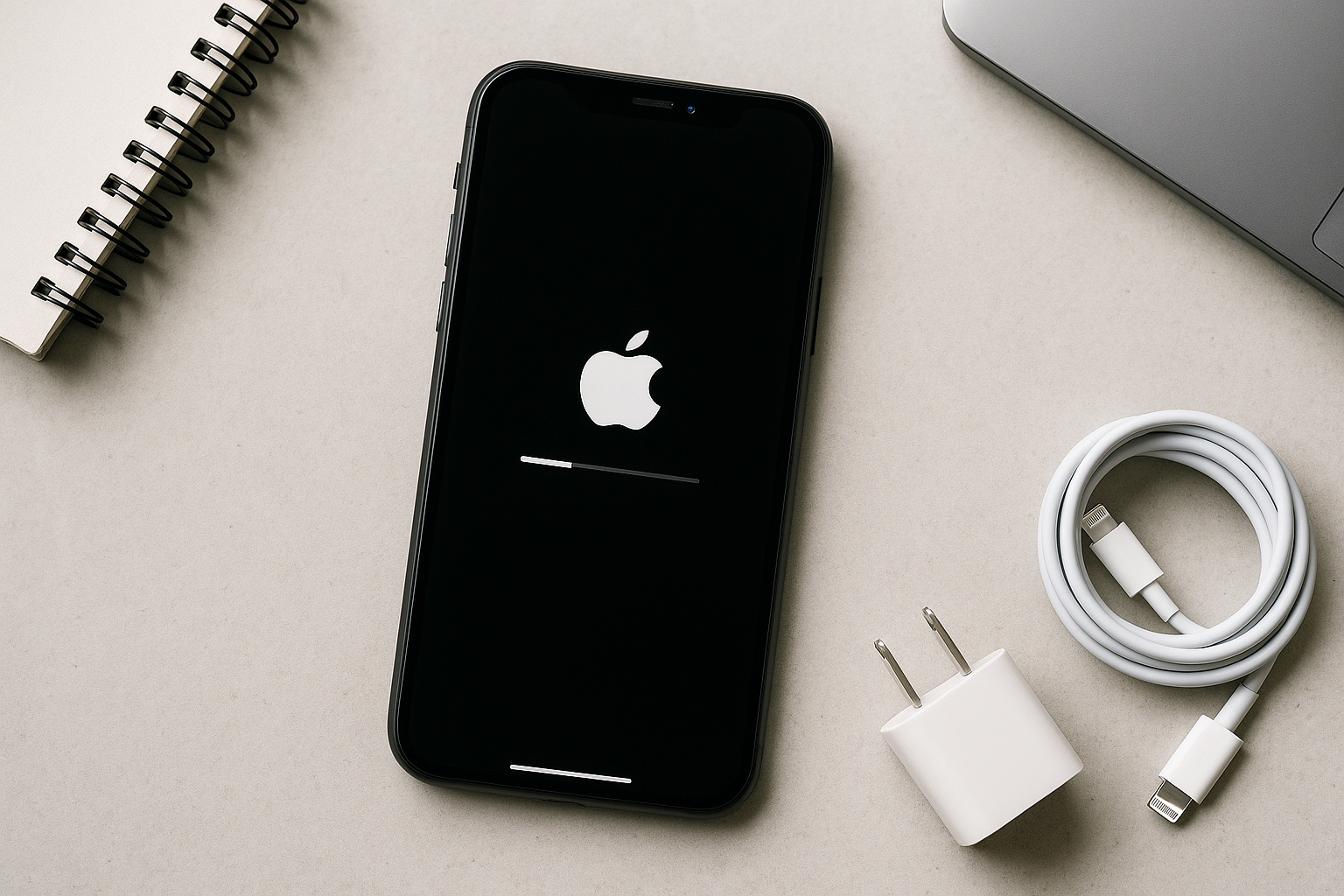
Quick Answer
If your iPhone keeps restarting, the culprit is usually software—a buggy app, a corrupted update, or critically low storage—but it can also signal hardware trouble such as a failing battery, overheating, or physical/liquid damage. Start with a force restart, update iOS and apps, free up storage, and remove recently added apps or configuration profiles. If reboots persist, reinstall iOS via Recovery Mode (or DFU if needed) and review Battery Health. Repeated “panic-full” entries in Analytics typically indicate hardware issues—contact Apple Support.
Why iPhones Restart Repeatedly
Common software triggers
Most restart loops stem from instability in iOS or apps. Typical sparks include a buggy iOS update (especially on betas), misbehaving apps, corrupted system files, or running out of storage. Network extensions used by VPNs, content blockers, and certain security or keyboard apps can crash system processes at boot. Outdated carrier settings, corrupt cache data, and conflicting background activity are also common drivers. If restarts began right after adding an app/profile or immediately after an update, start there.
Hardware and environmental causes
iPhones also reboot to protect themselves from hardware faults. A weak or failing battery can cause voltage drops—especially during heavy tasks or in cold weather—that trigger reboots. Overheating forces shutdowns and can look like random restarts. Physical or liquid damage may intermittently disconnect components (battery, cameras, sensors), causing kernel panics. Faulty or wet Lightning/USB‑C ports and accessories can repeatedly trigger accessory events and reboots. In rarer cases, baseband issues (SIM, eSIM, or modem) cause restart loops.
Quick checks before deep fixes
- Update iOS and all apps: Settings > General > Software Update, then App Store > Updates.
- Free storage: Keep 5–10 GB free (Settings > General > iPhone Storage). Low space can crash system services.
- Cool down: Remove the case if the phone feels warm; pause gaming/charging and let it cool.
- Unplug accessories: Disconnect cables, wireless chargers, and hubs; inspect and gently clean the port.
- Check Battery Health: Settings > Battery > Battery Health & Charging. “Service” or very low Maximum Capacity suggests replacement.
- Check Analytics logs: Settings > Privacy & Security > Analytics & Improvements > Analytics Data. Frequent “panic-full” logs point to hardware.
Step-by-Step Troubleshooting
1) Force restart correctly
A force restart clears stuck processes that can loop the boot sequence.
- iPhone 8 and later: Press and quickly release Volume Up, then Volume Down, then press and hold Side until the Apple logo appears.
- iPhone 7/7 Plus: Press and hold Volume Down + Sleep/Wake until you see the Apple logo.
- iPhone 6s and earlier: Press and hold Home + Sleep/Wake until the Apple logo appears.
2) Update iOS, carrier settings, and apps
Install the latest iOS (Settings > General > Software Update). Open Settings > General > About to trigger a carrier settings update if one is available. Update all apps in the App Store. If you’re on a beta and aren’t actively testing, remove the beta profile (Settings > General > VPN & Device Management) and install the latest public release for stability.
3) Free up storage and reduce heavy caches
Go to Settings > General > iPhone Storage. Offload or delete rarely used large apps, remove old videos/voice memos, and clear Safari data (Settings > Safari > Clear History and Website Data). Keeping several gigabytes free prevents essential services from failing when they need temporary space.
4) Identify and remove problematic apps or profiles
If restarts started after installing an app, delete it and test. Prioritize VPNs, content blockers, security utilities, keyboard apps, device “cleaners,” and anything with always-on permissions. Temporarily turn off Background App Refresh (Settings > General > Background App Refresh > Off). Remove unneeded configuration profiles (Settings > General > VPN & Device Management). Reboot and monitor.
5) Reset selective settings (non-destructive)
For suspected network/baseband crashes, try Reset Network Settings: Settings > General > Transfer or Reset iPhone > Reset > Reset Network Settings. If issues persist, choose Reset All Settings (same menu). This resets Wi‑Fi, Bluetooth, privacy, location, and layout preferences without erasing personal data. You’ll need to re-pair accessories afterward.
6) Reinstall iOS via Recovery Mode
A Recovery Mode Update replaces the system software without erasing your data. If Update fails, Restore will erase and install a clean copy.
- Back up first: iCloud (Settings > [your name] > iCloud > iCloud Backup > Back Up Now) or Finder/iTunes on a computer.
- Connect your iPhone to a Mac/PC and open Finder (macOS Catalina+) or iTunes (Windows/macOS Mojave and earlier).
- Enter Recovery Mode:
- iPhone 8 and later: Press Volume Up, then Volume Down, then hold Side until the recovery screen appears.
- iPhone 7/7 Plus: Hold Volume Down + Sleep/Wake until the recovery screen appears.
- iPhone 6s and earlier: Hold Home + Sleep/Wake until the recovery screen appears.
- When prompted, choose Update. If Update fails or loops resume, repeat and choose Restore (erases data) and then restore from backup.
7) Use DFU mode if Recovery Mode can’t fix it
DFU performs the deepest firmware reload. The screen stays black during entry. For iPhone 8 and later:
- Connect to a computer and open Finder/iTunes.
- Quick-press Volume Up, quick-press Volume Down, then hold Side for about 10 seconds until the screen turns black.
- Continue holding Side and press Volume Down for 5 seconds. Release Side but keep holding Volume Down for ~10 more seconds. If the screen remains black and the computer reports a device in recovery, you’re in DFU. Choose Restore.
If you see the recovery logo, you entered standard Recovery Mode—repeat the sequence for DFU. Use DFU only after securing backups.
8) Restore from backup wisely
If the iPhone is stable after a clean install but reboots return after restoring data, your backup may contain problematic settings or app data. Set up as new temporarily and test for a day. Then restore only essential data or re‑download apps selectively. Prefer a recent iCloud backup or an encrypted Finder/iTunes backup (to preserve Health and Keychain data).
9) Rule out battery, thermal, SIM, and accessory issues
- Battery: Settings > Battery > Battery Health & Charging. If Maximum Capacity is low or you see “Service,” plan a replacement. Sudden restarts during gaming, camera, or navigation often indicate voltage sag.
- Temperature: If you see temperature warnings or the device is hot, remove the case, stop charging, and move to a cooler area. Thermal shutdowns can resemble random reboots.
- SIM/eSIM: Remove the physical SIM and test on Wi‑Fi only. If reboots stop, contact your carrier or try a new SIM. With eSIM, disable the line or use Airplane Mode to test baseband stability.
- Accessories and port: Test with Apple‑certified cables/chargers, and inspect the port for debris or moisture. Avoid low‑quality or damaged accessories.
- Liquid or impact: Recent drops or spills raise the odds of hardware kernel panics. Seek diagnostics at Apple or an authorized service provider.
10) Contact Apple Support if panic logs persist
Multiple recent “panic-full” entries in Analytics Data or restarts that survive a clean iOS reinstall strongly suggest hardware issues (battery, logic board, sensors, or modem). Book a Genius Bar or authorized service appointment. They can run device diagnostics, review logs, and provide repair or replacement options.
Recovery vs. DFU: When to Use Each
| Method | What it does | When to try | Data impact |
|---|---|---|---|
| Recovery Mode (Update) | Reinstalls iOS over existing system files. | Boot loops, failed updates, or suspected corruption where the device is still recognized. | Keeps data when you choose Update. |
| Recovery Mode (Restore) | Erases and installs the latest iOS fresh. | When Update fails or the issue returns after Update. | Erases all data; restore from backup afterward. |
| DFU Mode | Reloads firmware and iOS at the lowest level. | Persistent boot loops or deep corruption that Recovery can’t resolve. | Erases all data; requires a backup to recover content. |
Symptom-to-Fix Cheat Sheet
| Symptom | Likely cause | First steps |
|---|---|---|
| Reboots after installing a new app | App bug or conflict | Delete the app, update others, reboot, and test. |
| Reboots during charging or with a cable connected | Faulty accessory or debris/moisture in port | Try certified cable/charger, gently clean the port, test wireless charging. |
| Reboots under heavy load (games, camera, GPS) | Battery voltage drop or overheating | Check Battery Health, cool the device, consider battery service. |
| Boot loop at Apple logo after update | Corrupted update | Use Recovery Mode > Update; if needed, Restore from backup. |
| Frequent “panic-full” logs in Analytics | Hardware kernel panics | Back up, reinstall iOS to confirm, then book service. |
| Reboots stop when SIM is removed | Carrier/baseband issue | Update carrier settings, try another SIM, contact your carrier. |
Frequently Asked Questions
Why does low storage make my iPhone restart?
When storage is nearly full, iOS struggles to write logs, caches, and temporary files. Critical services can fail and trigger reboots. Keeping 5–10 GB free gives the system room to operate reliably.
How can I tell if the battery is causing restarts?
Check Settings > Battery > Battery Health & Charging. A “Service” alert or very low Maximum Capacity is a warning sign. Restarts that happen under load or in cold weather also point to a weak battery. An Apple diagnostic can confirm.
Will Recovery Mode erase my data?
Not if you choose Update. Recovery Mode offers Update (reinstall without erasing) and Restore (erase and install). Always back up first in case Update fails and you must use Restore.
What if my iPhone keeps restarting and I can’t open Settings?
Connect the iPhone to a computer and use Recovery Mode or DFU to reinstall iOS. If it restarts too quickly, enter Recovery Mode using the button sequence, then choose Update in Finder/iTunes.
Can a single app really cause a boot loop?
Yes. An app with a startup crash, a network extension conflict (e.g., VPN or content blocker), or corrupted data can repeatedly crash system processes. Deleting the app, clearing its data, or reinstalling iOS usually resolves it.
Are iOS betas less stable?
Betas often include known issues. If your phone restarts on a beta, remove the beta profile and install the latest public release. If you must stay on beta, keep full backups and update promptly.
When should I stop troubleshooting and contact Apple?
If “panic-full” logs recur, if Recovery/DFU reinstalls don’t help, or if there are signs of damage or battery failure, schedule service. Hardware kernel panics won’t be fixed by software changes.