Quick Answer
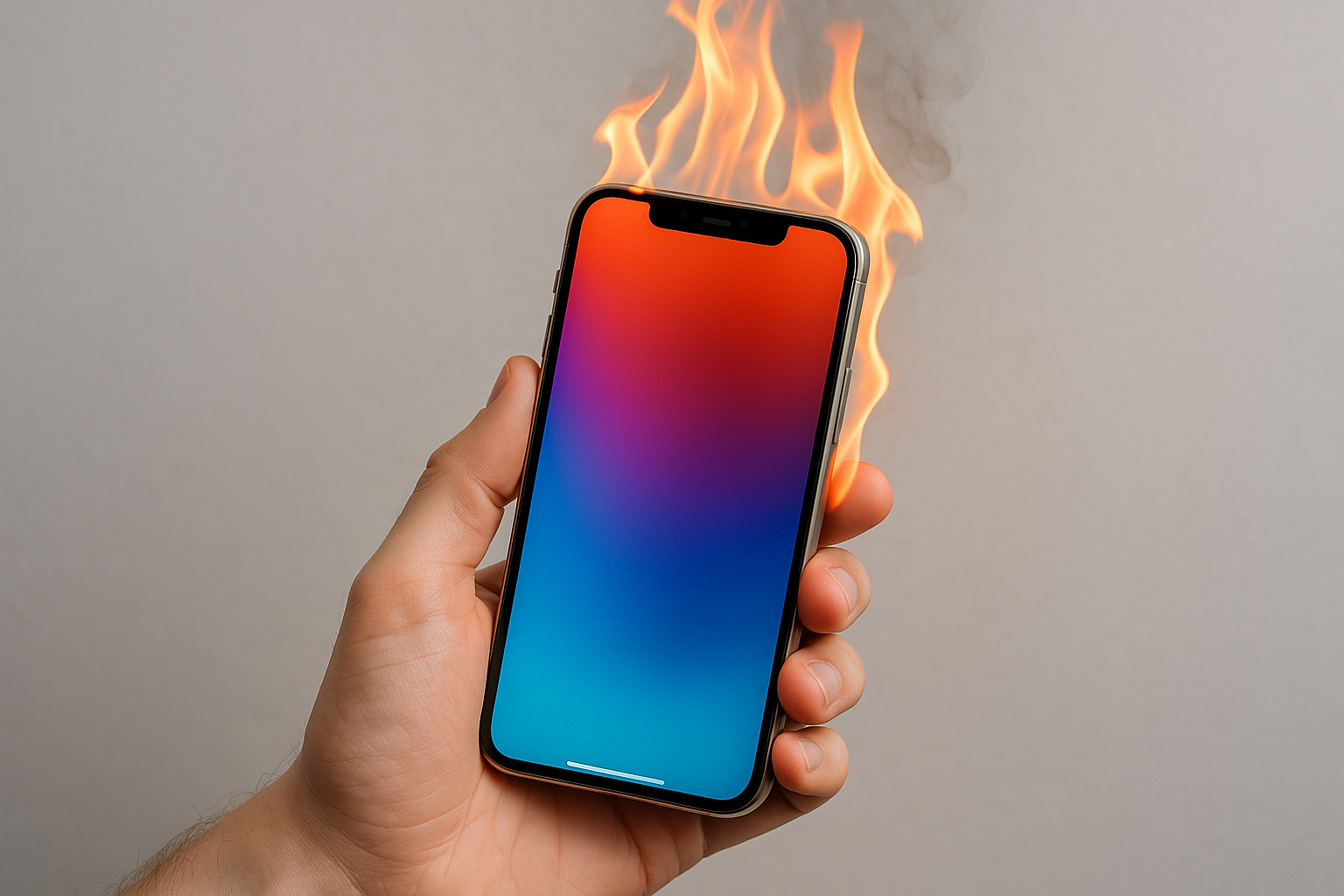
If your iPhone is getting hot, it’s usually from demanding tasks (gaming, video, navigation), charging—especially wireless/MagSafe—high ambient temperatures, or a weak cellular signal that makes the modem work harder. Let it cool by pausing heavy use, moving it out of the sun, removing the case, and unplugging it from power. Then update iOS and apps, check Battery usage for power-hungry apps, limit background activity, and fine-tune network and location settings. If heat persists during light use or you see frequent temperature warnings, get the device checked—especially if Battery Health is under 80%.
What “Hot” Means on an iPhone
Some warmth is normal. iPhones warm up during charging, long video calls, high‑frame‑rate games, 4K recording, AR, or when first setting up after an update. iOS manages heat by lowering performance, dimming the display, slowing or pausing charging, disabling the camera flash, and showing a temperature warning if needed.
Apple’s recommended operating ambient temperature is 0–35°C (32–95°F). Above that, especially in direct sun or a hot car, the device can overheat quickly. If you see the “iPhone needs to cool down” screen, stop using it and let it return to a normal temperature before resuming.
Common Reasons Your iPhone Gets Hot
Hot Weather and Direct Sunlight
Environmental heat is the fastest way to push an iPhone past safe limits. Dashboards, beach towels, and windowsills trap heat and expose the device to direct sun. Black or thick cases absorb and retain warmth, making it worse, and even mild outdoor temperatures can create extreme heat inside a car.
Charging, Especially Wireless and MagSafe
All charging generates heat. Wireless and MagSafe are less efficient than cable, so more energy becomes heat—especially with coil misalignment, debris, or a thick case. Fast charging a low battery, or charging while actively using the phone, compounds the effect.
Intensive Apps and Features
3D gaming, long video recording or streaming, FaceTime over cellular, GPS navigation, AR, and video editing drive the CPU, GPU, and neural engine hard. High screen brightness and ProMotion (120 Hz on compatible models) add to the load.
Weak Signal, 5G, and Hotspot
In fringe coverage areas, the cellular modem boosts power to hold a connection, which generates heat. 5G can run warmer during sustained data transfers. Personal Hotspot keeps radios active and is a frequent heat source.
Post‑Update or New iPhone Indexing
After an iOS update, restore, or on a new device, iPhone re-indexes content (Spotlight), analyzes Photos, and syncs data. This background work can cause warmth and extra battery drain for several hours.
Misbehaving Apps
Occasionally an app loops in the background, polls the network, uses location constantly, or prevents sleep. Social media, navigation, and video apps are common culprits when misconfigured or outdated.
Accessories and Cases
Battery cases, metal plates, magnetic wallets, and rugged cases can trap heat or interfere with wireless charging efficiency. Non‑certified chargers and cables may overheat or charge inefficiently.
Battery Age or Hardware Issues
A degraded battery (typically under 80% Maximum Capacity) can run hot under load. Very rare but serious: battery swelling or a persistent burning smell requires immediate service and stopping use.
Quick Fixes You Can Try Right Now
- Pause heavy tasks. Exit games, camera, AR, and video apps. Lock the screen for a few minutes.
- Move to shade and cool air. Avoid direct sun, car dashboards, and windowsills. Do not chill the phone in a fridge or on ice—rapid cooling can cause condensation.
- Unplug from power. Pause wireless/MagSafe charging; switch to a USB‑C/Lightning cable later when the phone is cool.
- Remove the case. Let heat dissipate more easily, especially during charging or gaming.
- Use Airplane Mode in low‑signal areas. Re-enable Wi‑Fi if available; cellular radios are major heat sources when signal is weak.
- Lower screen brightness. High brightness adds heat. Enable Auto‑Brightness in Settings > Accessibility > Display & Text Size.
- Turn off Personal Hotspot and AirDrop when not in use. Set AirDrop to Contacts Only.
- Restart the iPhone. A quick reboot clears runaway processes that can cause background heat.
Settings That Prevent Heat Build‑Up
Update iOS and Apps
Install the latest iOS and app updates to pick up performance and thermal fixes. Go to Settings > General > Software Update, and open the App Store > Updates.
Review Battery Usage
Settings > Battery shows which apps use the most power in the last 24 hours and 10 days. If an app ranks high with little on‑screen time, it may be running excessively in the background. Update it, change its permissions, or delete and reinstall. As needed, disable Background App Refresh (Settings > General > Background App Refresh) for nonessential apps.
Optimize Network Behavior
- 5G settings: Settings > Cellular > Cellular Data Options > Voice & Data. Use 5G Auto so the phone switches to LTE when 5G offers no benefit, reducing radio load.
- Wi‑Fi first: Prefer trusted Wi‑Fi; it’s more power‑efficient than cellular data.
- Wi‑Fi Assist: In Settings > Cellular, consider disabling Wi‑Fi Assist if you’re near the edge of Wi‑Fi range to prevent constant cellular fallback.
- Personal Hotspot: Turn it off when you’re done; it keeps radios active and hot.
Tune Location Services
Go to Settings > Privacy & Security > Location Services. Set apps to While Using instead of Always when possible, and disable Precise Location for apps that don’t need exact coordinates. In System Services, review options like Location‑Based Alerts, Suggestions, and Significant Locations and turn off what you don’t need.
Reduce Display and Haptic Load
- Auto‑Brightness: Enable it under Settings > Accessibility > Display & Text Size.
- Low Power Mode: Turn it on to curb background activity and visual effects (Settings > Battery).
- Keyboard Haptics: Disable under Settings > Sounds & Haptics > Keyboard Feedback; it can add small but constant power use.
- Motion and frame rate: Reduce Motion and enable Limit Frame Rate (Settings > Accessibility > Motion) if heat recurs during sensitive tasks.
Safer Charging Habits
- Use Apple or MFi‑certified chargers and cables for efficient, safe charging.
- Avoid covering the phone while charging; remove thick or battery cases.
- Prefer wired charging when the phone is already warm; it’s more efficient than wireless.
- MagSafe: Ensure proper alignment and keep the back of the phone and charger clean.
- Optimized Battery Charging: Keep it enabled (Settings > Battery > Battery Health & Charging) so the phone pauses at ~80% until you need it, which can limit heat overnight.
When to Worry and Seek Service
Heat that persists during light tasks, frequent temperature warnings, swelling, or a noticeable burnt smell are red flags. Check Settings > Battery > Battery Health & Charging; if Maximum Capacity is below 80% or Performance Management is active due to shutdowns, schedule service. Back up your data, then contact Apple Support for diagnostics. If a case or accessory seems to trigger heat, remove it and test for a day to rule it out.
Common Scenarios and Simple Fixes
| Scenario | Likely Cause | Simple Fix |
|---|---|---|
| Phone warms rapidly on a beach or in a car | Direct sun and high ambient temperature | Move to shade, remove case, let it cool; avoid use until temperature normalizes |
| Gets hot on a wireless/MagSafe charger | Inefficient charging, misalignment, thick/magnetic case | Switch to a cable, align MagSafe carefully, or charge without the case |
| Heats during video calls or streaming | Screen and radios active continuously | Lower brightness, use Wi‑Fi, keep the phone on a stand for airflow |
| Warmer after an iOS update or restore | Indexing and photo analysis in the background | Let it finish on Wi‑Fi with the screen off; heat should subside within hours |
| Hot with one app even when not in use | Runaway background process or Always‑on location | Update or reinstall the app; set Location to While Using; disable Background App Refresh |
| Overheats in areas with poor service | Cellular modem boosting power to maintain signal | Use Airplane Mode or switch to Wi‑Fi until you’re in better coverage |
| Warms up while using navigation in a car mount | Direct sun, high brightness, wireless charging in mount | Use a vent mount for airflow, lower brightness, prefer wired power or CarPlay |
Extra Tips That Actually Help
Use a stand or prop the phone up during long sessions so air can circulate around the back. Don’t stack the phone under a pillow or blanket while charging. Keep the Camera app closed when you’re not using it—preview and background processes can be demanding. If you game frequently, limit frame rates in‑game and avoid charging while playing. At night, dim or turn off StandBy mode if the screen heat bothers you. Finally, clean the phone and case; lint and dust can insulate heat around the back glass and magnets.
Frequently Asked Questions
Is it normal for an iPhone to get warm while charging?
Yes. Some warmth—especially from 0–50% charge or during wireless/MagSafe charging—is expected. If the phone feels uncomfortably hot or shows a temperature warning, unplug it, remove the case, and let it cool before resuming with a wired charger.
What temperature is safe for using and charging an iPhone?
Apple recommends using iPhone in ambient temperatures between 0–35°C (32–95°F). Charging outside that range can pause automatically to protect the battery. Avoid leaving the device in cars or direct sunlight; even mild outdoor temperatures can quickly create extreme internal heat in those conditions.
Can a specific app cause overheating, and how do I find it?
Yes. Check Settings > Battery to see power usage by app. Look for apps with high Background Activity or disproportionate battery use. Update or remove the offender, reduce its permissions (Location While Using, disable Background App Refresh), and monitor for a day.
Should I force‑quit apps from the app switcher to reduce heat?
Routinely swiping away apps doesn’t help and can increase power use because apps relaunch from scratch. Only force‑quit an app that’s frozen or clearly misbehaving. Focus instead on limiting background refresh, location, and notifications for nonessential apps.
Does 5G make iPhones hotter than LTE?
During sustained high data transfers in areas with marginal 5G coverage, yes—5G can run warmer. Set 5G Auto so the phone uses LTE when 5G isn’t providing a real benefit, and favor Wi‑Fi for big downloads.
Is wireless or MagSafe charging worse for heat than cable?
Wireless and MagSafe generate more heat because they’re less efficient. For a warm phone or in hot rooms, prefer a wired charger, remove the case, and keep the phone on a hard surface for airflow.
Why does my iPhone get warm after an update?
Post‑update indexing, photo analysis, and app re‑optimizations run in the background. This can last several hours, especially with large photo libraries. Keep the phone on Wi‑Fi and power, let it sit with the screen off, and the warmth should fade on its own.