Quick Answer
Start in Settings > Storage to see what’s using space, then use the Files by Google app to safely delete large files, duplicates, and junk. Back up photos and videos to Google Photos and tap Free up space, trim chat app media (WhatsApp/Telegram), uninstall big apps you rarely use, clear app caches, and remove offline downloads from apps like Spotify, Netflix, Maps, and YouTube. If your phone supports it, move media to an SD card or offload to cloud storage or a computer, then set rules so clutter doesn’t return.
Check what’s actually using space
Use the built-in Storage view
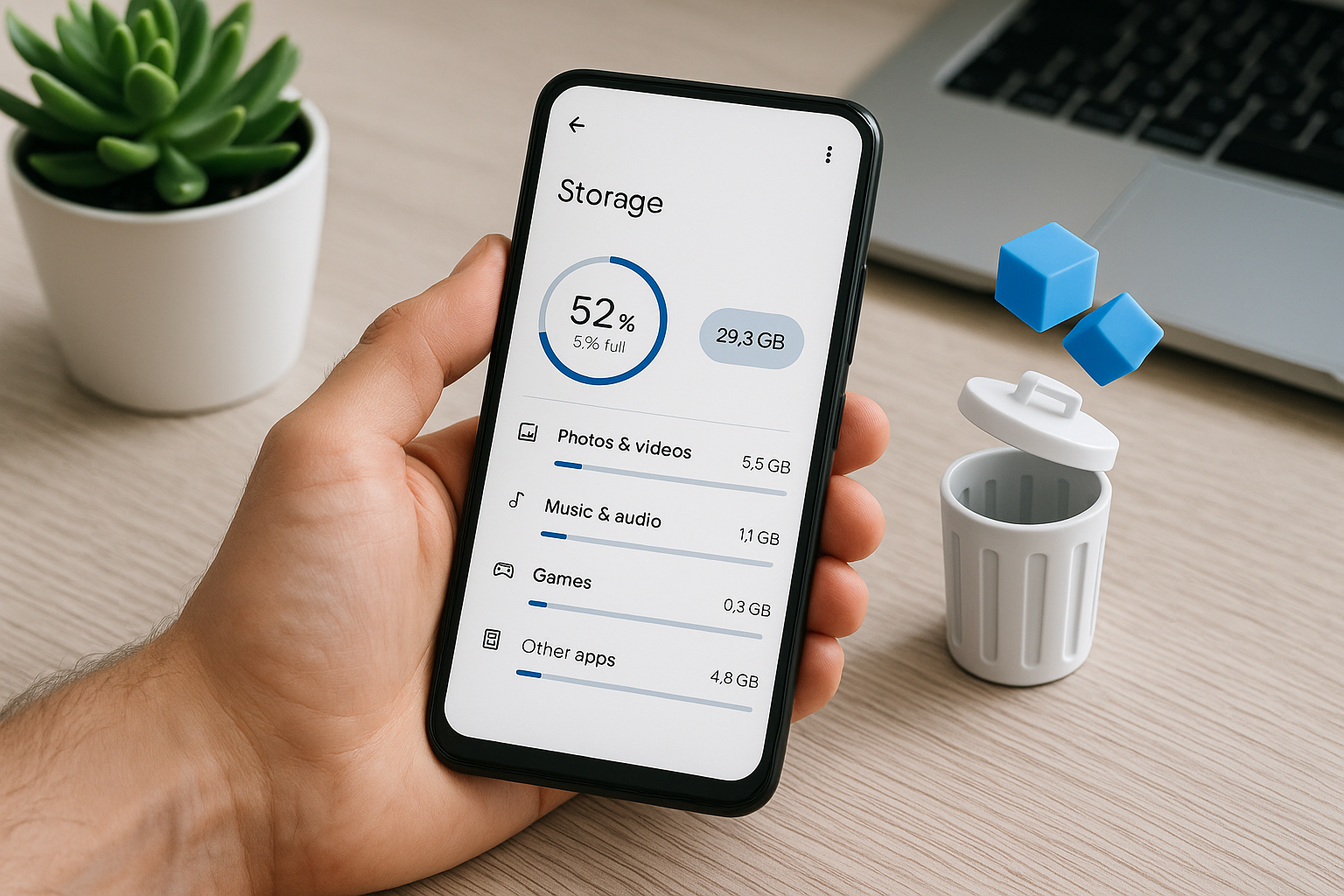
On most phones, go to Settings > Storage (Samsung: Settings > Battery and device care > Storage). You’ll see categories such as Apps, Photos & videos, Audio, and System. Tap each one to drill down and identify the biggest offenders—usually videos, app data, downloads, and chat media. Labels vary by brand, but the breakdown is similar on Android 10 and newer.
Run Files by Google for safe suggestions
Install or open Files by Google from the Play Store. In the Clean tab, review recommendations for junk/temporary files and memes, then check Large files and Duplicates. Files shows sizes and locations and avoids deleting essentials, so you can act with confidence. In Browse, you can sort any folder by size to delete directly.
Clear the obvious clutter
Empty Downloads and remove stray folders
Downloads grow quietly. Open Files by Google > Browse > Downloads, sort by size, and delete installers (.apk), PDFs you no longer need, and temporary media. Also check common clutter folders: DCIM/Screenshots, Movies, Ringtones, and app-specific folders (e.g., WhatsApp, Telegram, Facebook). Remove old screen recordings and exported videos from editors like CapCut or InShot.
Delete large and duplicate files
In Files by Google, go to Clean > Large files to review multi‑gigabyte videos, archives, and recordings. Preview when possible, then delete or move them elsewhere. Use Duplicates to remove extra copies; Files keeps one original by default. If you manage duplicates manually, verify paths—cloud and gallery apps sometimes create mirrored .thumbnails or cache folders that you shouldn’t touch. When unsure, stick to Files’ safe suggestions.
Empty trash or recycle bins
Many apps have their own trash that still consumes storage until emptied: Files by Google (Clean > Trash), Google Photos (Library > Bin/Trash), Gallery apps, Gmail (Trash and Spam), and cloud storage apps. Empty these to reclaim space immediately. Items in trash are often auto‑deleted after 30–60 days, but if you’re low on space, clear them now.
Reduce photo and video bloat
Back up with Google Photos and free up local copies
In Google Photos, tap your profile photo > Photos settings > Backup, turn it on, and choose Storage saver to compress photos and videos while keeping good quality. After backup completes, tap your profile photo > Free up space to remove local copies that are safely in the cloud. You can still view them when online; download key albums for offline access if needed.
Adjust camera settings for smaller files
Small camera tweaks save gigabytes over time:
- Use HEIF/HEIC for photos and HEVC/H.265 for videos where supported. These cut file sizes by 20–50% with similar quality. Some older devices or apps may have compatibility issues—test first.
- Reduce video resolution or frame rate if you don’t need 4K60; 1080p30 is plenty for everyday clips.
- Disable RAW/Pro capture unless required; RAW files can be 10–40 MB each.
- Avoid long bursts and motion photos unless you need them—they silently multiply file count and size.
Move photos and videos to an SD card
If your phone supports microSD, insert a high‑speed card (UHS‑I U3 or V30 for 4K video). In Camera settings, set Save to SD card. Use Files by Google to move existing media: select items > Move to > SD card. Some phones let you “adopt” the SD card as internal storage to expand app space, but this ties the card to the phone and can be slower; portable (external) mode is more reliable for media and transfers.
Cut down chat app storage
WhatsApp: audit by size and tame auto-downloads
Go to WhatsApp > Settings > Storage and data > Manage storage. Review Larger than 5 MB, forwarded media, and per‑chat usage, then delete in bulk. Under Storage and data > Media auto‑download, disable auto‑download on mobile data and limit Wi‑Fi to Photos only, or turn it off entirely. In each chat, open View media to quickly remove old videos, voice notes, and documents.
Telegram, Signal, and others
Telegram: Settings > Data and Storage > Storage Usage. Set a cache limit (e.g., 1–5 GB) and Media Keep for duration (e.g., 1–3 months). Clear cache to reclaim space; your cloud chats remain intact. Signal: Settings > Data and storage > Manage storage to trim attachments and set an attachment limit. Discord/Messenger: periodically clear cache via in‑app settings or Android’s App info page, and prune saved media folders in Files.
Reclaim app space safely
Uninstall or disable heavy apps you rarely use
Open Settings > Apps and sort by Size or Last used. Remove games and editors you haven’t opened in months—many store gigabytes of assets. For preinstalled apps you can’t remove, tap Disable to stop updates and hide them. Consider “Lite” versions (Facebook Lite, Messenger Lite) or use the browser instead of full apps where practical.
Clear cache vs. clear storage (know the difference)
When you’re low on space, clearing cache is the safest first step. Clearing storage/data resets the app and removes offline content. Here’s how they compare:
| Action | What it removes | What you lose | When to use |
|---|---|---|---|
| Clear cache | Temporary files, thumbnails, temp media | Usually nothing; you stay signed in | Quick space recovery without affecting app data |
| Clear storage/data | All app data: settings, accounts, offline content | Sign‑in, preferences, downloads | When the app is bloated or misbehaving; be ready to reconfigure |
To clear cache: Settings > Apps > [App] > Storage & cache > Clear cache (on some phones: Storage > Clear cache). For Chrome, you can also open Chrome > ⋮ > History > Clear browsing data > Cached images and files. Avoid generic “cleaner” apps; they can be aggressive, remove useful caches, and drain battery.
Target big offline downloads
- Google Maps: Maps > your profile > Offline maps. Delete old areas or shrink coverage; update stale downloads.
- YouTube: Library > Downloads; remove watched videos. YouTube Music: Downloads > remove or reduce Smart downloads.
- Spotify: Your Library > Downloaded; remove playlists/albums you don’t need offline. In Settings, lower download audio quality.
- Netflix/Prime/Disney+: App > Downloads; delete finished episodes and switch to SD quality if you need more on‑device content.
- Podcast apps: Limit episode cache (e.g., keep last 3), auto‑delete after played, and move storage to SD when supported.
Move or offload files elsewhere
Use cloud storage strategically
Move infrequently used documents and photos to cloud drives like Google Drive, OneDrive, or Dropbox. In Files by Google, select files > Share > Save to Drive (or upload in each app). After confirming the upload, delete local copies. For travel or spotty connectivity, pin only the folders you truly need for offline access to avoid re‑downloading everything.
Transfer to a computer or external drive
Connect your phone to a PC via USB, choose File transfer (MTP), then copy DCIM, Movies, and Downloads to your computer and delete them from the phone. For on‑the‑go moves, use a USB‑C OTG flash drive; most file managers support copying directly. Always verify files at the destination before deleting originals.
Stop storage from filling again
Automate periodic cleanups
In Files by Google settings, enable cleanup notifications and act on them monthly. If your device offers Smart Storage or similar, turn it on to auto‑remove backed‑up photos after a set period (availability varies by model). Set reminders to review WhatsApp and Telegram storage pages monthly. In browsers, ask where to save downloads and point large files to an SD card when available.
Set better defaults
- Camera: Save to SD card by default (if available) and keep HEIF/HEVC enabled after testing compatibility.
- Chat apps: Disable auto‑download on mobile data and restrict on Wi‑Fi; use short media retention windows.
- Streaming apps: Choose SD quality for offline downloads unless you truly need HD.
- Recording apps: Use AAC/128 kbps for voice notes and 1080p for screen recordings unless higher quality is required.
When reset or expansion makes sense
Factory reset as a last resort
If System or Other occupies a huge share and regular cleanup barely helps, a factory reset can reclaim space lost to stale caches and app residue. Back up your data first (Google account sync, Photos backup, messaging backups), then reset via Settings > System > Reset options > Erase all data. Sign back in and restore only the apps you actually use to avoid reintroducing bloat.
Add or upgrade an SD card
If your phone supports microSD, a larger, faster card is the most cost‑effective way to expand media storage. Choose reputable brands and UHS‑I U3 or V30 ratings for 4K video. Keep it as portable storage for flexibility, unless you specifically need adoptable storage for app space and accept potential performance trade‑offs.
Frequently Asked Questions
Is clearing cache safe, and how often should I do it?
Yes. Clearing cache deletes temporary files without removing personal data or logging you out. Do it when you’re low on space or if an app misbehaves; there’s no benefit to clearing caches on a fixed schedule.
Do “phone cleaning” apps actually help?
Android already includes effective tools, and Files by Google provides safe, targeted cleanup. Many third‑party cleaners add ads, run constantly, and may remove useful caches—hurting performance and battery. Stick to built‑in tools and Files by Google.
What if System is using most of my storage?
System includes Android itself, preinstalled components, and essential caches. You can’t delete it directly. Updating the OS, removing updates to unwanted preinstalled apps, and a factory reset (after backup) can reduce inflated System/Other usage. If your device has very limited storage (e.g., 32 GB), consider adding an SD card or upgrading the device.
How can I free space without deleting photos?
Back up to Google Photos and use Free up space to remove local copies while keeping cloud access. Alternatively, move photos and videos to an SD card or a computer. You can also compress older albums with third‑party tools, but always back up originals first.
Why does my storage fill up again after I delete files?
Apps rebuild caches, chat apps keep downloading media, and cameras create large files. Set limits: cap Telegram cache, reduce WhatsApp auto‑downloads, lower camera video settings, and regularly clear offline downloads from streaming and maps apps. Enable cleanup reminders in Files by Google.
Can I move apps to the SD card?
Some apps allow Move to SD (Settings > Apps > [App] > Storage > Change), but many don’t, and performance can suffer. Adoptable storage moves more app data by formatting the SD as internal, but it ties the card to the phone and can slow heavy apps. For reliability, move media to SD and keep critical apps on internal storage.
Is it safe to delete Android/obb or Android/data folders for games?
Deleting files in Android/obb or Android/data can break games and apps. If a game is too large, uninstall it from Settings > Apps; this removes its obb/data safely. Only delete those folders if you’re troubleshooting and understand the consequences, and when possible, clear from App info instead.