Quick Answer
On iPhone, deleted photos go to the Photos app’s Recently Deleted album for 30 days, where you can restore them with a tap. Open Photos > Albums > Recently Deleted, authenticate with Face ID/Touch ID or your passcode, select the items, and tap Recover. If you use iCloud Photos, the same Recently Deleted items appear on all your Apple devices and on iCloud.com. If the photo isn’t there, check the Hidden album, shared libraries, third‑party apps’ trash, or restore from a backup made before deletion.
Find and Recover Photos in the Recently Deleted Album
Where to find it on iPhone
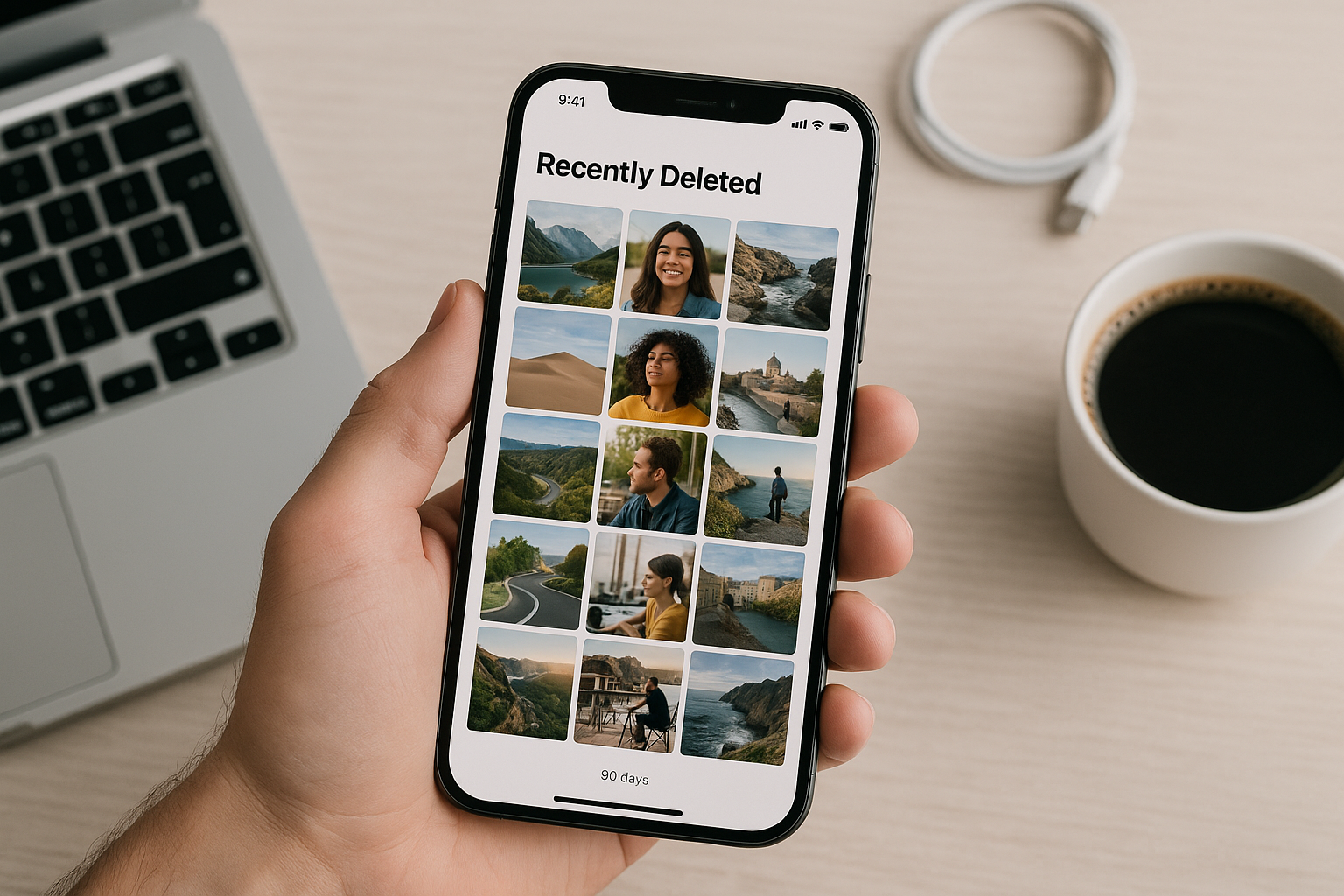
The Recently Deleted album lives in the Photos app. Go to Photos > Albums and scroll to the Utilities section, then tap Recently Deleted. On iOS 16 and later, it’s locked by default, so you’ll authenticate with Face ID, Touch ID, or your passcode to view it. Thumbnails show a countdown indicating how many days remain before each item is permanently removed.
How to recover or permanently delete
To restore a single item: open Recently Deleted, tap Select, choose the photo or video, then tap Recover and confirm. To restore everything, tap Select > Recover All. Recovered items return to your library in their original position on the timeline with their creation dates, Live Photo data, edits, and album placements preserved. To erase items before the 30‑day window ends, choose Delete or Delete All to immediately free storage; if iCloud Photos is on, the deletion syncs to all devices.
How long deleted photos are kept
Photos and videos remain in Recently Deleted for 30 days. On day 31, they’re permanently erased and can’t be recovered through Photos or iCloud. With iCloud Photos enabled, the countdown is consistent across your devices and on iCloud.com. If iCloud Photos is off, the countdown and recovery are limited to the device where you deleted the items.
If You Can’t See or Open the Recently Deleted Album
On iOS 16 and later, Recently Deleted and Hidden require authentication. If Face ID or Touch ID fails, tap Use Passcode to enter your device passcode. If you still can’t access it, go to Settings > Photos and ensure “Use Face ID” (or “Use Touch ID”) is enabled for Photos. Very old iOS versions may show Recently Deleted without a lock; update iOS for security and reliability. If the album itself is missing, make sure you’re viewing the system Photos app (not a third‑party gallery) and that you’re in the Albums tab > Utilities section.
Other Places Your Photos Might Be
Hidden album
If you hid the photo instead of deleting it, it won’t appear in your main library. Open Photos > Albums > Hidden (under Utilities) and authenticate. If you don’t see Hidden, enable it in Settings > Photos > Show Hidden Album. To unhide, open the photo, tap the More (…) button or Share button, and choose Unhide.
iCloud.com on the web
When iCloud Photos is enabled, Recently Deleted syncs to iCloud. Visit iCloud.com, sign in, open Photos, and click Recently Deleted in the sidebar. Select items and click Recover to restore them to your iCloud Photos library, which syncs back to your iPhone. This is handy if you don’t have your iPhone or Face ID isn’t working.
Shared Library and Shared Albums
If you use iCloud Shared Photo Library (iOS 16.1+), deleting an item from the Shared Library removes it for everyone and places it in Recently Deleted for the person who deleted it. Any participant who deleted something can recover it from their own Recently Deleted. Shared Albums (the older feature) are different: removing a photo from a Shared Album doesn’t delete it from your personal library and doesn’t place it in Recently Deleted. If something disappeared only from a Shared Album, ask the owner to re‑add it.
Third‑party cloud apps’ trash
If you also use another cloud service, check its trash folder:
- Google Photos: Trash keeps backed‑up items for up to 60 days (often 30 days for items not backed up). Open Google Photos > Library > Trash to restore.
- OneDrive: Recycle Bin keeps deleted items for up to 30 days (or until it fills). Open OneDrive app > Me > Recycle Bin.
- Dropbox: Deleted files can often be recovered for 30 days on Basic/Plus and up to 180 days on some paid plans via dropbox.com > Deleted files.
Restoring in these apps returns items to that app’s library; they won’t reappear in Apple Photos unless you save or export them back to the Photos app.
Messages, Mail, and other apps
A missing photo might still be in a conversation or email. In Messages, open the chat, tap the contact’s name at the top, then tap Photos to browse attachments. Touch and hold an image to Save. Also check apps that manage their own galleries (camera, editing, or social apps) for an in‑app trash or export option. If the image was stored in Files rather than Photos, open Files > Browse > Recently Deleted to recover it (typically available for 30 days).
Restore from a Backup (Last Resort)
If the photo isn’t in Recently Deleted or elsewhere, restoring from a previous backup may help—but only under specific conditions.
Important: iCloud Photos vs. backups
If iCloud Photos is enabled, your photos live in iCloud and are not included in iCloud Backup or Finder/iTunes backups. Restoring an iCloud Backup won’t bring back missing photos when iCloud Photos is on. Your only built‑in recovery path in that case is the 30‑day Recently Deleted window (on device or iCloud.com).
iCloud Backup restore (when iCloud Photos is off)
If you do not use iCloud Photos and you have an iCloud Backup from before you deleted the photos, you can restore your iPhone to that backup. This process erases the device and rolls all data and settings back to the backup date.
- Check the last backup date: Settings > [your name] > iCloud > iCloud Backup.
- If the date predates the deletion, go to Settings > General > Transfer or Reset iPhone > Erase All Content and Settings.
- During setup, choose Restore from iCloud Backup and pick the desired backup.
Warning: You will lose changes, new photos, and app data created after that backup. Consider archiving current data first (for example, AirDrop important photos to another device or copy them to a computer) to avoid losing new content.
Finder/iTunes backup restore (when iCloud Photos is off)
A local computer backup made before deletion can also restore photos if iCloud Photos was off at the time. Connect your iPhone to a Mac (Finder) or PC (iTunes), select the device, click Restore Backup, and choose the relevant date. Encrypted backups are recommended in general, but not required for photos. As with iCloud Backup, this replaces current data with the older snapshot.
Extracting photos without erasing
You can often extract photos from an old Finder/iTunes backup using reputable desktop tools, then import them into Photos—avoiding a full device erase. This works only if a suitable backup exists and iCloud Photos was off when the backup was created.
Where to Look and How Long You Have: At‑a‑Glance
| Location | How to access | Retention window | Notes |
|---|---|---|---|
| Recently Deleted (iPhone) | Photos > Albums > Recently Deleted | 30 days | Locked with Face ID/Touch ID/passcode on iOS 16+; shows days remaining; Recover or Delete. |
| Recently Deleted (iCloud.com) | iCloud.com > Photos > Recently Deleted | 30 days | Requires iCloud Photos; mirrors device contents across all Apple devices. |
| Hidden album | Photos > Albums > Hidden | Indefinite | Locked on iOS 16+; enable in Settings > Photos > Show Hidden Album. |
| Google Photos Trash | Google Photos > Library > Trash | Up to 60 days | Typically 60 days for backed‑up items; some unbacked items may purge earlier. |
| OneDrive Recycle Bin | OneDrive app > Me > Recycle Bin | Up to 30 days | May purge earlier if storage pressure is high. |
| Finder/iTunes backup | Restore via Mac/PC | Until overwritten | Photos included only if iCloud Photos was off; restore replaces current data. |
What About “iPhone Recovery” Apps?
Many tools claim to recover permanently deleted photos directly from an iPhone. Because of iOS security and how flash storage works, true on‑device undelete is rarely possible. Most tools either scan your existing Photos library (which you can do yourself) or read data from an iCloud or Finder/iTunes backup. They can’t resurrect content after the 30‑day purge from Recently Deleted if no suitable backup exists. Be wary of guarantees, avoid granting untrusted tools access to your Apple ID, and don’t disable security features or jailbreak just to attempt recovery.
Tips to Prevent Photo Loss Going Forward
Build a safety net so accidental deletions aren’t catastrophic:
- Enable iCloud Photos in Settings > [your name] > iCloud > Photos, and ensure you have enough iCloud storage for your library.
- If you prefer not to use iCloud Photos, regularly import photos to a Mac or PC (Photos app or Image Capture) and keep reliable computer backups such as Time Machine.
- Consider a secondary cloud like Google Photos for redundancy.
- Review Recently Deleted before the 30‑day deadline, and avoid emptying it immediately unless you’re certain.
- Use iCloud Shared Photo Library with care; deleting from the Shared Library removes the item for all participants.
- Keep iOS updated—newer versions improve Photos stability and recovery UI.
Frequently Asked Questions
How long do deleted photos stay on my iPhone?
Thirty days. Items in Recently Deleted show a countdown and are permanently erased on day 31. With iCloud Photos on, the timer is synced across all Apple devices and iCloud.com.
Can I recover photos after 30 days?
Not from Photos or iCloud. Your options are limited to restoring from a device or iCloud backup made before deletion (and only if iCloud Photos was off at that time) or finding copies in third‑party clouds, Messages, email, or a computer you previously synced to.
Does restoring an iCloud Backup bring back missing photos?
Only if iCloud Photos was off when that backup was created. If iCloud Photos is on, photos live in iCloud and aren’t included in iCloud Backup, so restoring a backup won’t recover missing photos; use Recently Deleted within 30 days instead.
Where do permanently deleted photos go?
Once you delete from Recently Deleted (or the 30‑day window expires), the items are removed from the Photos database and from iCloud if enabled. There’s no user‑accessible way to retrieve them, and Apple Support can’t restore them.
I don’t see the Hidden album. How do I turn it on?
Go to Settings > Photos and enable Show Hidden Album. Then open Photos > Albums > Hidden. On iOS 16 and later it’s locked; authenticate to view. To unhide a photo, open it and choose Unhide from the More (…) or Share menu.
Why did a deleted photo reappear on another device?
With iCloud Photos on, your library—including deletions and recoveries—syncs across devices. Recovering a photo on your iPhone brings it back on your iPad, Mac, and iCloud.com. Likewise, deleting on any device moves it to Recently Deleted everywhere.
If I remove a photo from a Shared Album, is it gone from my library?
No. Removing from a Shared Album only affects the shared copy. Deleting from your personal library is separate and goes to Recently Deleted. For iCloud Shared Photo Library (the newer shared library feature), deleting removes the item for all participants, and only the person who deleted it can recover it from their Recently Deleted.