Quick Answer
You can turn off emergency alerts on Android from Settings > Safety & emergency > Wireless emergency alerts (wording varies). On most phones, you can toggle off all alerts or just specific types like AMBER alerts, severe threats, test alerts, vibrations, and reminders. Some alerts are mandatory in certain countries (for example, Presidential alerts in the U.S.) and cannot be disabled. If you don’t see the setting in System Settings, check the default Messages app’s settings under Emergency alerts or Wireless emergency alerts.
What emergency alerts are and why settings vary
Android emergency alerts use cell broadcast (CBS) technology to deliver time‑sensitive, location‑based warnings from public authorities, such as extreme weather, evacuations, and child abduction alerts. These alerts are designed to reach your phone even if Do Not Disturb is on and even if you’re not using mobile data.
Because phone makers customize Android and carriers follow local regulations, menu names and available toggles differ by brand, Android version, and country. You may see them called Wireless emergency alerts, Emergency alerts, or Cell broadcasts. If you want fewer interruptions, you don’t have to disable everything—most devices let you keep life‑threatening alerts on while turning off sounds, vibration, reminders, or lower‑priority categories.
Find the emergency alert settings on your Android
Use the path that matches your device. If one path isn’t available, try the alternative listed or use the Settings search bar for “emergency alerts,” “wireless alerts,” or “cell broadcast.”
Google Pixel (Android 13 and 14)
- Open Settings.
- Tap Safety & emergency.
- Tap Wireless emergency alerts.
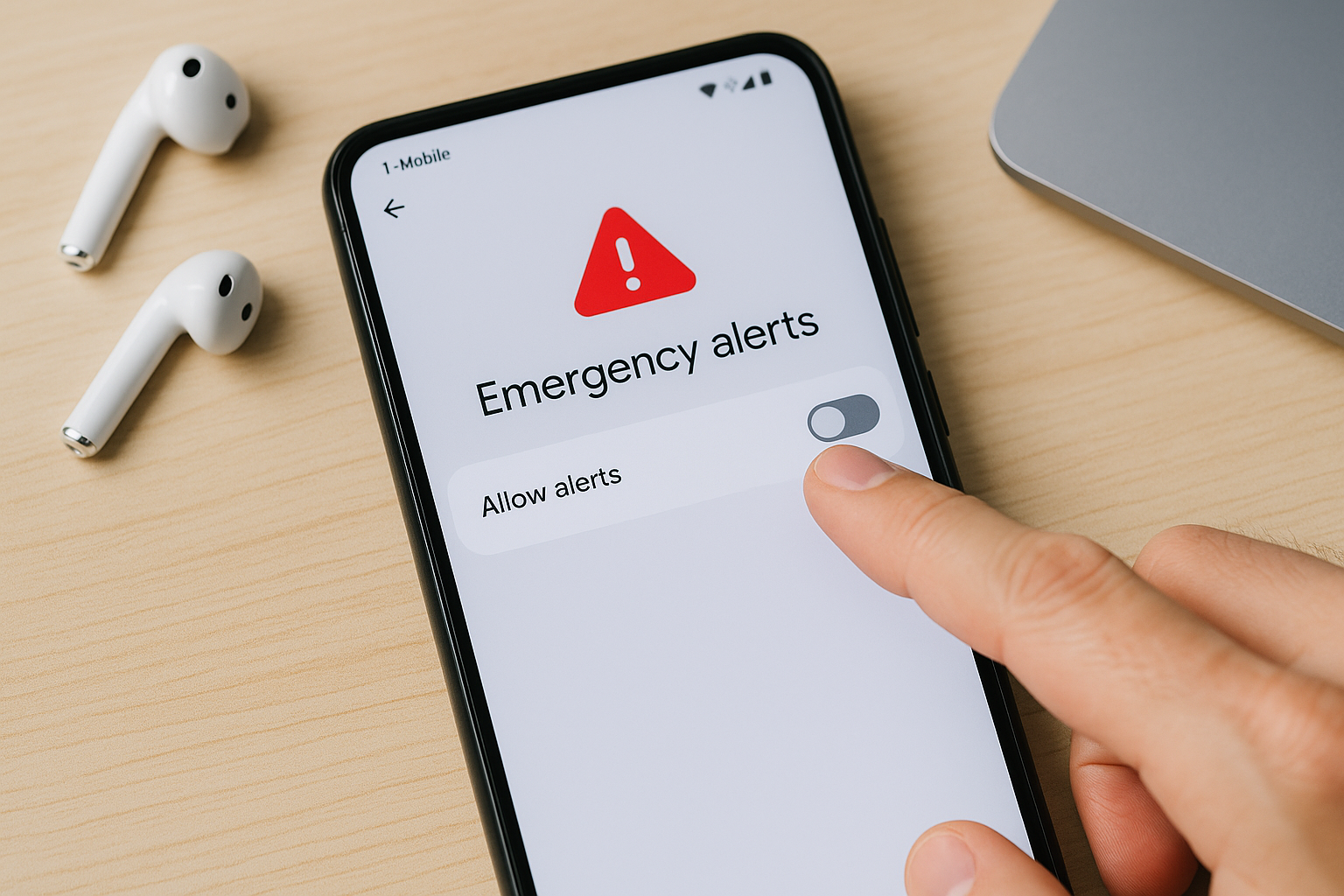
- Toggle Allow alerts off to disable all, or manage categories (Extreme threats, Severe threats, AMBER alerts, Public safety messages, Test alerts). You can also adjust Vibrate, Text-to-speech, and Alert reminder.
Samsung Galaxy (One UI 5 and 6)
- Open Settings.
- Tap Safety and emergency > Wireless emergency alerts.
- Toggle Allow alerts off, or adjust specific categories and sound/vibration options.
If you don’t see it there: Settings > Notifications > Advanced settings > Wireless emergency alerts (availability varies by carrier).
On older Samsung models: Open the Samsung Messages app > Menu (three dots) > Settings > Emergency alert settings.
OnePlus (OxygenOS 12/13/14)
- Open Settings.
- Tap Safety & emergency (or Security & emergency) > Wireless emergency alerts.
- Manage Allow alerts and categories. If missing, open the Messages app > Settings > Emergency alerts.
Motorola
- Open Settings.
- Tap Safety & emergency > Wireless emergency alerts.
- Adjust categories and alert behavior. If absent, use the Messages app path: Messages > Settings > Emergency alerts.
Xiaomi / Redmi / POCO (MIUI / HyperOS)
- Open Settings.
- Try one of the following, depending on version:
- Passwords & security > Emergency alerts, or
- Notifications & Control center > Wireless emergency alerts, or
- Apps > System app settings > Messages > Emergency alerts.
- If you still can’t find it, open the default Messaging app > Settings > Emergency alerts (or Cell broadcast).
Sony, ASUS, Nokia, and other near‑stock Android
- Open Settings.
- Tap Safety & emergency > Wireless emergency alerts.
- Manage categories, sounds, and reminders. On older builds, the setting may live in the Messages app: Menu > Settings > Emergency alerts.
Older Android versions (Android 9–12, many brands)
- Open the default Messages app.
- Tap Menu (three dots) > Settings.
- Tap Emergency alerts or Wireless emergency alerts.
- Turn off the categories you don’t want, or disable Allow alerts entirely (if permitted in your region).
Turn off alerts completely vs. fine‑tune what you receive
You can usually turn off all alerts with a single switch. A safer approach is to keep life‑threatening alerts on and disable or silence others. The options below are common across Pixel, Samsung, and many other devices.
To turn off all alerts
- Go to the Wireless emergency alerts screen for your device.
- Toggle Allow alerts off. This stops most alerts from sounding or appearing. Mandatory alerts, if any in your region, will still appear.
To keep critical alerts but reduce interruptions
- Leave Allow alerts on.
- Disable non‑critical categories such as AMBER alerts, Public safety messages, and Test alerts.
- Set Vibrate off and choose a softer alert tone (Samsung) or disable Play sound (if available) to reduce noise.
- Turn off Alert reminders to prevent repeat notifications.
- Leave Extreme threats enabled. Consider keeping Severe threats on if you live in a hazard‑prone area.
Common alert categories and what they mean
| Category | What it typically covers | Can you disable it? | Recommendation |
|---|---|---|---|
| Extreme threats | Imminent threats to life or property (e.g., tornado warnings, wildfire evacuations) | Usually yes, but not advised; some regions may restrict | Keep on |
| Severe threats | Serious but lower‑level emergencies (e.g., severe thunderstorm warnings) | Yes | On in hazard‑prone areas; off if you need fewer alerts |
| AMBER/child abduction alerts | Child abduction emergencies | Yes | Personal choice |
| Public safety messages | Non‑urgent safety info or follow‑ups | Yes | Optional |
| Test alerts / State & local tests | System tests and trials | Yes (often off by default) | Off unless you want to participate |
| Presidential / highest‑authority alerts (U.S.) | National emergency messages | No (cannot be disabled by design) | N/A |
Do Not Disturb, volume, and how to silence without missing warnings
Government emergency alerts are engineered to override Do Not Disturb and silent modes. If you need quiet hours but still want life‑saving messages:
- Keep Extreme threats on but disable Vibrate and lower the alert tone if your device allows separate sound control.
- Disable Alert reminders so the phone doesn’t repeat the tone.
- Don’t rely on standard Do Not Disturb to suppress these alerts—change settings inside Wireless emergency alerts instead.
Regional and carrier differences to know
Rules and labels vary by country and carrier:
- United States: Wireless Emergency Alerts (WEA). Presidential alerts can’t be disabled. Other categories are user‑configurable on most devices.
- Canada: Alert Ready messages use similar technology. Some device and carrier combinations restrict certain toggles.
- United Kingdom and EU: Often labeled Emergency alerts or Cell Broadcast. Some member states or carriers lock specific categories.
- Asia‑Pacific and other regions: The menu may be titled Cell Broadcast or Emergency alerts; defaults and available switches vary by carrier.
If a switch you expect is missing, your carrier profile or local regulations may be hiding it. In that case, only options like vibration, sound, or reminders may be available.
Troubleshooting: can’t find or change the setting
- Search Settings for “emergency alerts,” “wireless alerts,” or “cell broadcast.”
- Open your default SMS/MMS app (Google Messages or your brand’s Messages), then check Menu > Settings for Emergency alerts.
- Update Android and your messaging app. Starting with Android 13, many alert controls moved from Messages to System Settings.
- Check dual‑SIM options: settings may appear per SIM or apply globally to the active SIM.
- If it’s a work‑managed device, your organization may restrict changes. Look for a briefcase icon in Settings or ask IT.
- Regional or carrier locks can remove certain toggles. If so, you may only be able to adjust reminders, vibration, or tone.
Best practices if you’re turning alerts off
Emergency alerts can provide critical minutes to shelter, evacuate, or avoid danger. If you still want fewer interruptions, use a balanced setup:
- Leave Extreme threats on and disable only lower‑priority categories and test messages.
- Silence rather than disable: turn off Vibrate, choose a softer tone, and set Alert reminders to Never.
- If family members rely on your phone for safety information, align settings together.
- Recheck settings after traveling, swapping SIMs, or updating Android; carriers can change defaults.
How to re‑enable alerts quickly
If you’ve turned alerts off and want them back on:
- Open Settings > Safety & emergency > Wireless emergency alerts (or your device’s equivalent).
- Toggle Allow alerts on and enable the categories you want.
- Optional: Turn on Vibrate, pick a clear alert tone, and set Alert reminders to repeat if you might miss the first notice.
Brand and version quick‑reference
| Brand / Android version | Typical path | Alternate path |
|---|---|---|
| Google Pixel (Android 13/14) | Settings > Safety & emergency > Wireless emergency alerts | — |
| Samsung (One UI 5/6) | Settings > Safety and emergency > Wireless emergency alerts | Settings > Notifications > Advanced settings > Wireless emergency alerts |
| OnePlus (OxygenOS 12–14) | Settings > Safety & emergency > Wireless emergency alerts | Messages app > Settings > Emergency alerts |
| Motorola | Settings > Safety & emergency > Wireless emergency alerts | Messages app > Settings > Emergency alerts |
| Xiaomi / Redmi / POCO (MIUI / HyperOS) | Settings > Passwords & security > Emergency alerts | Messages app > Settings > Emergency alerts |
| Sony, ASUS, Nokia | Settings > Safety & emergency > Wireless emergency alerts | Messages app > Settings > Emergency alerts |
| Older Android 9–12 (many brands) | Messages app > Settings > Emergency alerts | Settings > Apps & notifications > Advanced > Emergency alerts |
Frequently Asked Questions
Do emergency alerts bypass Do Not Disturb and silent mode?
Yes. Wireless emergency alerts are designed to override Do Not Disturb and silent modes so you receive time‑critical warnings. To silence or disable them, adjust options inside Wireless emergency alerts rather than relying on DND.
Can I disable Presidential or top‑tier national alerts?
No. In the United States, Presidential alerts (or the highest‑authority category) cannot be turned off. Other regions may also restrict certain categories. You can still manage vibration, reminders, and most other alert types.
Will turning off alerts affect location services or battery life?
No. Cell broadcast alerts don’t continuously track your location and don’t require mobile data. Disabling them won’t meaningfully change battery usage or location settings. Alerts are transmitted by nearby cell towers and received passively.
Do I need mobile data or Wi‑Fi for emergency alerts to work?
No. They arrive over the cellular network’s broadcast channel, not over mobile data or Wi‑Fi. You do need an active cellular connection (signal from a compatible carrier) and a supported device.
How do alerts work with dual SIM phones?
Alerts usually come through the SIM/carrier active for voice and text in your current location. Some phones show settings per SIM; others apply one set of preferences to both. If you’re traveling or swapping SIMs, recheck your alert settings afterward.
I use a third‑party SMS app. Will that affect emergency alerts?
No. Emergency alerts are handled by the system’s cell broadcast service, not by your texting app. However, on older Android versions, the controls may live in your default SMS app’s settings, so open the default app to adjust them if you don’t see a system menu.
How do I stop repeat tones without turning alerts off?
Open Wireless emergency alerts and turn off Alert reminders (or set them to “Never”). You can also disable Vibrate or choose a less jarring tone where available, while keeping Extreme threats enabled.