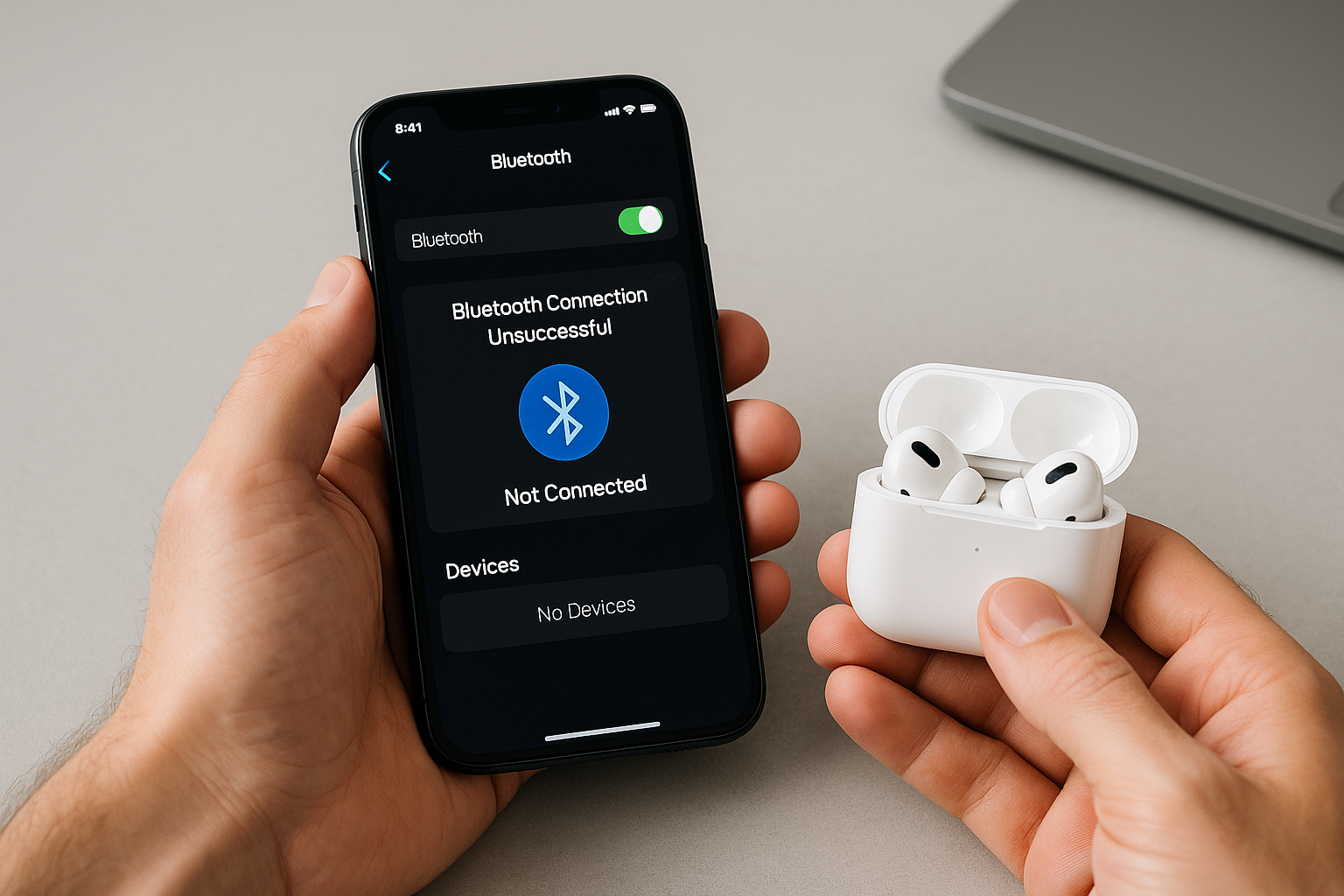
Quick Answer
If your iPhone won’t connect to Bluetooth, start by toggling Bluetooth off and on, then restart both your iPhone and the accessory. Forget the accessory in Settings > Bluetooth, put the accessory in pairing mode or reset it, and pair again. Update iOS and the accessory’s firmware, check app Bluetooth permissions, and, for stubborn issues, use Reset Network Settings. For cars, AirPods, hearing aids, and fitness gear, follow the accessory-specific steps below.
Start with the basics
Confirm Bluetooth and pairing mode
Open Settings > Bluetooth and make sure Bluetooth is on. If the accessory doesn’t appear under “Other Devices,” it’s usually not in pairing mode or it’s connected to another phone, tablet, or laptop. Put it into pairing mode (often a long press on the power or Bluetooth button) and keep it within a few feet of your iPhone. Many accessories exit pairing mode after 30–60 seconds; if it disappears, repeat the process.
Check range, charge, and multi-device conflicts
Most audio devices have a practical Bluetooth range of about 10 meters, less through walls or around metal. Keep devices close and in line of sight. Make sure both are charged—low batteries can reduce radio performance. If the accessory supports multipoint or was recently used with another device, disconnect or turn off Bluetooth on that device so your iPhone can take over.
Toggle radios and restart
Quick radio resets fix many connection glitches. Try, in order:
- Turn Bluetooth off and on: Settings > Bluetooth.
- Toggle Airplane Mode on for 10 seconds, then off.
- Restart your iPhone (Settings > General > Shut Down) and power-cycle the accessory.
Re-pair cleanly for a fresh start
Forget the device and pair again
Go to Settings > Bluetooth, tap the “i” next to the device, then tap Forget This Device. Reboot the accessory, put it in pairing mode, and add it again from the Bluetooth list. This clears stale keys that can cause “Connected” with no audio or endless spinning during pairing.
Reset the accessory’s Bluetooth memory
If your speaker, headset, or car radio remembers too many devices, new pairings can fail. Clear its pairing list (commonly by holding the Bluetooth button for 10–15 seconds or via a settings menu) and try pairing from scratch with only your iPhone nearby. Check the manual for exact steps.
Settings that commonly block Bluetooth
Update iOS and accessory firmware
Bluetooth fixes arrive frequently. Update iOS in Settings > General > Software Update. Many accessories update through a companion app—open the app, connect via Bluetooth, and look for a firmware option. AirPods update automatically when they’re in the case, charging, and near your iPhone.
Check app Bluetooth permission
If an accessory pairs but won’t work inside its app, the app may not have Bluetooth access. Go to Settings > Privacy & Security > Bluetooth and enable access for the app. Some apps also need Local Network or Location permission—check those in Privacy & Security if setup happens inside the app.
Low Power Mode and background limits
Low Power Mode doesn’t disable Bluetooth, but it can limit background activity that some accessory apps rely on. If you notice flaky behavior or stalled firmware updates, charge your iPhone or temporarily turn Low Power Mode off in Settings > Battery.
Reset Location & Privacy if trust prompts are stuck
Corrupted privacy settings can block successful handshakes with apps. Go to Settings > General > Transfer or Reset iPhone > Reset > Reset Location & Privacy. You’ll need to re-approve app permissions afterward.
Fix drops, stutters, and “connected but no sound”
If a headset shows connected but you hear iPhone speakers, open Control Center, press and hold the audio tile, and pick the accessory under the AirPlay icon. Turn the accessory’s volume up and confirm it’s on the right input. For calls, keep the phone and mic path clear; hands-free (HFP) for calls and stereo audio (A2DP) can switch during calls, which may change volume and mic routing.
Interference is a common culprit. Microwaves, USB 3.0 hubs, and crowded 2.4 GHz Wi‑Fi can swamp Bluetooth. Move a few feet from routers and laptops, or temporarily turn off a 2.4 GHz Wi‑Fi network while diagnosing. Metal or thick cases can also block antennas—test without the case. If your iPhone supports Spatial Audio or noise control (AirPods Pro/Max), try cycling those modes and reselecting the output in Control Center.
Accessory-specific fixes
AirPods and Beats
Keep AirPods in the case, open the lid near your iPhone, and wait for the setup card. If pairing fails or audio glitches persist, reset them:
- Forget AirPods in Settings > Bluetooth.
- Put both earbuds in the case and open the lid.
- Hold the setup button on the case for about 15 seconds until the light flashes amber, then white.
- Bring the case near your iPhone and follow the on-screen prompt.
For Beats with a power button, hold it for 10–15 seconds to enter pairing or reset, then re-pair. If one earbud won’t connect, clean the charging contacts and make sure both pins are making contact so each bud gets power.
Cars and CarPlay
For standard Bluetooth calling and audio, delete the iPhone profile from your car’s system and Forget This Device on your iPhone. Then pair again from the car’s Bluetooth menu and approve any prompts to sync contacts and favorites. If your car supports wireless CarPlay, remember it uses Bluetooth for discovery and Wi‑Fi for data. Make sure Wi‑Fi and Bluetooth are on, start from the car’s CarPlay setup screen, and approve all prompts on the iPhone. If CarPlay drops often, update your car’s firmware (dealer or manufacturer app) and test wired CarPlay to confirm baseline compatibility.
Speakers, soundbars, and TVs
Turn off or move away nearby paired devices to prevent auto-reconnect. Many soundbars have separate TV and Bluetooth inputs—select the Bluetooth input manually. For TVs, some accessories pair through a TV menu or streaming dongle; if so, pair inside that device’s settings, not directly in iOS.
Fitness trackers and smart devices
Most trackers use Bluetooth Low Energy and pair inside the manufacturer’s app, not in the iPhone Bluetooth menu. If setup fails, force-quit the app, toggle Bluetooth, and try again. Remove the device from the app’s device list before re-adding it, and verify the app has Bluetooth permission in Privacy & Security. Keep the device charged and within a few inches during initial provisioning.
MFi hearing aids
Pair MFi hearing devices via Settings > Accessibility > Hearing Devices, not the standard Bluetooth screen. Open and close the battery doors or place them in pairing mode, then tap them under Hearing Devices. If calls or media won’t route correctly, check Audio Routing in Accessibility > Touch > Call Audio Routing and in Accessibility > Hearing Devices options. Some models offer per-ear volume and program settings that can affect perceived audio levels—verify those in the app or the iOS Hearing control.
Use targeted resets when nothing else works
Reset Network Settings
This clears all network stacks, including Bluetooth, Wi‑Fi, and VPN profiles, without erasing your data. Go to Settings > General > Transfer or Reset iPhone > Reset > Reset Network Settings. You’ll need to rejoin Wi‑Fi networks and re-pair Bluetooth accessories afterward.
Reset All Settings (last resort)
If deep configuration issues remain, try Settings > General > Transfer or Reset iPhone > Reset > Reset All Settings. This resets system settings (Wi‑Fi, Bluetooth pairings, Home Screen layout, privacy settings, Apple Pay cards) but keeps your content. Back up first and be ready to reconfigure preferences.
Quick diagnosis by symptom
| Symptom | Likely cause | What to do |
|---|---|---|
| Device never appears in list | Not in pairing mode; already connected elsewhere; out of range | Enable pairing mode, move closer, disconnect from other devices, restart accessory |
| Pairs but no audio | Wrong output selected; stale pairing keys; incorrect input on accessory | Select device in Control Center; choose the correct input; Forget and re-pair |
| Frequent stutters/drops | 2.4 GHz interference; low battery; blocked antenna | Move away from routers/USB hubs, charge both devices, remove case, keep line of sight |
| Works in iOS but not in the app | App lacks Bluetooth/Local Network permission | Grant permissions in Settings > Privacy & Security; relaunch the app |
| Car won’t reconnect automatically | Corrupt profile; wireless CarPlay Wi‑Fi off | Delete profiles on both ends; ensure Wi‑Fi and Bluetooth are on; re-pair via car menu |
| Accessory firmware update fails | Low Power Mode; unstable link | Disable Low Power Mode, keep devices close, avoid interference during update |
Rule out hardware issues
Test with multiple accessories. If your iPhone won’t connect to anything while other phones can, the phone’s Bluetooth radio or antenna may be damaged. If your iPhone connects fine to most devices but one accessory still won’t pair, the accessory is at fault. For iPhone-side concerns, run diagnostics in the Apple Support app, schedule a Genius Bar appointment, or contact the accessory manufacturer for warranty service.
Tips to keep Bluetooth stable
Keep iOS and accessory firmware current, and periodically clear old pairings on devices that move between many phones. Avoid juggling too many simultaneous Bluetooth roles; while iPhone can connect to multiple devices at once, audio output goes to one at a time, and heavy multipoint use can cause priorities to shift. During important calls, keep the phone and headset close, avoid pockets with thick fabric, and minimize nearby 2.4 GHz noise. If you regularly switch between car, earbuds, and speakers, pick your output in Control Center to prevent unwanted handoffs.
Frequently Asked Questions
Why won’t my iPhone find any Bluetooth devices at all?
Verify Bluetooth is on in Settings and toggle Airplane Mode on and off. Restart your iPhone, put the accessory in pairing mode, and move it within a few inches. If nothing appears, perform Reset Network Settings and test again. If discovery still fails with multiple accessories, you may have a hardware issue that needs Apple Support.
My iPhone says connected, but there’s no sound. What should I check?
Open Control Center, press and hold the audio tile, and select your device under the AirPlay icon. Turn the accessory volume up and confirm it’s on the correct input. If the problem persists, Forget the device in Bluetooth settings and pair again to refresh audio profiles.
How do I reset AirPods for pairing problems?
Forget AirPods in Settings > Bluetooth. Put both earbuds in the case and open the lid. Hold the setup button on the case for about 15 seconds until the status light flashes amber, then white. Bring the case near your iPhone and follow the setup prompt. Keep the case charged and close to the iPhone for a few minutes to allow a firmware update if available.
Does Low Power Mode affect Bluetooth connections?
It doesn’t turn Bluetooth off, but it can limit background tasks and some app activity. If pairing is flaky or firmware updates get stuck, charge your iPhone or temporarily turn Low Power Mode off while setting up or updating accessories.
How many Bluetooth devices can my iPhone connect to at once?
iPhone can maintain several simultaneous Bluetooth connections (for example, a watch, a car kit, and a fitness tracker), but only one primary audio output at a time. If multiple audio devices are nearby, the iPhone may switch based on last use or priority; select your preferred output in Control Center to keep it active.
Wireless CarPlay won’t connect—should I focus on Bluetooth or Wi‑Fi?
Both matter: Bluetooth handles discovery, then the session moves primarily to Wi‑Fi. Ensure Wi‑Fi and Bluetooth are enabled on your iPhone, delete the car profile on both ends, and start pairing from the car’s CarPlay setup menu. Update your vehicle’s firmware and try a wired CarPlay session to confirm baseline compatibility.
Will Reset Network Settings delete my photos or messages?
No. Reset Network Settings clears Wi‑Fi networks and passwords, Bluetooth pairings, and VPN/APN settings, but it doesn’t erase personal data like photos, messages, or apps. You will need to rejoin Wi‑Fi networks and re-pair Bluetooth accessories afterward.