Quick Answer
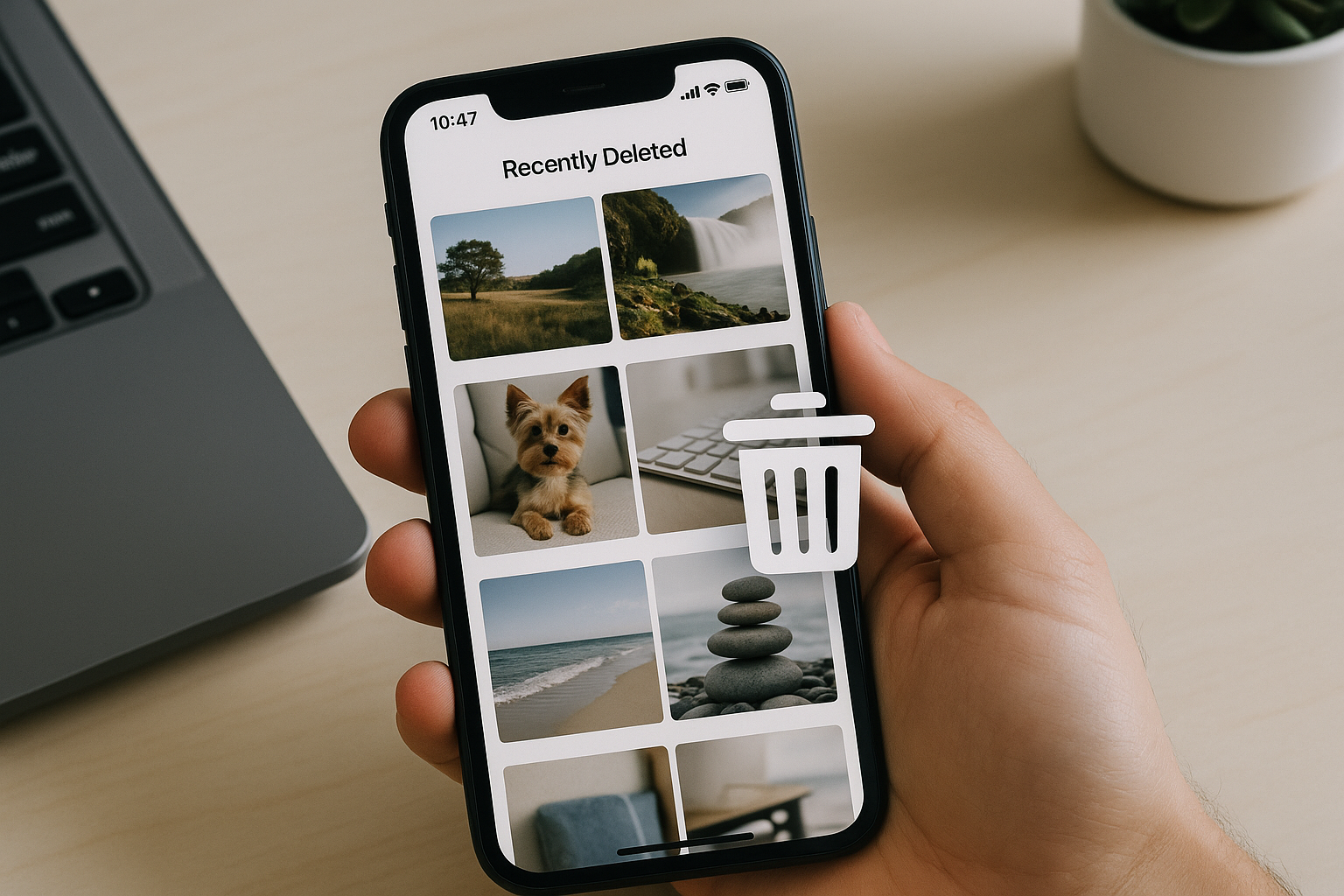
Start by checking each app’s Trash, Bin, or Recently Deleted folder: Google Photos (Bin, 60 days), Files by Google (Trash, about 30 days), and your phone’s gallery or file manager (e.g., Samsung Gallery/My Files Recycle Bin, 30 days). Also look in cloud services (Google Drive, OneDrive, Dropbox) and app-specific bins or backups (e.g., WhatsApp). If the file was on an SD card, power off your phone, remove the card, and run recovery from a computer. Without a backup or trash, recovering from internal storage is rarely feasible on modern Android due to security restrictions—act quickly and avoid using the device to prevent overwriting.
Before You Start: What Affects Recovery
Whether you can find recently deleted files on Android depends on:
- Where the file was stored (internal storage vs. SD card)
- Which app managed it (Photos, Gallery, Files, Drive, WhatsApp, etc.)
- How long ago it was deleted (app trash windows are typically 30–60 days)
- Whether syncing or backups were enabled (Google Photos, Drive, OneDrive, Dropbox)
Android 11+ introduced a system-level trash flag for media (used by many apps), but not all developers implement it. To improve your chances:
- Minimize phone use immediately—don’t shoot new photos, install apps, or download large files.
- Check the trash in the exact app that held the file.
- If it lived on an SD card, power off, remove the card, and use a computer-based recovery tool.
- Check cloud backups and app-specific backups (e.g., WhatsApp to Google Drive).
Check the Built-In Trash on Your Phone
Android doesn’t have a single recycle bin for everything, but most core apps include their own temporary holding area.
Files by Google (shows system trash for many media files)
On Android 11+, Files by Google can surface items many apps mark as trashed:
- Open Files by Google.
- Tap your profile icon or the menu and choose Trash (or open Browse and look for Trash/Recently Deleted).
- Select items and tap Restore to return them to their original folders, or Delete permanently to free space.
Retention is typically about 30 days.
Samsung: Gallery and My Files Recycle Bin
On Samsung phones (One UI), deleted content stays for 30 days:
- Samsung Gallery: Open Gallery > More (⋮) > Recycle bin. Select photos/videos to Restore.
- Samsung My Files: Open My Files > More (⋮) > Recycle bin. Restore deleted documents, downloads, and other files.
Google Photos: Bin (60-day window)
If your media was managed in Google Photos:
- Open Google Photos > Library > Bin (Trash in some regions).
- Touch and hold to select items, then tap Restore.
Photos and videos remain in Bin for up to 60 days. If you used Free up space, only on-device copies were removed—the originals remain in the cloud and can be viewed or downloaded anytime. If you tapped Delete, the items moved to Bin and were removed from all synced devices until restored.
Other OEM Galleries: Where to Look
Many manufacturer gallery apps include their own Recently Deleted folder. Use this guide to find it:
| Brand/App | Where to Find It | Typical Retention | Notes |
|---|---|---|---|
| OnePlus (Gallery) | Gallery > Collections/Albums > Recently Deleted | ~30 days | Restores to original album |
| OPPO/realme (Photos) | Photos > Albums > Recently Deleted | ~30 days | May vary by ColorOS/realme UI version |
| Xiaomi/Redmi/POCO (Gallery) | Gallery > Albums > Trash/Deleted items | ~30 days | Some models integrate with Mi Cloud |
| Huawei/Honor (Gallery) | Gallery > Albums > Recently Deleted | ~30 days | Available in EMUI/HarmonyOS gallery |
| Asus, Moto, others | Gallery/Photos app > Recently Deleted/Trash | ~30 days | Check app menu if not visible |
Recover from Cloud and App Bins
If your files were synced or stored in a cloud app, check its trash. Items are often restorable for 30 days or more.
Google Drive
- Open Google Drive > Menu (☰) > Trash (Bin in some regions).
- Select files and tap Restore.
Drive auto-deletes trash after 30 days. Restored files return to their original folders.
Microsoft OneDrive
- Open OneDrive > Me > Recycle bin.
- Select items and tap Restore.
Personal OneDrive keeps deleted files up to 30 days; Microsoft 365 business accounts often retain them longer (commonly 93 days).
Dropbox
- Open the Dropbox app (Files tab) or web > Deleted files.
- Select files and Restore.
Dropbox Basic/Plus retain deleted items for about 30 days; some paid plans keep them up to 180–365 days.
Messaging and Social Apps
Media shared in chats can sometimes be re-downloaded from the conversation:
- WhatsApp: If the chat still shows a download icon, tap it to fetch the file from WhatsApp’s servers. For older deletions, uninstall/reinstall and restore from your Google Drive backup during setup (if enabled). Local media may be under Android/media/com.whatsapp/WhatsApp/Media (or WhatsApp/Media on older devices).
- Telegram, Signal, Messenger: Open the chat’s media gallery. These apps often let you re-download media as long as the message remains.
If the File Was on an SD Card
SD cards are frequently recoverable with desktop tools because they use FAT32/exFAT file systems. Move quickly and avoid writing anything new to the card.
- Power off your phone and remove the SD card (enable the card’s write-protect switch if present).
- Insert the card into a computer via a card reader (avoid connecting the phone by USB, which can limit low-level access).
- Use a reputable recovery tool such as PhotoRec/TestDisk (free), Recuva (Windows), or commercial options like R-Studio or EaseUS.
- Scan the entire card, preview results, and recover to a different drive (never back to the same SD card).
- Back up recovered files, then consider reformatting the card before reuse.
If a thorough scan finds nothing, stop using the card. Professional data recovery labs may help, but costs can be high—weigh the value of the lost data.
Internal Storage Recovery: What’s Realistic
Android’s security model (especially on Android 10+) prevents deep scans of internal storage. Recovery without an app trash or backup is rarely possible.
What to know:
- Root-required tools can access more, but rooting can overwrite data and void warranties. If you aren’t already rooted, attempting it for recovery often reduces your chances.
- ADB over USB cannot recover deleted files; it only exposes what the system still indexes.
- Apps like DiskDigger may find recently deleted images or thumbnails on some devices, but full file recovery is uncommon.
- For critical losses without a trash/backup, consider a professional mobile data recovery lab—success isn’t guaranteed.
Use Your Phone’s Files App to See System Trash (Android 11+)
Android 11 added a MediaStore trash flag used by many apps. If you don’t have Files by Google, open your device’s built-in Files or File Manager app and look for Trash or Recently Deleted. You can also search “trash” in Settings to find shortcuts. Restoring places items back in their original locations; emptying trash deletes them permanently.
Troubleshooting: If You Still Can’t Find It
Work through these checks before giving up:
- Search by file type and date. In Files by Google, filter by Images, Videos, Documents, Audio, or Downloads.
- Switch user profiles or Secure Folder (Samsung). Work profiles and Secure Folder keep separate bins.
- Open the app that created the file (scanner, notes, voice recorder). Many have their own trash or cloud sync.
- Check both internal storage and SD card if your camera or app could save to either.
- Review cloud account activity on the web (Drive, OneDrive, Dropbox) to see when deletion occurred and whether it synced.
- Remember that Android/media and Android/data folders are protected; use the app itself or Files by Google to browse them on-device.
Prevent Future Data Loss
Set up simple safeguards now:
- Enable Google Photos backup and confirm uploads over Wi‑Fi and mobile data as needed.
- Store documents in a cloud drive (Drive, OneDrive, Dropbox) and rely on version history; download offline copies only when needed.
- Turn on Camera Upload in OneDrive or Dropbox if you don’t use Google Photos.
- For WhatsApp, enable Google Drive backups on a daily or weekly schedule; understand that restoring will replace messages with the backup’s state.
- Avoid aggressive “cleaner” apps that auto-empty trash or purge caches without review.
- Keep important files in apps that clearly support trash and restore.
- Back up SD cards regularly and replace aging cards to reduce corruption risk.
Frequently Asked Questions
Where do deleted files go on Android?
There’s no single recycle bin. Many apps have their own: Google Photos has Bin, Files by Google and OEM file managers have Trash/Recycle Bin, and gallery apps from Samsung, OnePlus, Xiaomi, and others keep Recently Deleted for around 30 days. Cloud services (Drive, OneDrive, Dropbox) also maintain separate trash folders.
How long do I have before deleted items are gone?
Common windows: Google Photos Bin 60 days; Files by Google Trash about 30 days; Samsung Gallery/My Files 30 days; Google Drive 30 days; OneDrive 30 days (personal, longer for many business accounts); Dropbox 30 days on Basic/Plus, longer on some paid plans. After that, items are permanently removed and usually unrecoverable.
Can I recover deleted files from internal storage without root?
Only if an app’s trash or a cloud backup still has them. Due to scoped storage and security on Android 10+, undelete tools can’t deep-scan internal memory without root. Some apps may recover thumbnails or cached images, but full file recovery is rare.
I deleted photos from Google Photos. Are they gone everywhere?
If you pressed Delete in Google Photos, the items go to Bin and are removed from all synced devices; you can restore them within 60 days. If you used Free up space, only local copies were removed—the cloud originals remain available to view or download anytime.
What about SD card recovery?
SD cards are your best bet for undelete. Power off the phone, remove the card, use a card reader, and scan with PhotoRec/TestDisk, Recuva, or similar tools. Always recover to a different drive. If the first thorough scan fails, stop using the card and consider professional recovery if the data is critical.
Do third-party Android recovery apps actually work?
They can help in limited cases—especially with SD cards or on devices that are already rooted—but claims of full internal storage recovery without root are usually overstated. Prioritize app trash, cloud bins, and SD card scans for the best results.
Can I get files back after a factory reset?
Not from internal storage in any practical way. A reset wipes user data. Your options are restoring from Google backups, Google Photos, cloud drives, or performing separate SD card recovery. Professional labs may attempt advanced methods, but success isn’t guaranteed and costs can be high.