Quick Answer
If your iPhone says storage is full, open Settings > General > iPhone Storage and follow the recommendations at the top. Then target the biggest offenders: large videos, Photos, Messages attachments, and offline downloads from apps like Spotify, Netflix, and Podcasts. Turn on iCloud Photos with Optimize iPhone Storage, offload or delete unused apps, empty Recently Deleted albums, and reset cache-heavy apps by deleting and reinstalling. These steps typically free several gigabytes fast.
Start with the Storage Overview
Check the storage map and follow recommendations
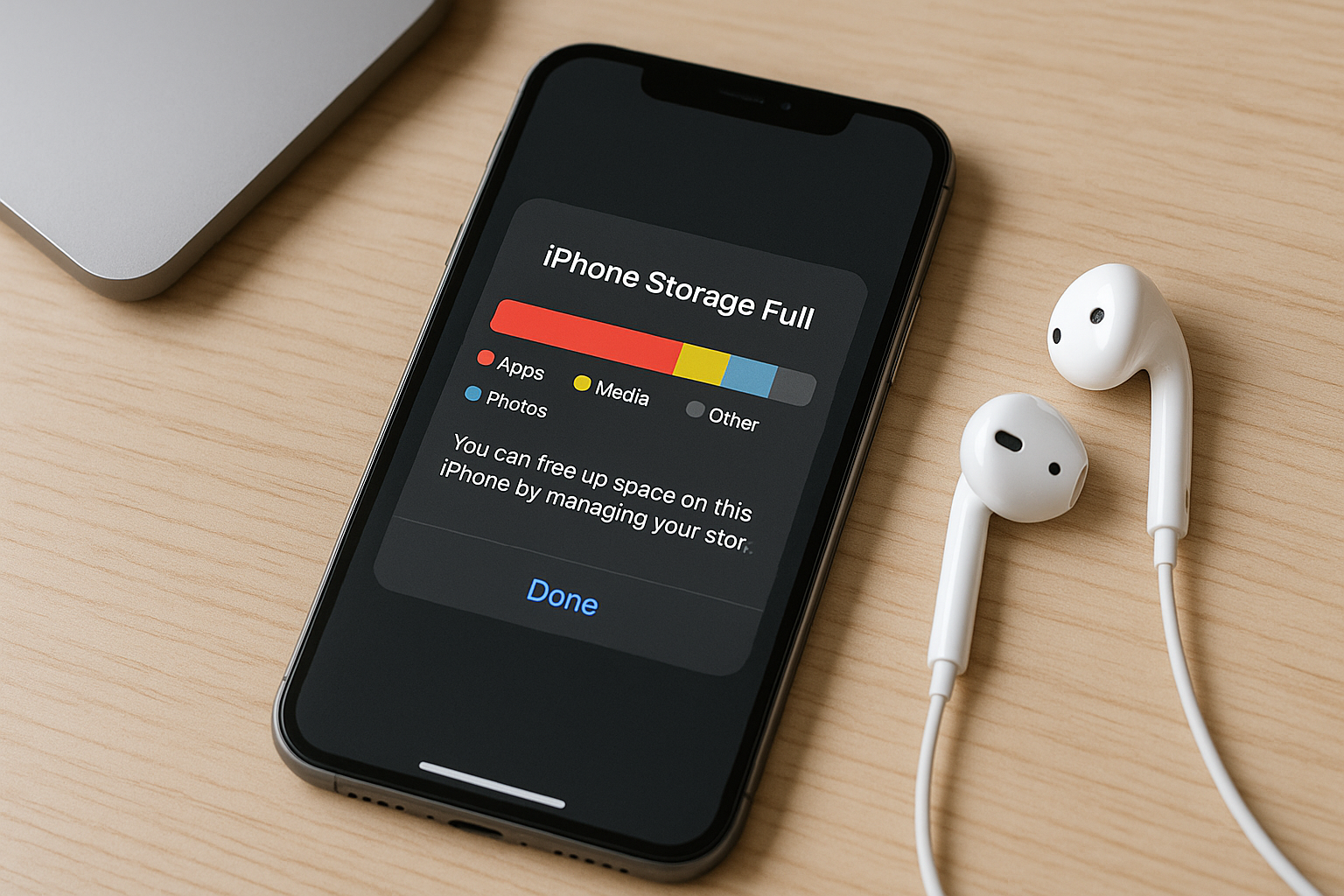
Go to Settings > General > iPhone Storage. The colored bar shows what’s using space (Photos, Apps, Media, System Data). Below it, Apple lists personalized recommendations like Review Large Attachments, Offload Unused Apps, and Optimize Photos. Work through these first—the list is prioritized by potential impact, so each tap usually yields quick wins.
Fast Fixes You Can Do Right Now
These take minutes and often free multiple gigabytes:
- Empty Recently Deleted everywhere: In Photos > Albums > Utilities > Recently Deleted, select all and delete. Do the same in Files (Browse > Recently Deleted) and Voice Memos (Recently Deleted). Space isn’t reclaimed until you empty these folders.
- Delete large videos and screen recordings: In Photos > Albums > Videos and > Screen Recordings, quickly review and remove obvious non-keepers.
- Clear Messages attachments: Settings > General > iPhone Storage > Messages > Review Large Attachments. Delete big videos, photos, and GIFs without removing entire threads.
- Remove offline downloads from media apps:
- Apple Music: Settings > Music > Downloaded Music > Edit > Delete, or remove downloads by album/playlist.
- Spotify: Settings > Storage > Remove all downloads, or remove per-playlist in Library > Downloads.
- Podcasts: Settings > Podcasts > Remove Played Downloads; also limit auto-downloads.
- TV/Netflix/YouTube: In each app’s Library/Downloads, delete watched content.
- Clear Safari data: Settings > Safari > Clear History and Website Data. In Safari, remove Reading List items (swipe left) and turn off Automatically Save Offline in Settings > Safari if you don’t use it. Note: clearing data signs you out of websites.
- Review “On My iPhone” files: Files > Browse > On My iPhone > Downloads. Delete old installers, PDFs, and ZIP archives.
Photos and Videos: Reclaim the Most Space
Turn on iCloud Photos with Optimize iPhone Storage
Go to Settings > Photos, enable iCloud Photos, then select Optimize iPhone Storage. Full‑resolution photos and videos upload to iCloud; your iPhone keeps lightweight versions. Space returns after the upload completes and the device optimizes. If you’re nearly out of space and uploads can’t start, first delete a few obvious large files (1–2 GB), then enable Optimize. Note: large libraries may require an iCloud+ plan beyond the free 5 GB.
Free up local space without losing your library
If you don’t use iCloud Photos, back up media to a Mac/PC or an external drive, then delete from your iPhone:
- Mac: Use the Photos app or Image Capture to import and optionally delete originals from the iPhone after transfer.
- Windows: Use the Photos app or File Explorer (DCIM folder) to copy, then delete from the iPhone.
- External drive: On USB‑C iPhones, connect a USB‑C drive and move files using Files. On Lightning models, use Apple’s Lightning to USB 3 Camera Adapter with a powered USB drive.
After deleting, empty Photos > Recently Deleted to reclaim space.
Trim what you keep
- Delete duplicates: Photos > Albums > Utilities > Duplicates lets you safely merge identical shots.
- Cull bursts and Live Photos: Choose a single frame from bursts. For Live Photos, tap Edit > Live > Off to disable motion, or use the ••• menu > Duplicate as Still Photo to keep a smaller still.
- Shorten long clips: In Photos, trim video starts/ends and tap Done. Edits are non‑destructive—you can revert later—while the trimmed version uses less space.
- Shoot lighter formats: ProRAW photos and ProRes videos are huge. Use them only when needed.
Reduce future storage use
- Video recording: Settings > Camera > Record Video. Switch from 4K 60 fps to 1080p 30 fps if you don’t need ultra‑high quality; this can cut file sizes by 4–6×.
- High Efficiency formats: Settings > Camera > Formats > High Efficiency (HEIF/HEVC). Keeps quality high with smaller files; use Most Compatible only if a workflow requires JPEG/H.264.
- Turn off HDR video for everyday clips: Settings > Camera > Record Video > HDR Video off to save space and maximize compatibility.
Apps and Caches: Target the Hidden Gigabytes
Offload unused apps
Offloading removes the app binary but keeps its documents and data. The Home Screen icon stays with a download badge; tap to restore when needed. Enable automatically in Settings > App Store > Offload Unused Apps, or do it per app in Settings > General > iPhone Storage > [App] > Offload App. It’s a safe, low‑effort win for rarely used apps.
Reclaim space from cache-heavy apps
Many apps grow large caches over time (social media, browsers, shopping, maps). If there’s no in‑app “Clear Cache,” the reliable fix is to delete and reinstall the app. Check Settings > General > iPhone Storage to see each app’s Documents & Data size. Tips:
- Instagram/Twitter/Reddit: Delete and reinstall to clear cached media. Logins and cloud data persist, but offline content is removed.
- TikTok/Snapchat: Try the in‑app “Free up space” or “Clear Cache” first; if still large, reinstall.
- Maps: Remove downloaded maps you no longer need for offline use.
Messages: set limits and clean smart
- Auto‑expire old messages: Settings > Messages > Keep Messages > 30 Days or 1 Year to prevent years of attachments from piling up.
- Review Large Attachments: Settings > General > iPhone Storage > Messages > Review Large Attachments. Sort by size and delete what you don’t need.
WhatsApp, Telegram, and similar apps
- WhatsApp: Settings > Storage and Data > Manage Storage. Sort by Largest and clear big videos and forwarded media. Disable auto‑downloads to stop future bloat.
- Telegram: Settings > Data and Storage > Storage Usage. Reduce cache limits and Clear Cache. Media remains in the cloud; you’re clearing local copies.
Files, Mail, and iCloud: Don’t Overlook These
Clean the Files app
In Files, check both On My iPhone and iCloud Drive for big items stored offline. Long‑press any large file and tap Info to see size; delete, or for iCloud files choose Remove Download so they exist only in the cloud. Also clear the Downloads folder—this often hides big ZIPs, installers, and PDFs.
Mail attachments and sync range
Large email attachments can consume space. In Mail, search “Attachments” and delete old messages with huge files after saving what you need elsewhere. Some accounts (e.g., Exchange) let you limit the sync range (such as 1 Month), which reduces locally cached mail and attachments.
What about iCloud backups?
iCloud backups don’t use on‑device storage. Deleting old device backups frees iCloud space—not iPhone space. What matters locally are iCloud Drive files kept Downloaded and app caches. Manage those in Files and in each app’s settings.
Advanced Cleanup and System Data
Understand “System Data” and how to shrink it
System Data (previously “Other”) includes caches, logs, and temporary files. You can’t delete it directly, but you can reduce it:
- Update iOS to the latest version (Settings > General > Software Update).
- Restart the iPhone to clear temporary caches.
- Clear Safari data and reinstall cache‑heavy apps to reduce System Data indirectly.
- Keep 5–10 GB free so iOS can manage caches effectively.
Use a computer for big offloads
If you’re consistently short on space, regularly archive 4K videos and RAW/ProRAW photos to a computer or network drive. After confirming the backup, delete them from the iPhone and empty Recently Deleted. Creators often keep only current projects on‑device and archive the rest.
External storage for quick transfers
On USB‑C iPhones, plug in a USB‑C thumb drive, open Files, and move big videos directly to the drive. On Lightning models, use Apple’s Lightning to USB 3 Camera Adapter with a powered USB drive. This is ideal for offloading on trips without a laptop.
What to Tackle First: A Practical Guide
| Area | Where to manage | What to remove | Typical space freed | Time required |
|---|---|---|---|---|
| Large videos | Photos > Albums > Videos | 4K clips, long screen recordings | 1–10+ GB | 5–15 min |
| Messages media | Settings > iPhone Storage > Messages | Old videos, photos, GIFs | 0.5–5 GB | 5–10 min |
| Media downloads | Music/Podcasts/TV/Netflix apps | Watched shows, played episodes | 1–15 GB | 5–10 min |
| App caches | Settings > iPhone Storage > [App] | Temporary data via reinstall | 0.5–4 GB | 10–20 min |
| Photos optimization | Settings > Photos | Enable Optimize iPhone Storage | 5–40+ GB (after upload) | Setup: 2 min; full effect varies |
| Safari data | Settings > Safari | History, website data, offline list | 0.2–1 GB | 2–3 min |
| Files downloads | Files > On My iPhone | ZIPs, PDFs, installers | 0.2–3 GB | 3–5 min |
Prevent Running Out of Space Again
- Keep Optimize iPhone Storage on if you use iCloud Photos.
- Set Messages to keep for 30 Days or 1 Year, not Forever.
- Limit auto‑downloads in Podcasts, WhatsApp, and similar apps.
- Default your Camera to 1080p 30 fps unless you truly need 4K 60.
- Review Downloads folders monthly in Files and media apps.
- Enable Offload Unused Apps in Settings > App Store.
- Consider an iCloud+ plan if photos and videos are your main storage need.
Frequently Asked Questions
Why does my iPhone say storage is full even after I delete things?
Deleted items often sit in Recently Deleted for 30 days across Photos, Files, and Voice Memos. Empty those folders to reclaim space. Also, some apps hold large caches categorized as System Data; a restart, clearing Safari data, and reinstalling heavy apps usually restores free space.
Is “Offload Unused Apps” safe to use?
Yes. Offloading removes the app but keeps your documents and data. The icon remains on your Home Screen, and tapping it re‑downloads the app. For secure apps (banking, password managers), make sure you know your login before offloading or deleting.
Do iCloud Photos and Optimize iPhone Storage delete my originals?
No. Originals upload to iCloud and stay there; your device stores smaller versions to save space. You can download the full‑resolution file anytime. If you later disable iCloud Photos, allow time for originals to re‑download if you want local copies.
How can I reduce the size of System Data?
You can’t remove it directly. Update iOS, restart the phone, clear Safari data, and reinstall cache‑heavy apps. Keeping several gigabytes free helps iOS manage temporary files and logs more efficiently.
What’s the best way to handle WhatsApp storage?
Go to WhatsApp > Settings > Storage and Data > Manage Storage, sort by Largest, and delete big videos and forwarded media. Disable auto‑downloads for Photos/Videos to prevent future buildup, and periodically clear per‑chat media in busy groups.
Will changing camera settings noticeably affect quality?
For everyday video, 1080p 30 fps looks excellent and is far smaller than 4K 60. Use 4K selectively when you need extra detail. High Efficiency (HEIF/HEVC) preserves quality with smaller file sizes, and compatibility is broad on modern devices and platforms.
Do old device backups take up space on my iPhone?
No. iCloud backups occupy iCloud storage, not on‑device storage. What can grow locally are app caches and iCloud Drive files kept downloaded. Manage those in Files and in each app’s settings.