Quick Answer
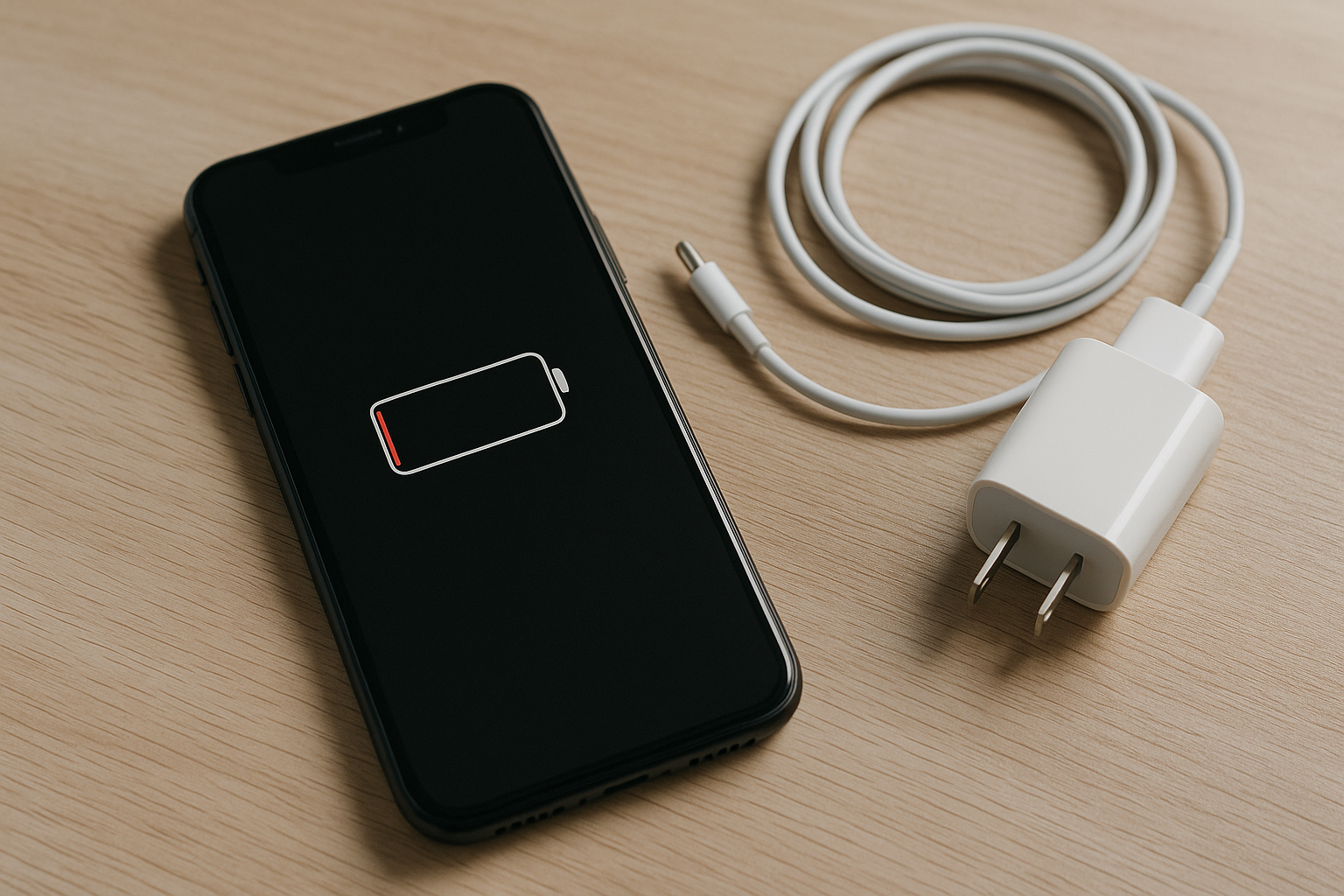
If your iPhone battery is draining fast, first open Settings > Battery to see which apps and system services are using the most power and whether there’s heavy “Background Activity.” Next, check Battery Health & Charging to confirm maximum capacity and whether service is recommended. Frequent causes include weak cellular signal, 5G set to “On,” aggressive mail push, constant location access, Always‑On Display on Pro models, lots of widgets or Live Activities, StandBy mode at night, keyboard haptics, and post‑update indexing. Adjusting those settings, updating apps and iOS, and avoiding heat usually restores normal battery life.
Start With the Built‑In Battery Report
Go to Settings > Battery and review both “Last 24 Hours” and “Last 10 Days.” This quickly shows what changed and when.
- Usage by App: Look for apps high on the list, especially those showing “Background Activity.” Streaming, social, navigation, and messaging apps often lead because they remain active.
- Screen On vs. Screen Off: If Screen On time is low but usage is high, something is running in the background. If Screen On is high, lower brightness and shorten Auto‑Lock.
- Home & Lock Screen: High percentages here point to frequent screen wake‑ups, too many notifications, widgets, Live Activities, or Always‑On Display.
- Battery chart: Spikes during idle periods usually indicate a runaway background task, poor signal, or a recently installed app misbehaving.
If an app stands out, take these steps:
- Update the app in the App Store. Developers often patch background issues.
- Disable Background App Refresh: Settings > General > Background App Refresh > Off for that app, or set Refresh to “Wi‑Fi” only.
- Restrict Location: Settings > Privacy & Security > Location Services > [App] > While Using or Never. Turn off “Precise Location” if not required.
- Trim Notifications: Settings > Notifications > [App]. Switch to “Deliver Quietly” or disable nonessential alerts and Live Activities.
- Reinstall if drain persists: Delete the app, reboot, then install it fresh to clear corrupted data.
Check Battery Health and Charging
Open Settings > Battery > Battery Health & Charging.
- Maximum Capacity: Near 100% is normal on a newer phone. Around 80% typically brings noticeable runtime loss. If you see a “Service” message, plan a battery replacement.
- Peak Performance Capability: If performance management was applied after an unexpected shutdown, your iPhone may throttle under load. A degraded battery often correlates with faster drain.
- Optimized Battery Charging: Keep this on. It slows charging above 80% when you don’t need it, reducing long‑term wear.
Heat accelerates drain and aging. Avoid intensive apps while charging, keep the phone out of direct sun, and remove thick cases if the device gets hot during fast or wireless charging. Use Apple or certified chargers and cables; poor accessories can waste power and add heat.
Networks, Signal, and 5G Settings
Radios use significant power, especially in weak coverage. If your phone spends the day hunting for service, expect rapid drain.
- Signal strength: If bars often drop low, use Airplane Mode in dead zones, connect to Wi‑Fi, or switch Voice & Data to LTE to reduce 5G power draw.
- 5G modes: Settings > Cellular > Cellular Data Options > Voice & Data. “5G Auto” is usually best. Avoid “5G On” unless you truly need constant 5G.
- Wi‑Fi: Prefer known Wi‑Fi networks to reduce cellular radio time. Consider turning off “Wi‑Fi Assist” if it triggers unwanted cellular usage (Settings > Cellular).
- Dual SIM: Two active lines keep more radios awake and can drain faster. Disable the line you’re not using.
- Personal Hotspot: Sharing data is intensive. Turn it off when finished.
Features That Commonly Drain Battery
Display and Lock Screen
The display is often the top drain. Try these tweaks:
- Brightness and Auto‑Lock: Use Auto‑Brightness and lower manual brightness when possible. Set Auto‑Lock to 30 seconds or 1 minute.
- Always‑On Display (Pro models): Settings > Display & Brightness > Always On. Turning it off can save a few percentage points over a workday.
- Widgets and Live Activities: Each widget updates data; Live Activities keep the lock screen active. Remove ones you don’t use. Global Live Activities toggle: Settings > Face ID & Passcode > Allow Access When Locked > Live Activities.
- Limit Frame Rate: On ProMotion models, Settings > Accessibility > Motion > Limit Frame Rate locks to 60 Hz for modest savings.
- Reduce accidental wake: Disable Raise to Wake and Tap to Wake if your screen lights up in a pocket or bag (Settings > Display & Brightness).
- StandBy (iOS 17+): If docked overnight, StandBy keeps the screen lit. Turn it off in Settings > StandBy if you prefer maximum standby life.
Background App Refresh and Location
Background fetches and constant GPS checks add up.
- Background App Refresh: Turn it Off for apps that don’t need it, or set to “Wi‑Fi” only.
- Location Services: Set most apps to “While Using.” Avoid “Always” except for navigation, device tracking, or automations that truly need it. Disable “Precise Location” for apps that don’t need pinpoint accuracy.
- System Services: In Settings > Privacy & Security > Location Services > System Services, consider turning off product‑improvement toggles (e.g., iPhone Analytics, Improve Maps) and review Significant Locations if you don’t use features that rely on it.
Mail, Calendar, and Messaging
Push and frequent sync can wake radios all day.
- Mail: Settings > Mail > Accounts > Fetch New Data. Disable Push for less critical accounts and set Fetch to Hourly or Manual.
- Third‑party mail apps: Many use their own push systems. If one ranks high in Battery, compare it to Apple Mail or reduce its notifications and sync scope.
Photos, iCloud, and Indexing After Updates
After an iOS update, restore, or turning on iCloud Photos, your iPhone re‑indexes photos, messages, and on‑device search. Drain can rise for 24–48 hours, especially while on Wi‑Fi and charging.
- Leave the phone on Wi‑Fi and power overnight to complete indexing.
- In Photos, face recognition and Memories run mostly when plugged in; let them finish.
Bluetooth, AirDrop, and Accessories
- Bluetooth is efficient, but flaky accessories can cause retries and heat. Re‑pair or forget devices that glitch.
- MagSafe and wireless charging that misaligns can create heat; reposition or use wired charging.
Analytics, Ads, and Haptics
- Settings > Privacy & Security > Analytics & Improvements: You can disable “Share iPhone Analytics.”
- Settings > Privacy & Security > Apple Advertising: Limit personalization if you prefer.
- Keyboard haptics: Settings > Sounds & Haptics > Keyboard Feedback. Turning off “Haptic” can save a bit of power if you type a lot.
When Extra Drain Is Normal vs. A Problem
| Scenario | What You’ll Notice | Expected Duration | What to Do |
|---|---|---|---|
| Just updated iOS or restored from backup | Warm phone; higher “Photos,” “Siri,” or “System” usage | 24–48 hours | Keep on Wi‑Fi and charge overnight to finish indexing |
| Enabled iCloud Photos or Messages in iCloud | Large upload/download activity; spike in background usage | Hours to days (library size dependent) | Allow to complete on Wi‑Fi and power; pause if traveling |
| Traveling in poor coverage | Rapid drop; “No Service” periods | During the trip | Prefer Wi‑Fi; use Airplane Mode in dead zones; set LTE |
| New app installed | High background activity for a day | Up to 24 hours | Update, restrict background/location, or uninstall if it persists |
| Battery health degraded (< 80%) | Short runtime; unexpected shutdowns | Ongoing | Plan a battery replacement; enable Low Power Mode |
If Drain Persists, Work Through These Fixes
- Update iOS and apps: Settings > General > Software Update, then App Store > Updates. Many releases target battery and background bugs.
- Restart the iPhone: A reboot can stop a stuck background process.
- Review Background App Refresh, Location, Notifications: Disable for nonessential apps as noted above.
- Reset network settings: Settings > General > Transfer or Reset iPhone > Reset > Reset Network Settings if connectivity seems unstable.
- Reset all settings: Same menu > Reset All Settings. This preserves data but resets preferences and can clear odd behavior.
- Check profiles and VPN: Remove test/beta profiles and temporarily disable VPNs to rule out constant background traffic.
- Isolate with a clean install: Back up, then erase and set up as new briefly. If battery life is normal before restoring your full backup, a specific app or setting is the cause.
- Run Apple diagnostics: Contact Apple Support or visit a store. They can test battery health and check for hardware faults.
Smart Habits That Extend Daily Life and Lifespan
- Use Low Power Mode when needed: Settings > Battery > Low Power Mode. It limits background tasks, mail fetch, and visual effects.
- Avoid heat: Ideal operating is 0–35°C (32–95°F). Don’t leave the phone on a car dashboard or under a pillow while charging.
- Charge intelligently: Frequent partial charges are fine. Avoid running to 0% regularly. Optimized Charging helps when kept on overnight.
- Trim constant pings: Fewer notifications mean fewer wake‑ups and screen activations.
- Keep storage healthy: Very low free space makes the system work harder. Leave some headroom.
Frequently Asked Questions
How do I know if my iPhone battery needs replacing?
Check Settings > Battery > Battery Health & Charging. If Maximum Capacity is around 80%, you see a “Service” message, or you experience unexpected shutdowns, schedule a replacement. Heavy users may benefit from replacing earlier to restore runtime.
Why does my battery drop a lot overnight when I’m not using the phone?
Review the Battery report for “Background Activity.” Common causes include poor signal, mail push, cloud sync, StandBy keeping the screen lit, or an app stuck in a loop. Try Airplane Mode overnight as a test; if drain disappears, radios were the issue. Otherwise, restrict background refresh and location for apps high on the list.
Does 5G really use more battery than LTE?
It depends on coverage and workload. In weak or spotty 5G, the modem works harder and uses more power. Set Voice & Data to “5G Auto” or LTE if you notice drain in patchy coverage, and prefer Wi‑Fi when available.
Is Always‑On Display why my Pro‑model iPhone drains faster?
Always‑On Display uses power because pixels stay lit. For many users it’s a small daily cost, but if the phone sits face‑up for hours or you use several lock‑screen widgets, it can add up. Turn it off in Settings > Display & Brightness and recheck standby drain.
My iPhone gets hot and the battery plummets. What should I do?
Heat usually means heavy processing or radio use. Stop intensive apps (gaming, video editing, hotspot), move to a cooler place, and unplug if charging. Check the Battery report to identify the culprit, update that app, and restrict its background access. Persistent overheating can signal a failing battery or hardware issue—contact Apple Support.
Will closing apps in the App Switcher save battery?
Routinely force‑quitting doesn’t help and can worsen drain if apps must fully reload. Focus on limiting background refresh, location, notifications, and Live Activities. Only force‑quit an app that’s clearly stuck.
Why did battery life get worse right after an iOS update?
Post‑update indexing and optimizations often run for a day or two. Leave the phone on Wi‑Fi and power overnight to finish. If drain continues beyond 48 hours, review the Battery report, update apps, adjust background settings, and consider Reset All Settings. If it still persists, contact Apple for diagnostics.