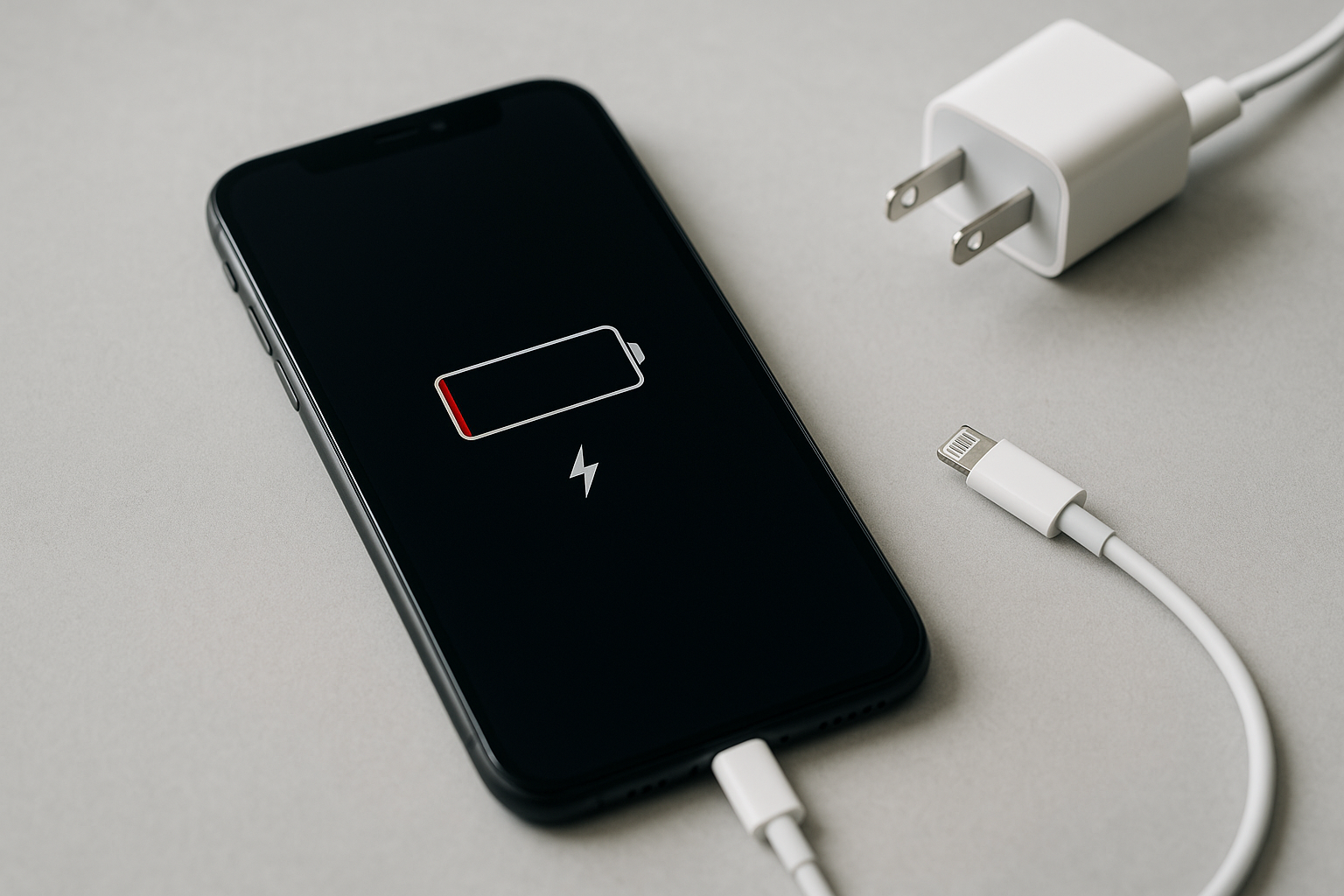
Quick Answer
If your iPhone isn’t charging, start with the basics: swap in a different cable, power adapter, and wall outlet, and inspect the charging port for lint or damage. Restart the phone, update iOS, and review Battery Health & Charging settings that can pause charging above 80% or when the device is warm. For iPhone 15 models, use a USB‑C cable and a 20W or higher USB‑C power adapter that supports USB Power Delivery (PD). If you see liquid detection or “Accessory Not Supported” alerts, or Battery Health shows “Service,” address those issues before attempting to charge again.
Start with the fastest checks
Rule out the power source
Test a known‑good wall outlet with a proven adapter and cable. Power strips, hotel or airplane USB ports, and some power banks underdeliver current or fluctuate. If you’ve been charging from a computer or car, switch to a wall adapter to eliminate low‑power or flaky USB ports. Avoid USB hubs and docks while troubleshooting; plug directly into a wall adapter.
Restart and, if needed, force restart
A quick reboot can clear a charging negotiation or software glitch. Power off and back on. If the phone is unresponsive, force restart: on iPhone 8 and later, press and release Volume Up, press and release Volume Down, then hold the Side button until the Apple logo appears.
Watch for on‑screen alerts
Heed system messages. “Charging On Hold” indicates the phone is too warm and will resume when it cools. “Liquid Detected in USB‑C Connector” (iPhone 15) or “Charging Not Available” due to liquid (Lightning models) means you should unplug and let the port dry. “Accessory Not Supported” usually points to a bad or uncertified cable, debris in the port, or a failing adapter.
Inspect your cable, adapter, and port
Use reliable, certified gear
Cables and adapters fail far more often than phones. Try an Apple cable or a certified alternative (MFi for Lightning; reputable USB‑C cables that support USB Power Delivery for iPhone 15). For fast, consistent charging, use a 20W or higher USB‑C PD power adapter. Old 5W bricks charge very slowly and can look like “not charging” when progress is just sluggish.
Check for wear and damage
Inspect connectors for bent pins, scorching, looseness, or frayed sheathing near the strain relief. Any scorching or a wobbly plug is a replace‑now failure. On Lightning, look for blackened or flattened center pins. On USB‑C, check for bent inner tongues, deformed shells, or cracked plastic.
Clean the charging port carefully
Lint and pocket debris are top causes of charging failures. Power off the iPhone. Using a wooden toothpick or plastic pick, gently lift out compacted lint from the port. Follow with a clean, soft, dry brush to dislodge fine dust. Do not use metal tools, liquids, or compressed air. After cleaning, reconnect the cable firmly; many “bad port” issues are simply poor contact from debris.
Software settings that affect charging
Optimized charging and 80% limits
iOS can pause charging near 80% to slow battery aging or align with your routine. If you see a message about charging resuming later, that’s expected, not a fault. To temporarily disable:
- Go to Settings > Battery > Battery Health & Charging.
- Turn off Optimized Battery Charging (you can choose “Turn Off Until Tomorrow”).
- On iPhone 15 models, check Charging Optimization. If you set an 80% limit, the phone will stop there by design; toggle it off for a full charge.
In some regions, Clean Energy Charging may delay charging when cleaner energy is predicted later. You can disable this in the same menu if timing is critical.
Update iOS and reset settings (if needed)
Install the latest iOS under Settings > General > Software Update. Charging behavior and accessory compatibility often improve with updates. If you’ve tried everything and charging still acts oddly, choose Reset All Settings (Settings > General > Transfer or Reset iPhone > Reset > Reset All Settings). This won’t erase your data, but you’ll re‑enter Wi‑Fi and some preferences.
Power source specifics to consider
Wall adapters vs. computers and cars
Computer USB ports can provide as little as 0.5A and may stop delivering power when the computer sleeps. Many car USB ports output low wattage and may not keep up with navigation and music streaming. For reliable results, use a 20W–30W USB‑C wall adapter and a short, high‑quality cable. Very long or thin cables can cause voltage drop and intermittent charging.
Which adapter works best?
Any USB‑C Power Delivery adapter rated 20W or higher will charge modern iPhones quickly. Apple’s 20W, 30W, 35W, and 61W+ adapters all work; the phone negotiates the power it needs. If you’re using a USB‑A adapter, it’s generally limited to 5W or 12W with special signaling, and results vary by brand. For iPhone 15 models, pair a USB‑C to USB‑C cable with a PD‑capable adapter; earlier iPhones use a USB‑C to Lightning cable for the best performance.
Wireless and MagSafe troubleshooting
Align, simplify, and cool
Remove magnetic mounts, metal plates, or thick wallets from your case. These block coils and generate heat, which slows or halts charging. Center the phone on the pad; with MagSafe, let the magnets click into place. If the phone or charger gets hot, charging may pause until temperatures drop—remove the case and move to a cooler surface.
Know your speed limits
MagSafe (iPhone 12 and later) charges up to 15W with Apple‑certified MagSafe chargers. Standard Qi pads charge iPhones at up to 7.5W. Qi2 chargers (rolling out with magnetic alignment) can improve performance on supported models. If wireless charging is inconsistent, test with a cable to isolate whether the issue is the phone or the pad.
Heat, cold, and moisture
Temperature pauses are normal
iPhones operate best between 0–35°C (32–95°F). Charging outside that range can slow or stop. If you see “Charging On Hold,” move the phone out of direct sun, close heavy apps or navigation, remove the case, and let it cool for a few minutes before trying again.
What to do after a liquid alert
When iOS detects moisture in the connector, it will block charging to protect the port. Unplug the cable, gently tap the phone with the connector facing down to encourage drainage, and let it air‑dry in a room with good airflow for at least 30 minutes; several hours is better if the phone was splashed or submerged. Do not use heat, rice, or canned air. Only use the “Emergency Override” option if you must power up in a critical situation; it risks corrosion and long‑term damage.
When the battery itself is the problem
Check Battery Health
Go to Settings > Battery > Battery Health & Charging. If Maximum Capacity is below about 80%, or you see “Service” or “Performance management applied,” the battery is significantly degraded. Degraded batteries can cause erratic charging, rapid percentage drops, and unexpected shutdowns. On iPhone 15 models, you can also see cycle count and set an 80% limit—useful for longevity but confusing if you expect 100% every night.
Service indicators and safety
If the phone bulges, the screen lifts, or you feel excessive heat while charging, stop using it and book service immediately. Swollen batteries are dangerous. Apple and authorized providers can test the battery and charging subsystem and replace parts as needed. If you have AppleCare+, battery service is typically covered when capacity falls below 80%.
Troubleshooting cheat sheet
| Symptom | Likely cause | Fix |
|---|---|---|
| No charging icon, totally unresponsive | Dead battery plus bad cable/adapter, or debris in port | Try known‑good 20W+ adapter and cable; clean port; force restart |
| Charges only when cable is held a certain way | Worn cable or dirty/damaged port | Replace cable; clean port; inspect for a loose connector |
| “Accessory Not Supported” | Uncertified/defective cable, debris, or damaged connector | Use Apple/certified cable; clean port; try a different adapter |
| Stuck at ~80% | Optimized charging, 80% limit set, or device temperature | Disable Optimized Charging or 80% limit; cool the phone |
| Wireless charging starts/stops repeatedly | Misalignment, case/metal interference, overheating | Remove case/accessories; re‑center; switch to MagSafe or cable |
| Charges on wall adapter but not computer | Low‑power USB port or sleeping computer | Use a wall adapter or powered USB‑C port with PD |
| Liquid alert appears | Moisture in connector or cable end | Unplug; air‑dry; avoid charging until alert clears |
When to contact Apple Support
If multiple known‑good cables and adapters fail, the port is physically damaged, liquid alerts persist after thorough drying, or Battery Health shows service is required, schedule a repair. Hardware issues like a failing charging IC, damaged port assembly, or swollen battery won’t be solved with at‑home steps. Back up your data and book a visit with Apple or an authorized service provider.
Frequently Asked Questions
Why does my iPhone stop charging at 80%?
This is usually Optimized Battery Charging or an 80% charging limit on iPhone 15 models. It can also happen if the device is warm. Check Settings > Battery > Battery Health & Charging to disable the limit or optimized charging temporarily, and let the phone cool before trying again.
Is it safe to clean the charging port, and what should I use?
Yes, if you do it gently. Power off the phone, then use a wooden toothpick or plastic pick to lift out lint, followed by a soft, dry brush. Avoid metal tools, liquids, and compressed air. Reinsert the cable firmly after cleaning; many failures are just poor contact from compacted lint.
Which charger wattage should I buy for best results?
A 20W USB‑C Power Delivery adapter hits the sweet spot for speed and reliability. Higher‑wattage adapters (30W–65W) are fine; the iPhone negotiates what it needs. Pair it with a quality USB‑C to USB‑C cable for iPhone 15, or a USB‑C to Lightning cable for earlier models.
Can a bad battery prevent charging altogether?
A severely degraded or damaged battery can cause erratic charging, unexpected shutdowns, and in rare cases prevent charging. If Battery Health shows “Service,” or you notice swelling or heat, stop charging and arrange service. Replacing the battery typically restores normal charging behavior.
What does “Accessory Not Supported” really mean?
It indicates the iPhone can’t establish a proper connection with the accessory. Common reasons are an uncertified or failing cable, debris in the connector, corroded pins, or an underpowered adapter. Test with an Apple or certified cable and a 20W or higher adapter, and clean the port before assuming the phone is at fault.
How long should I wait after a liquid detection alert before charging?
At least 30 minutes for light splashes; several hours if the port got soaked. Unplug immediately, let the phone air‑dry connector‑down in a cool, ventilated place, and don’t use heat or rice. Only attempt charging when the alert no longer appears.
Do third‑party cables damage iPhones?
Quality third‑party cables that are MFi‑certified (Lightning) or reputable USB‑C PD cables (iPhone 15) are safe. Problems arise with cheap, out‑of‑spec cables that overheat, have poor connectors, or lack proper e‑markers. If you get intermittent charging or alerts, switch to a certified cable.